5-12 How to Start the Printer Rev AB
Wolke m600 touch Operator Manual
How to Start the Printer
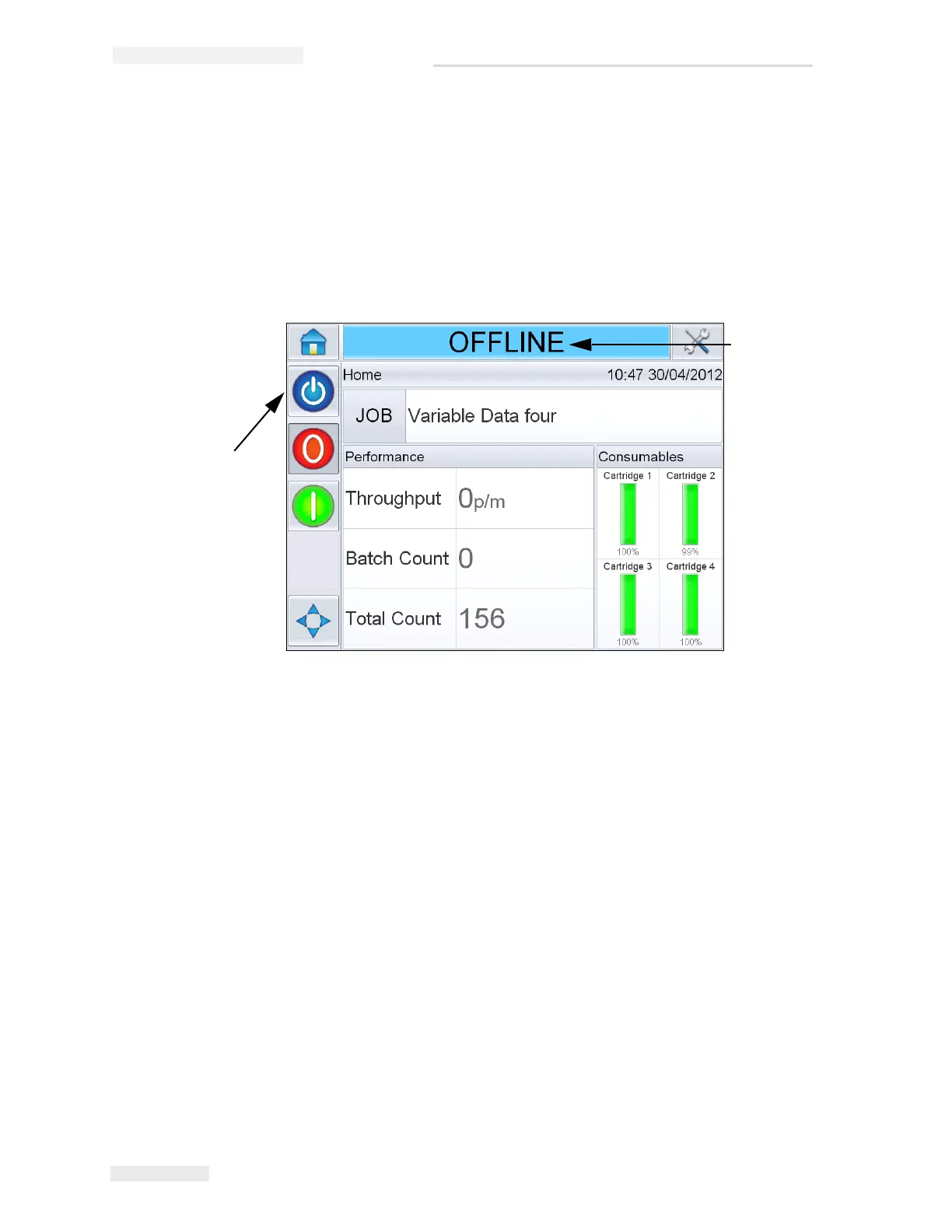
1 Touch the Startup/Shutdown icon to start the printer.
2 The STARTING UP status appears in the status bar of the CLARiTY
®
Home Page (Figure 5-17) followed by OFFLINE status when the printer
is successfully prepared for printing.
3 The Stop and Run icons become active.
4 If a fault or a warning condition exists, a fault or warning message
appears in the status bar instead of the OFFLINE status. Review the
“Fault Messages and Warnings” on page 8-1 and clear as required
before continuing.
5 To enable the printer to print, press the green Start button.
Note: Changing the status to OFFLINE mode provides power to the
printhead and starts monitoring of the printhead parameters. This will also
allow the printhead to be purged manually if conditions are met.
Note: The status bar can also be used to place the printer into ONLINE or
OFFLINE mode (STOP or RUN). Make sure that the printer is not placed in
ONLINE/OFFLINE mode in error.
How to Monitor the System
The CLARiTY
®
operating system has a screensaver function (similar to that
of a PC), to extend the service life of the backlight tube of the LCD display
used in CLARiTY
®
.
Figure 5-17: Home Page - Offline
Startup/Shutdown
Offline
Status



 To Next Page