Audemat Control Silver v.2.1.x User Manual – 06/2015
Page 14
Head Office : Parc d’activites Kennedy - 20, avenue Neil Armstrong – 33700 Bordeaux-Merignac (France)
Tel +33 (0)5 57 928 928 – Fax +33 (0)5 57 928 929 – contact@worldcastsystems.com – www.worldcastsystems.com
3. STARTING UP THE AUDEMAT CONTROL SILVER
3.1. Installing the applications
Install the Audemat Control Silver applications from the supplied CD-rom:
ScriptEasy: to configure your Audemat Control
Silver and create scripts and custom views.
MasterView*: to visualize the status of the
Inputs/Outputs using the views created with
ScriptEasy.
* As MasterView is available as a web application, it is
not necessary to download the PC application: use the
link on the home page of the embedded web site to
access it.
Simply click on both links and follow on-screen
instructions.
ScriptEasy will be accessible using desktop icons or going to the ‘Start’ button and ‘Programs’’WorldCast
Systems’ ’ScriptEasy’’ScriptEasy’.
3.2. Connection
1. Connect the unit to the power using the Audemat power supply or your own.
With Audemat’s optional power supply, simply connect the power supply to the
“Mains” connectors (top panel of the Audemat Control Silver).
If using a different power source, use the supplied connector if needed
! Use a 12 to 24 VDC power supply and make sure to comply with the electric circuit
polarity when connecting.
2. Connect the Ethernet cable from the unit’s network interface to your PC, or to a router or a switch.
3. In case you are using a direct connection, you will need to set an address on the PC in the 172.17.2.xx
range, so it is compatible with the IP address in the Audemat
Control Silver.
For this, if using Windows 2000 or Windows XP, go to:
Control panel/Network connections/
Local Area Connection / Properties
Click on Internet Protocol (TCP/IP) in the scroll-down menu
then on “Properties”.
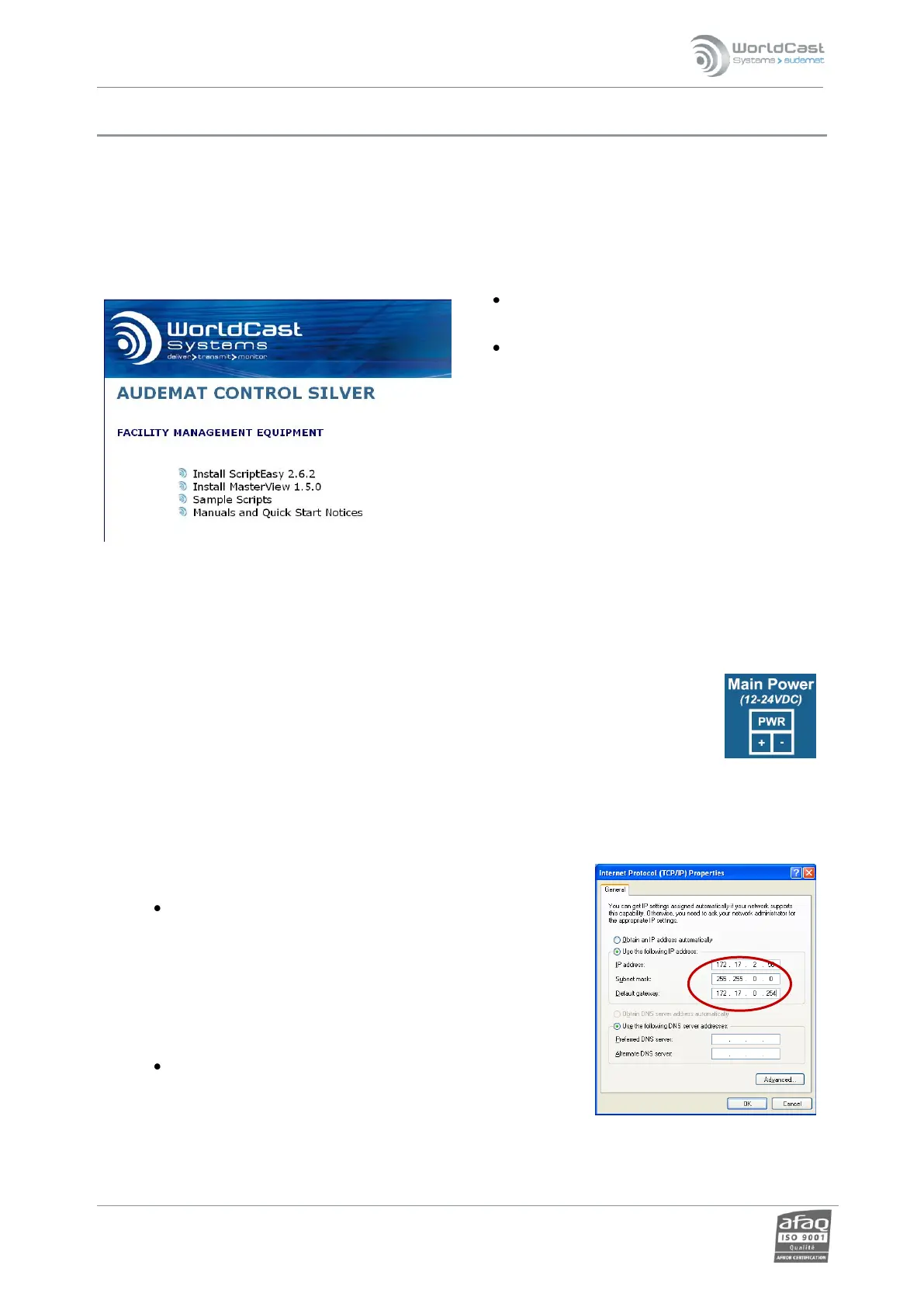
Add the IP address and the sub-network mask(for example
172.17.2.56 / Netmask 255.255.255.0)
With Windows Vista or 7, go to:
Control panel / Network and Internet / Network and Sharing
Center.
Click on “View Status” for your local area connection, and on Properties
Click on Internet Protocol 4 then on Properties.
Add the IP address and the sub-net mask (for example 172.17.2.56 / Netmask 255.255.255.0)



 To Next Page