18 World Precision Instruments
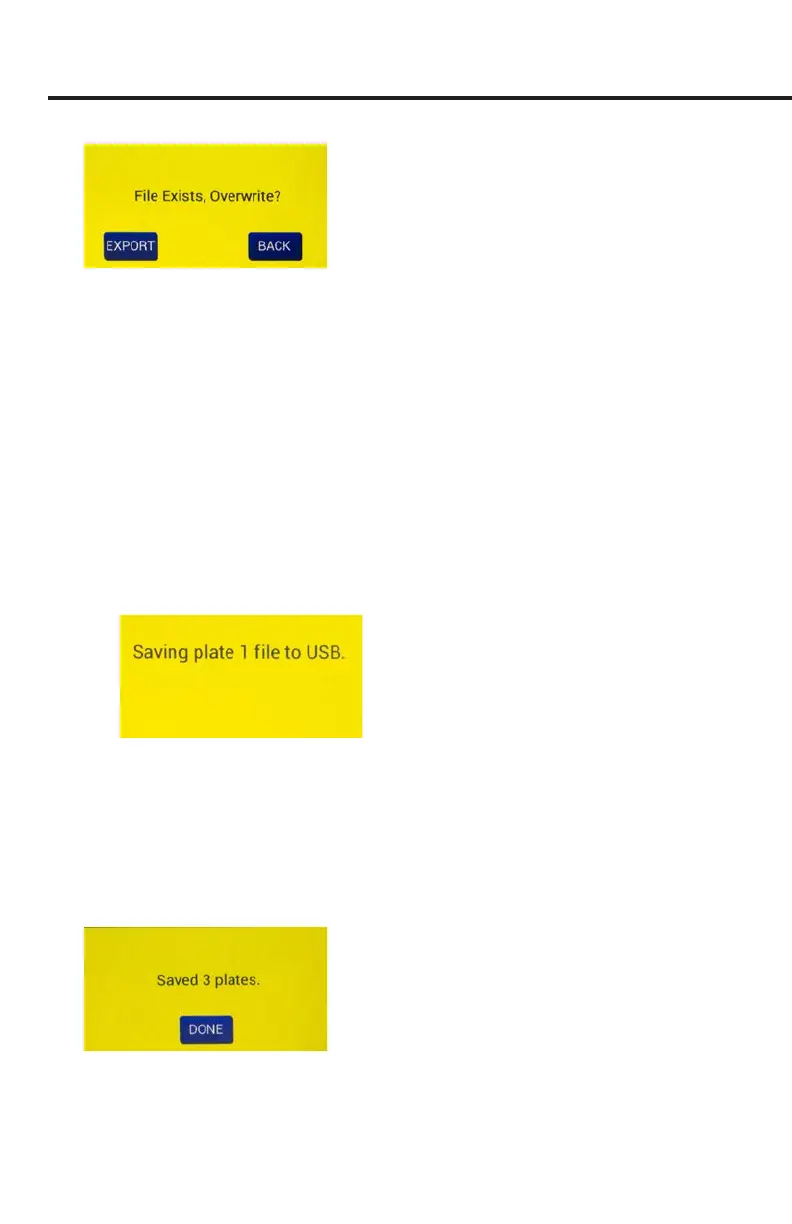
Fig. 26—To overwrite the existing le with the same name, press the Export button.
Otherwise, press the Back button, return to the Store Options screen and change the name.
2. Select one of the options as follows:
•
Export
starts the storage of all the plate les, overwriting any duplicate les.
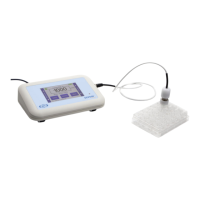
When you select it, a message appears describing which plate is being stored
(Fig. 27). The number of plates could be one, two or three, depending on how
many were collected before exporting.
•
Next
returns you to the main screen so you can take measurements of the
next plate which starts from a clear state. The note above the
Setup
button
on the main screen indicates which plate data is being collected (Fig. 5).
NOTE: If you are on plate 3, the
Next
button does not appear, because EVOM™
Manual’s memory only holds data from three plates.
•
Back
returns you to the main screen (Data Collection). You go back to the
rst well of the current plate being collected and can acquire data.
Fig. 27—When you press Export, the message indicates which plate data is being stored.
NOTE: If the USB fails to write the data in the set time out period, the “Saving
le…” notice will not change to “File saved.” A le is typically saved in less than 20
seconds. If your le does not save, press the
Back
button and use a dierent USB
ash drive.
3. Once the data is transferred to the USB ash drive, the message displays to
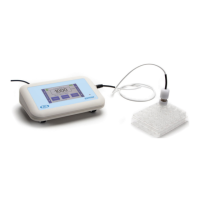
indicate the les were saved successfully (Fig. 28).
Fig. 28—This message indicates the plate(s) was/were saved to the USB.


 To Next Page