Printing on Specialty Media
Phaser® 4510 Laser Printer
3-38
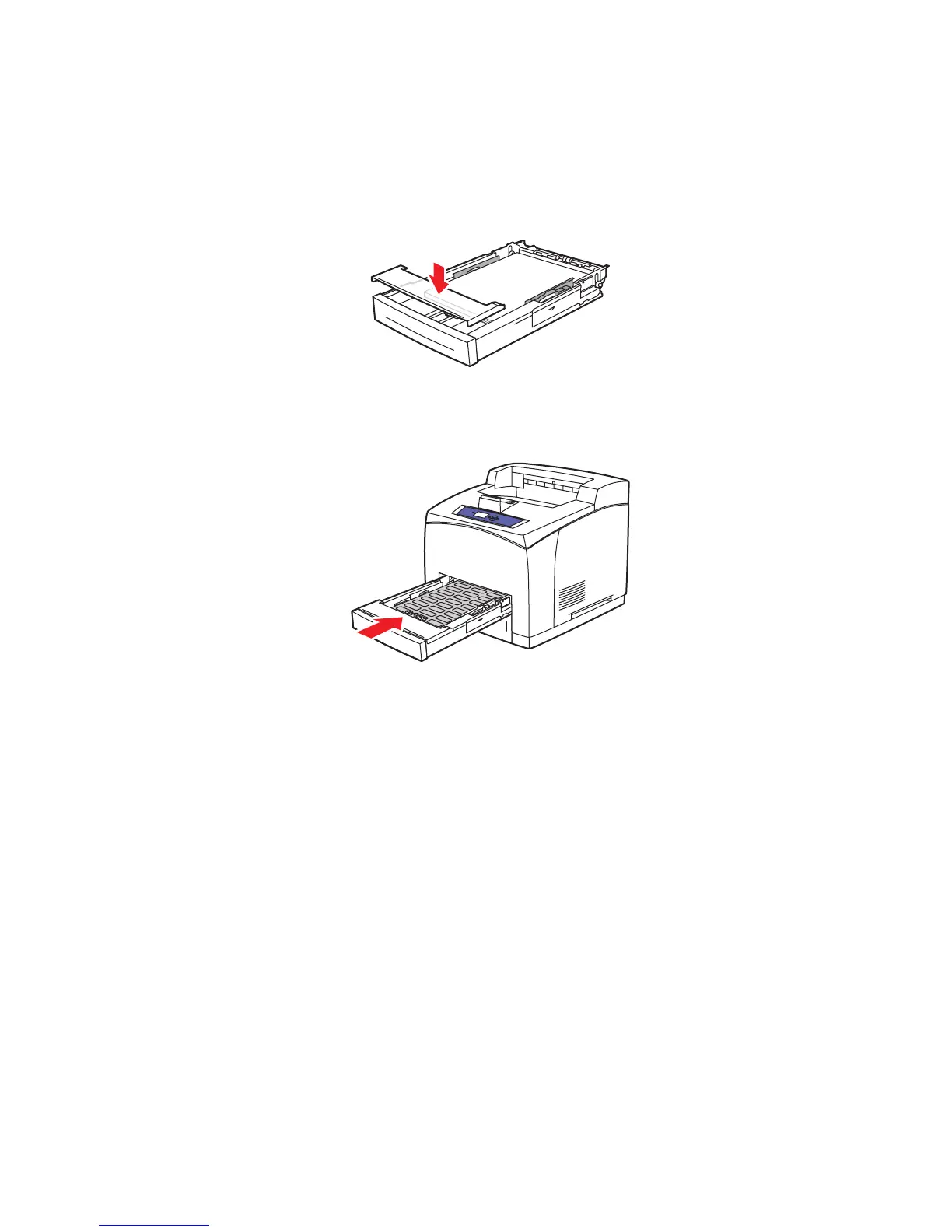
5. Replace the lid on the tray.
Caution: The lid of the tray must be firmly closed. If not, the labels may become
misaligned and cause a jam.
6. Insert the tray into the tray slot, and push the tray completely into the printer.
7. On the control panel, press the OK button if the correct paper size and
Labels are
displayed as the current setup, or select the label size and type:
a. Select
Change setup, and then press the OK button.
b. Select
Labels, and then press the OK button.
c. Select the appropriate paper size, and then press the OK button.
8. In the printer driver, select either Labels as the paper type or Tray 1 as the paper source.
4510-099
4510-088





 To Next Page