Troubleshooting
126 Phaser 6700 Color Printer
User Guide
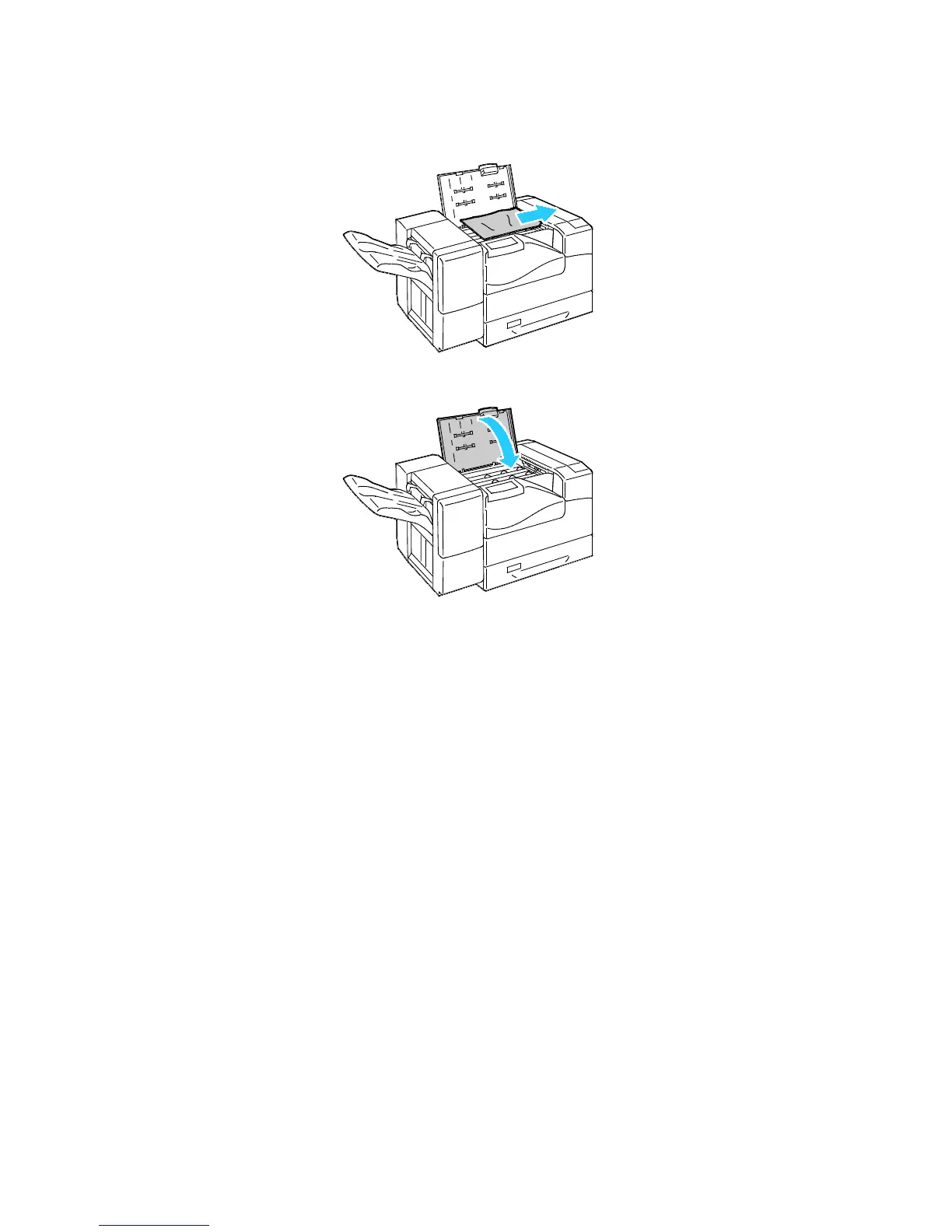
2. Remove the jammed paper.
3. Close the cover of the horizontal transport unit.
Minimizing Paper Jams
The printer is designed to function with minimal paper jams using Xerox
®
supported paper. Other paper
types can cause jams. If supported paper is jamming frequently in one area, clean that area of the
paper path.
The following can cause paper jams:
• Selecting the incorrect paper type in the print driver.
• Using damaged paper.
• Using unsupported paper.
• Loading paper incorrectly.
• Overfilling the tray.
• Adjusting the paper guides improperly.
Most jams can be prevented by following a simple set of rules:
• Use only supported paper. For details, see Supported Paper on page 32.
• Follow proper paper handling and loading techniques.
• Always use clean, undamaged paper.
• Avoid paper that is curled, torn, moist, creased, or folded.
• Fan the paper to separate the sheets before loading it into the tray.
• Observe the paper tray fill line; never overfill the tray.


 To Next Page
 Loading...