Among them, you can tap the
Average Speed / Heart Rate /
Cadence / Power Sections to
enter and view the Analysis
Curve diagram. If there is a live
video available, then the video
icon will appear in the Analysis
diagram. You can tap the icon to
view the live video.
*Note: Tap [CREATE VIDEO] to
continue producing the live video.
For more details, please refer to
[Video Production] section.
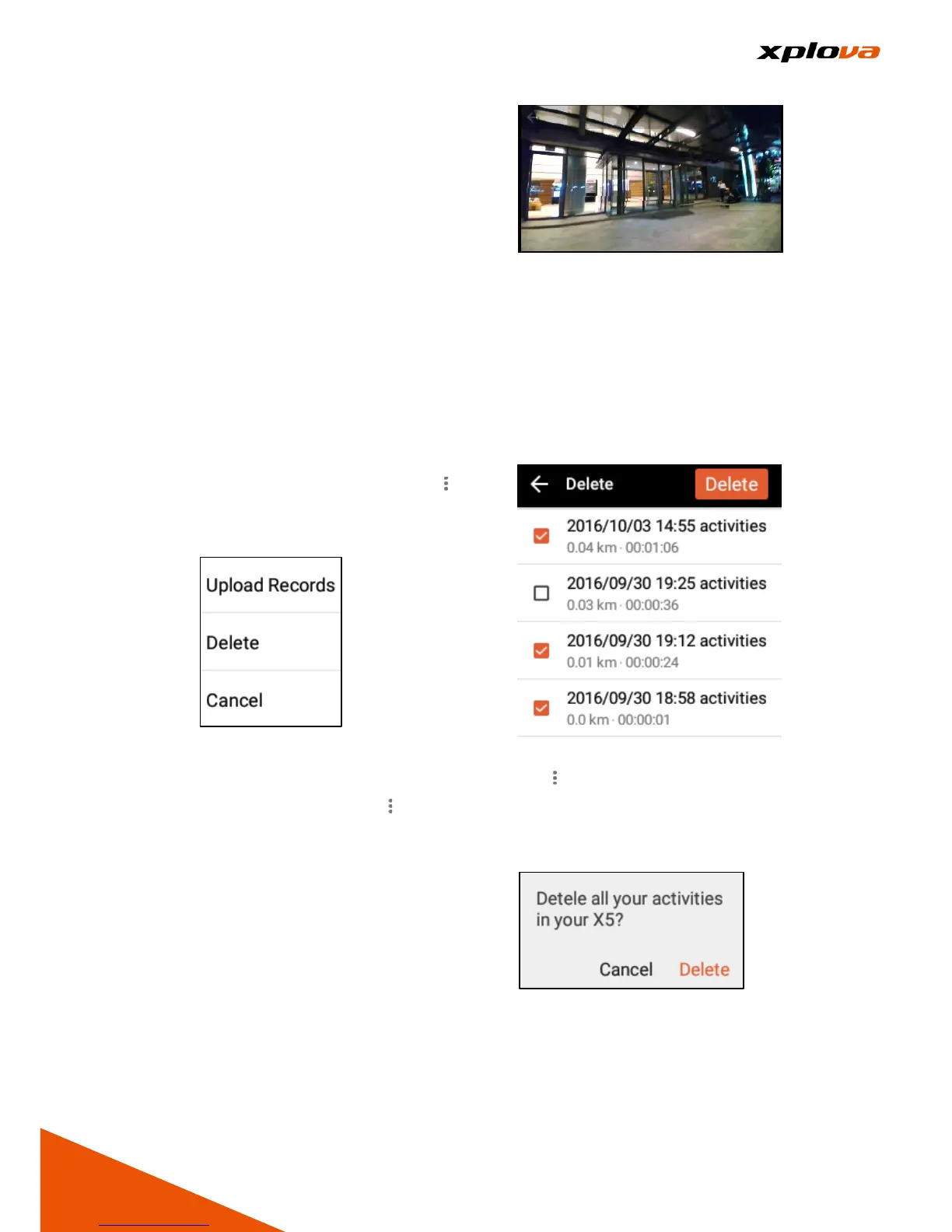
Delete Records
___________________________________________________________________________________________________________________________
■Delete Single Record: Tap one
record you want to delete. Tap [ ]
> [Delete]. A confirmation
message will appear, and then
tap [Yes] to delete this record.
■Delete Multiple Records: In the
Cloud Activities list, tap [ ] >
[Delete]. Select the uploaded
records you want to delete and
tap [Delete]. A confirmation
message will appear, and then
tap [Yes] to confirm deletion. The
selected records will be deleted.
■Delete All: In the Activities list,
tap [ ] > [Delete all]. A
confirmation message will appear,
and then tap [Delete] to delete all
saved records in X5.



 To Next Page