Video Production
___________________________________________________________________________________________________________________________
After the ride has ended, the exercise record will first store in X5 memory.
When the internet connection is available, the exercise record will be uploaded
to the Cloud platform automatically.
1. Produce Live Broadcast Video:
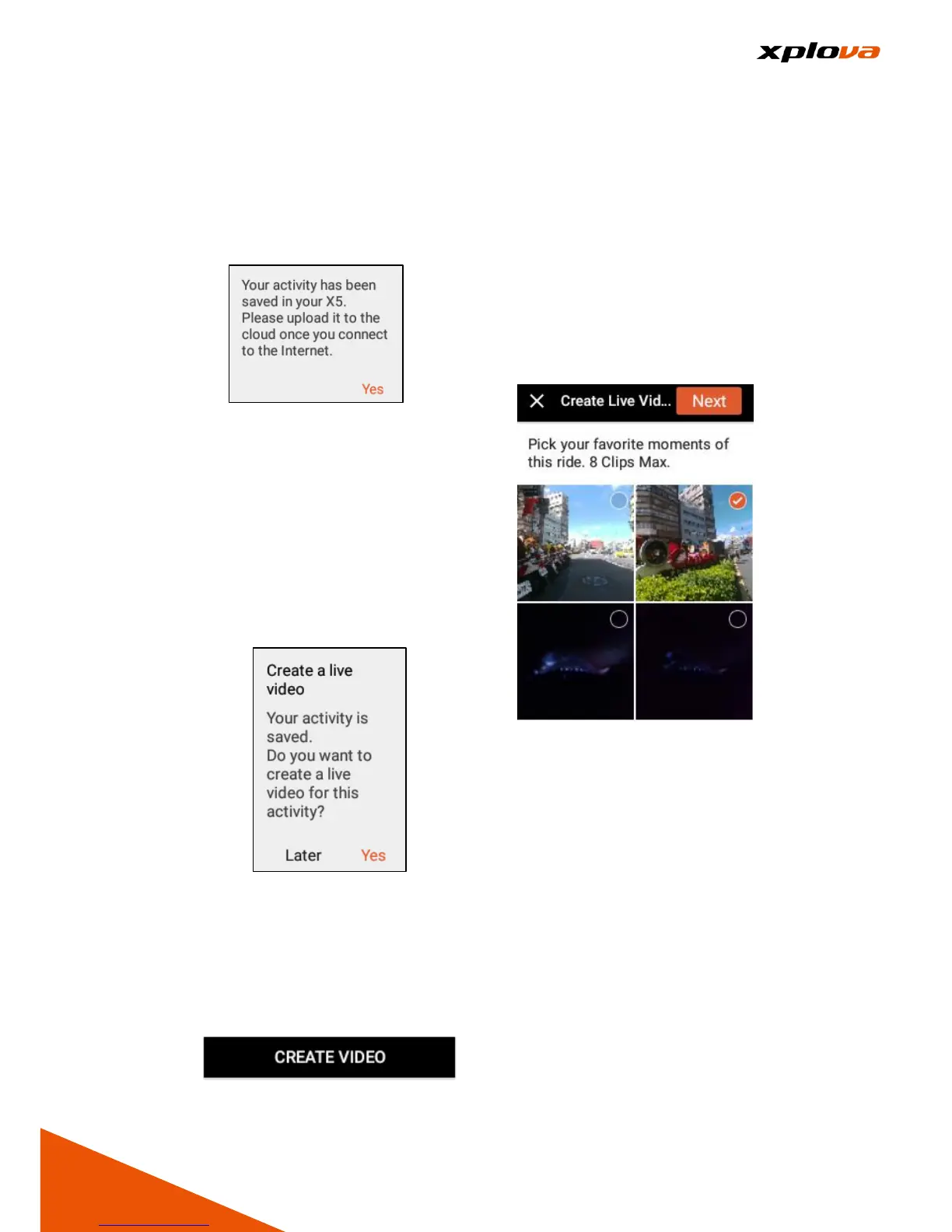
After the Internet is connected,
select the record to be uploaded
and tap [Upload]. After the file is
successfully uploaded, a
message appears and taps [Yes]
to continue.
When the “Create a live video”
message appears, tap [Yes] to
create a live video.
*Note: When [Later] is selected
this time, if then you want to
upload the live video, it is
necessary to enter the Cloud
platform to open the uploaded
activities and go to the bottom
panel to select [CREATE VIDEO].
2. Select the Segment: Select the
segment of the live video you
want to create. You can select up
to eight segments and tap [Next]
to continue.
3. Video Title: Enter the video title
and description.



 To Next Page