49
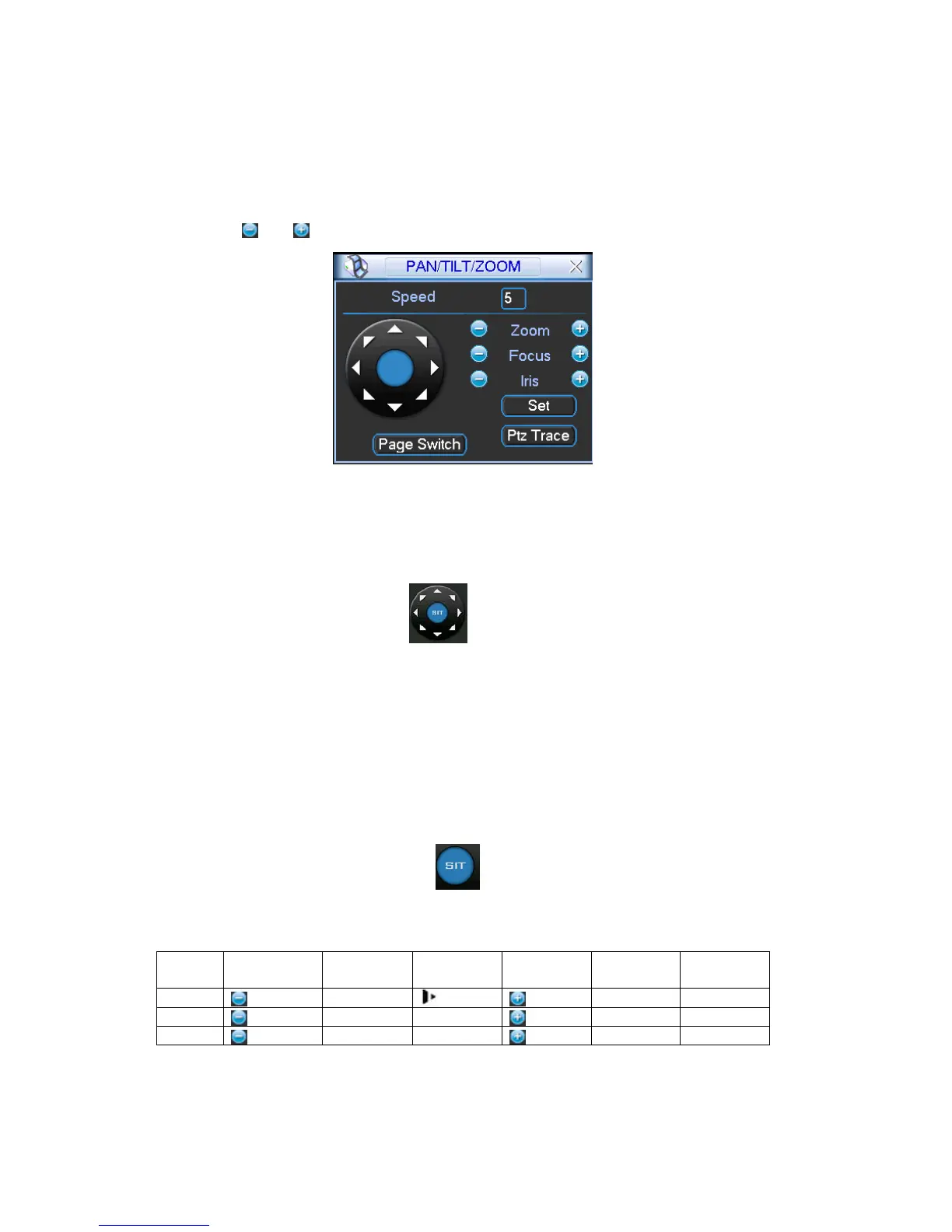
Click Pan/Tilt/Zoom, the interface is shown as below. See X324H324H324HFigure 4-35.
Here you can set the following items:
z Step: value ranges fro 1 to 8.
z Zoom
z Focus
z Iris
Please click icon
and to adjust zoom, focus and iris.
Figure 4-35
In X325H325H325HFigure 4-35X, please click direction arrows (See X326H326H326HFigure 4-36X) to adjust PTZ position. There are total
8 direction arrows.
Figure 4-36
4.8.3 3D Intelligent Positioning Key
In the middle of the eight direction arrows, there is a 3D intelligent positioning key. See X327H327H327HFigure 4-37.X
Please make sure your protocol supports this function and you need to use mouse to control.
Click this key, system goes back to the single screen mode. Drag the mouse in the screen to adjust
section size. The dragged zone supports 4X to 16X speeds. It can realize PTZ automatically. The
smaller zone you dragged, the higher the speed.
Figure 4-37
Here is a sheet for you reference.
Name Function
key
function Shortcut
key
Function
key
function Shortcut
Key
Zoom
Near
Far
Focus
Near
│_
Far
►
│
Iris
close
W
Open
f
4.9 Preset/ Patrol/Pattern/Scan
In X328H328H328H Figure 4-35X, please click the “set” button. The interface is shown as below. See X329H329H329HFigure 4-38.



 To Next Page