87
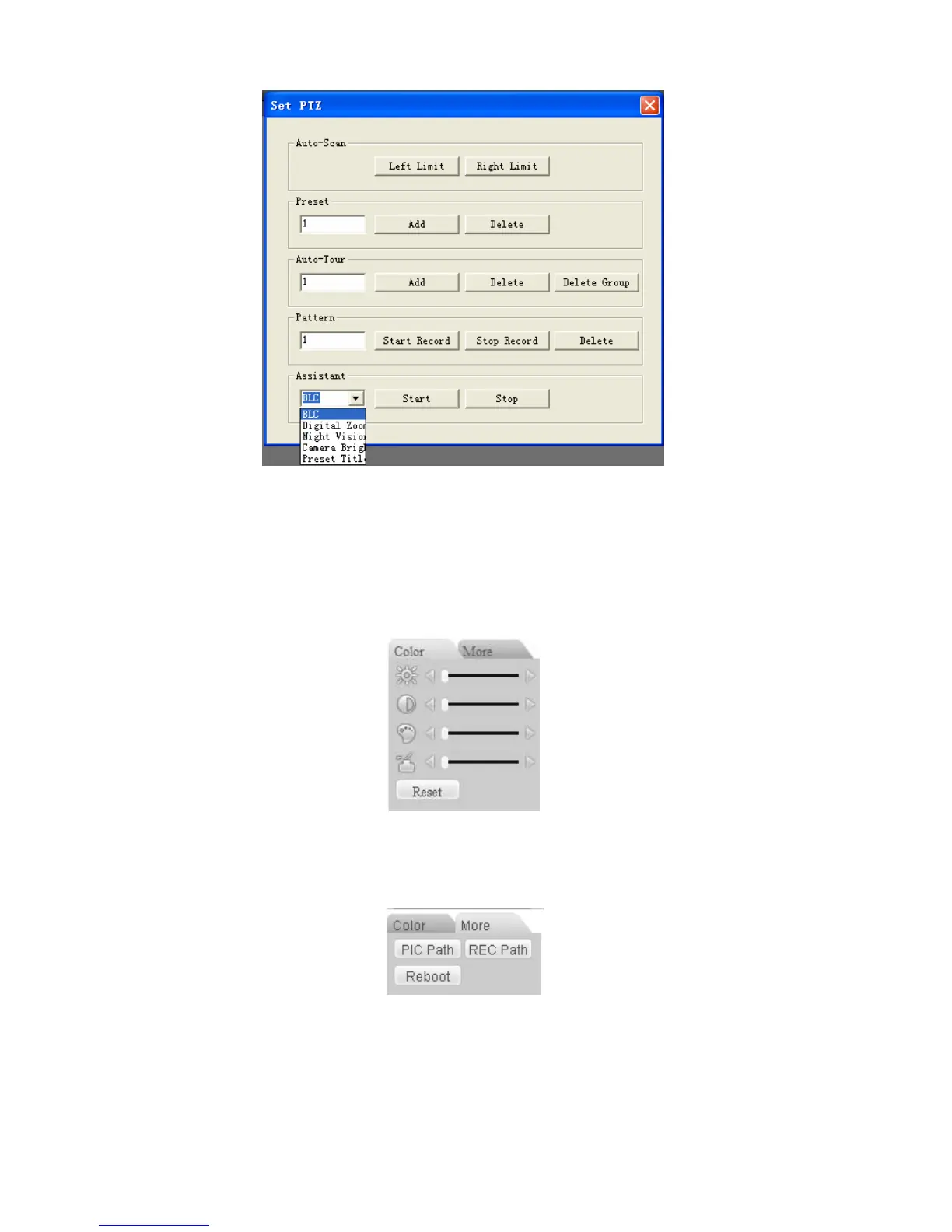
Figure 7-13
7.2.3 Color
Click color button in section 3, the interface is shown as X444H444H444H386HFigure 7-14X.
Here you can select one channel and then adjust its brightness, contrast, hue and saturation.
(Current channel border becomes green).
Or you can click default button to use system default setup.
Figure 7-14
7.2.4 Picture Path and Record Path
Click more button in X445H445H445H387HFigure 7-14X, you can see an interface is shown as in X446H446H446H388HFigure 7-15X.
Figure 7-15
Click picture path button, you can see an interface is shown as in X447H447H447H389HFigure 7-16X.
Please click choose button to modify path.



 To Next Page