76
6 About Auxiliary Menu
6.1 Go to Pan/Tilt/Zoom Menu
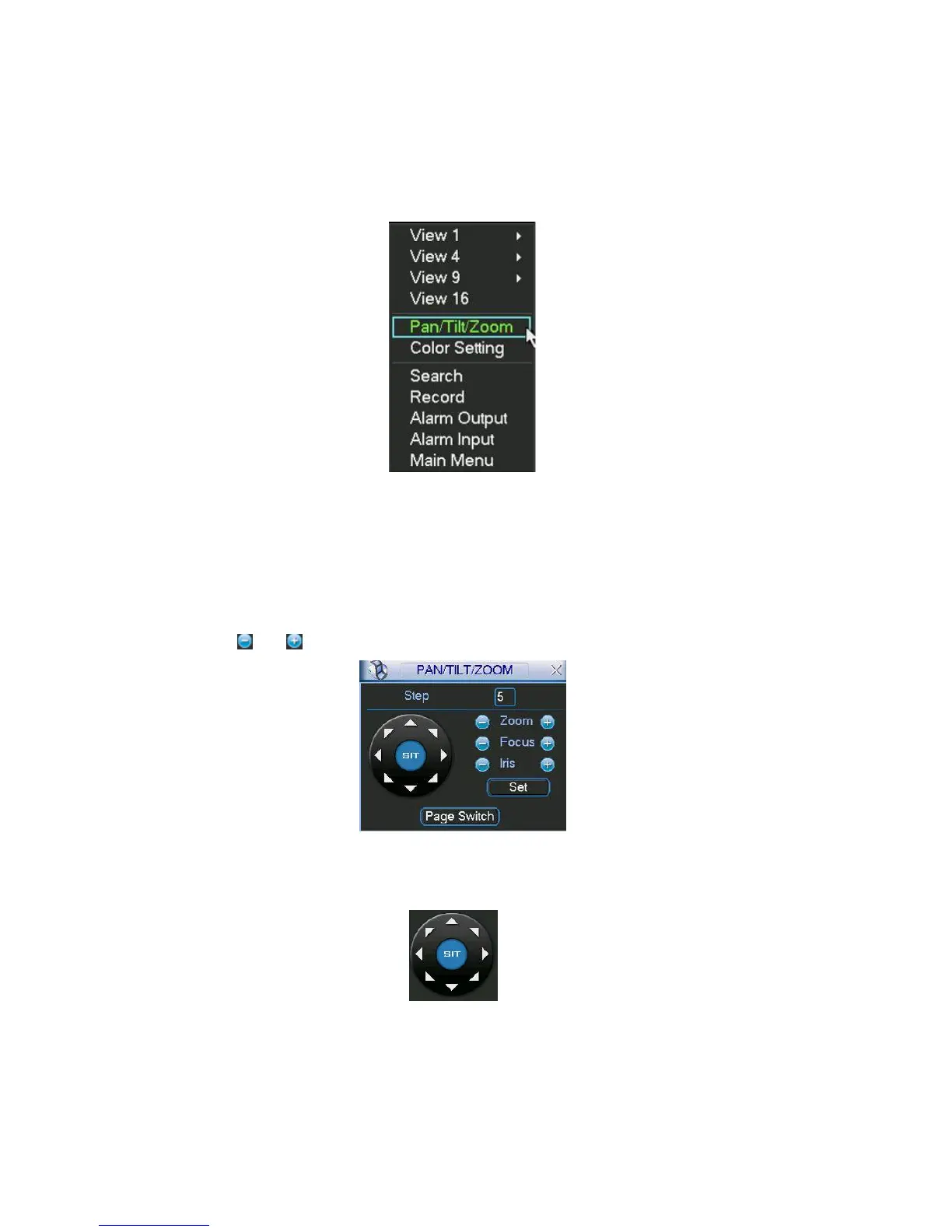
In the one-window surveillance mode, right click mouse (click “fn” Button in the front panel or click
AUX key in the remote control). The interface is shown as below: See
X397H397H397H339HFigure 6-1X.
Figure 6-1
Click Pan/Tilt/Zoom, the interface is shown as in X398H398H398H340HFigure 6-2X.
Here you can set the following items:
z Zoom
z Focus
z Iris
Please click icon
and to adjust zoom, focus and Iris.
Figure 6-2
In X399H399H399H341HFigure 6-2X, please click direction arrows (See X400H400H400H342HFigure 6-3X ) to adjust PTZ position. There are totally
eight direction arrows. (Please note there are only four direction arrows in DVR front panel.)
Figure 6-3
6.1.1 3D Intelligent Positioning Key
In the middle of the eight direction arrows, there is a 3D intelligent positioning key. See X401H401H401H343HFigure 6-4X .
Please make sure your protocol supports this function and you need to use mouse to control.



 To Next Page