54
Figure 5-1
5.3 Setting
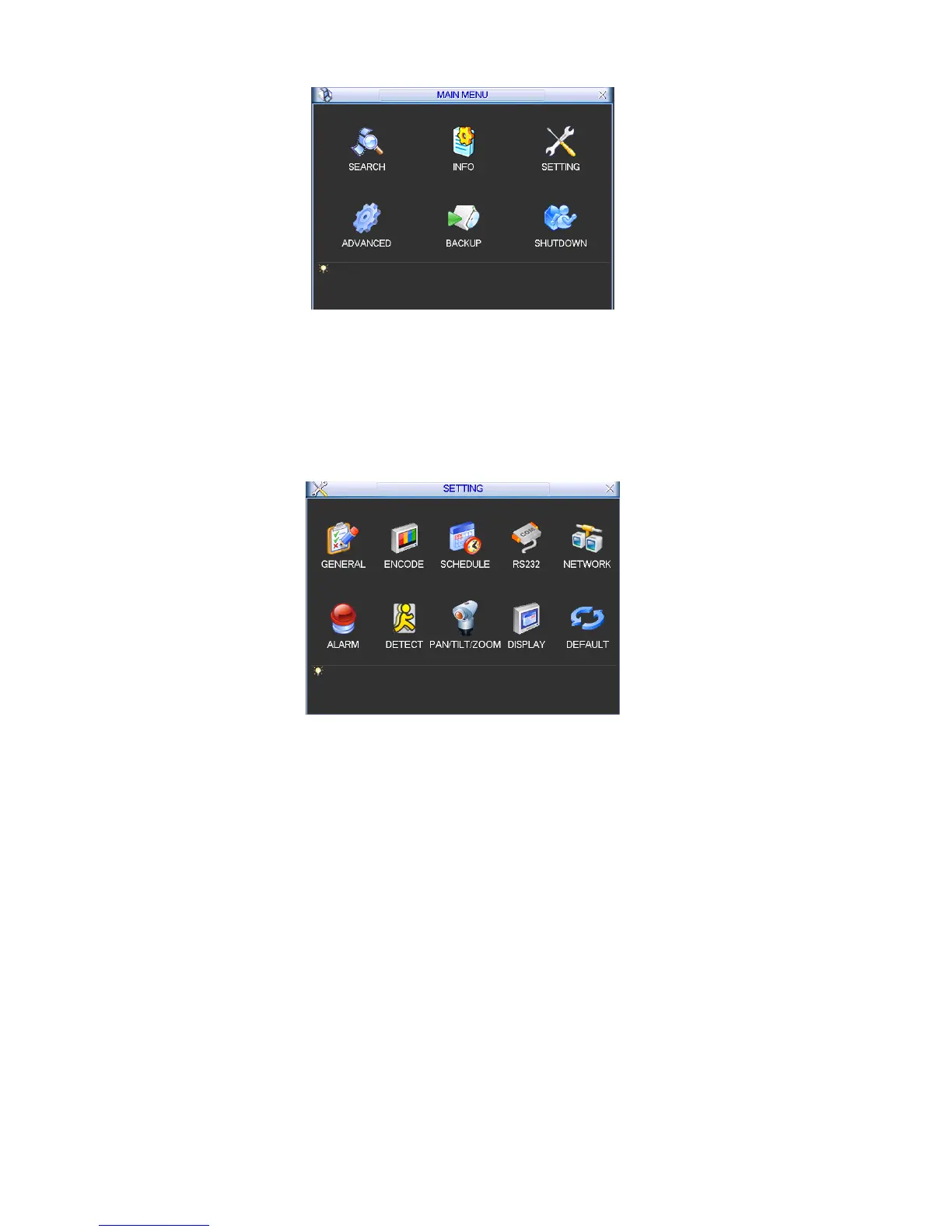
In main menu, highlight setting icon and double click mouse. System setting interface is shown as
below. See
X356H356H356H319HFigure 5-2.X
Figure 5-2
5.3.1 General
General setting includes the following items. See X357H357H357H320HFigure 5-3X.
z System time: Here is for you to set system time
z Date format: There are three types: YYYYY-MM-DD: MM-DD-YYYYY or DD-MM-YYYY.
z Date separator: There are three denotations to separate date: dot, beeline and solidus.
z DST: Here you can set DST time and date. Please enable DST function and then click set button.
You can see an interface is shown as in
X358H358H358H321HFigure 5-4X. Here you can set start time and end time by
setting corresponding week setup. In
X359H359H359H322HFigure 5-4X, enable date button, you can see an interface is
shown as in
X360H360H360H323HFigure 5-5X. Here you can set start time and end time by setting corresponding date
setup.
z Time format: There are two types: 24-hour mode or 12-hour mode.
z Language: System supports various languages: Chinese (simplified), Chinese (Traditional),
English, Italian, Japanese, French, Spanish (All languages listed here are optional. Slight
difference maybe found in various series.)
z HDD full: Here is for you to select working mode when hard disk is full. There are two options:
stop recording or rewrite. If current working HDD is overwritten or the current HDD is full while



 To Next Page