23
Using the Device
Home Screen
Turn on the device to display the Home screen. Depending on how your system administrator configured
your device, your Home screen may appear differently than the graphics in this section.
After a suspend or screen time-out, the Home screen displays with the lock slider. Touch the screen and
slide up to unlock.
The Home screen provides four additional screens to place widgets and shortcuts. Swipe the screen left or
right to view the additional screens.
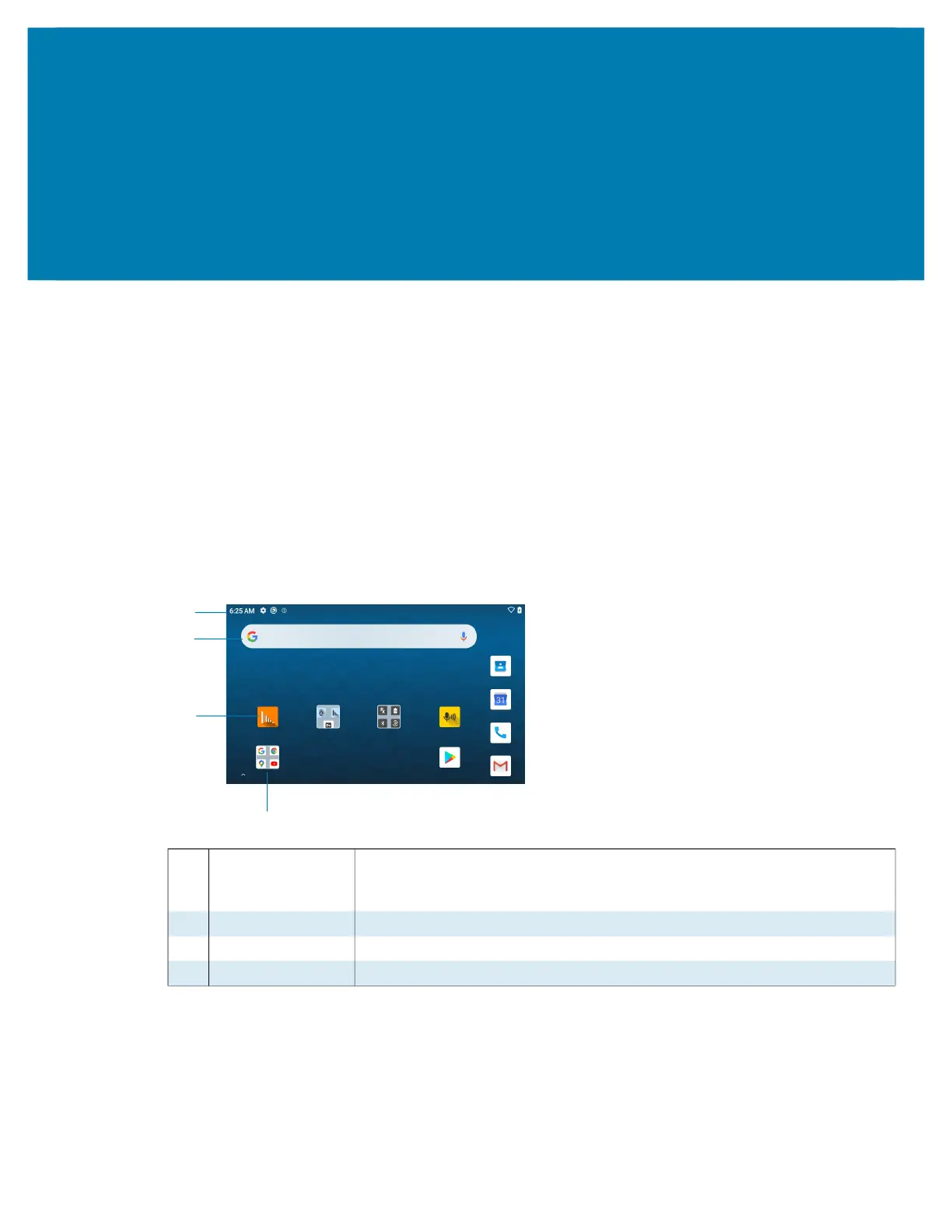
Figure 12 Home Screen
Setting Home Screen Rotation
By default, the Home screen rotation is disabled.
1. Touch and hold anywhere on the Home screen until the options appear.
2. Touch Home settings.
1 Status Bar Displays the time, status icons (right side), and notification icons (left side).
For more information see Notification Icons on page 24 and Managing
Notifications on page 26.
2 Widgets Launches stand-alone apps that run on the Home screen.
3 Shortcut Icons Opens apps installed on the device.
4 Folder Contains apps.
1
2
3
4



 To Next Page