Recording
Recording video
1.
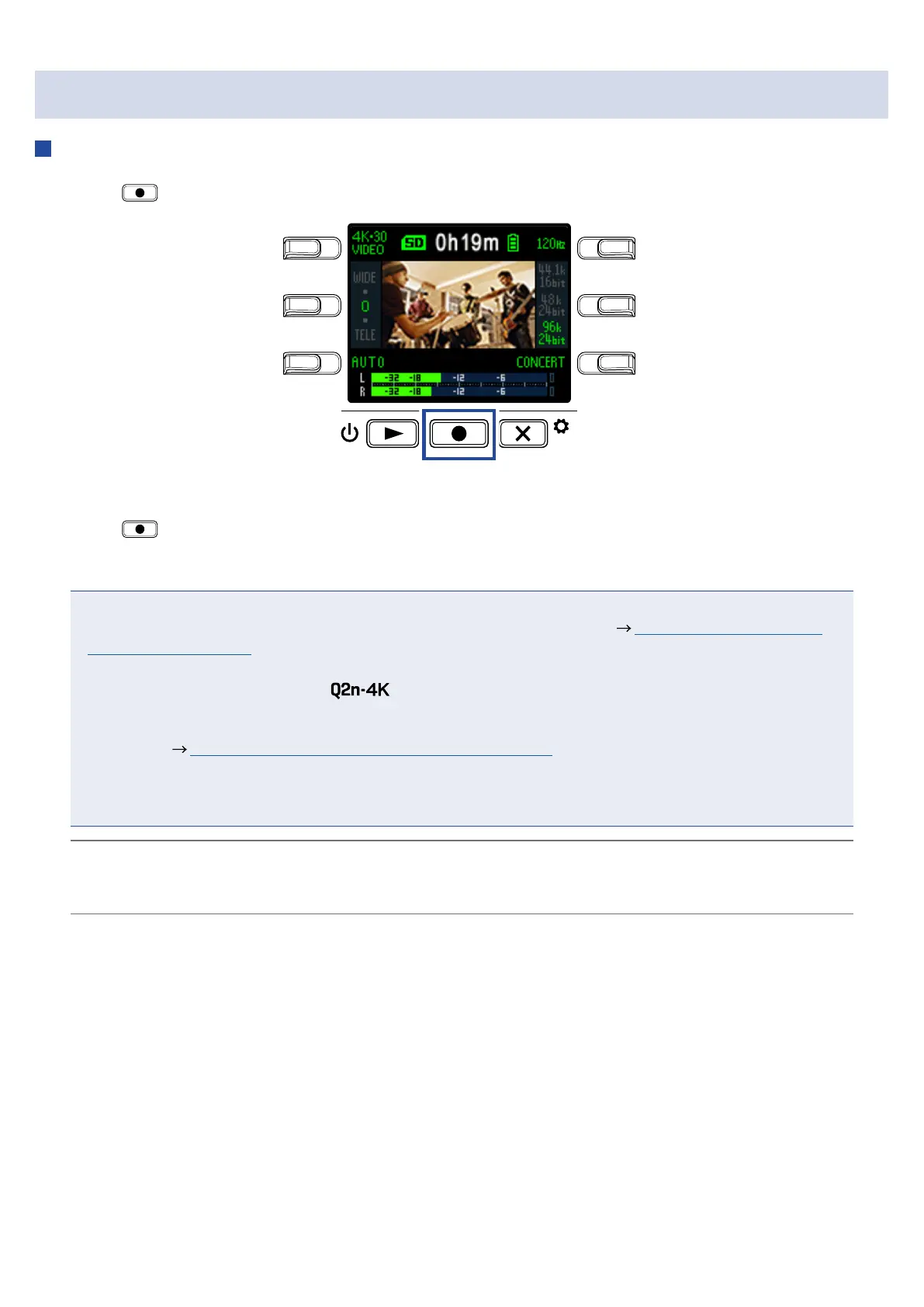
Press .
LO CUTVIDEO
AUDIOFOV
AUTO GAIN
SCENE
EXIT
This starts video recording.
2.
Press
again to stop video recording.
NOTE
• The energy saving function will make the screen dim during recording. ( “Setting the display back-
light time” on page 43)
• During video recording, the REC LED on the front lights red.
• If the internal temperature of the rises during use, a warning message will appear and it will
turn off automatically. Wait for the temperature to decrease before using it again.
• By connecting an HDMI-compatible TV or other device, you can monitor the video and audio during
recording. ( “Viewing on an HDMI-compatible TV” on page 30)
• The maximum resolution of HDMI output is 1920×1080 when recording.
• When recording video, connecting or disconnecting an HDMI cable will cause video and audio record-
ing to stop.
HINT
When recording for long periods of time with a microSDHC card, recording files will be split after 4 GB.
When using a microSDXC card, recording will continue in one file even if the file size exceeds 4 GB.
23


 To Next Page