Management and Diagnostic Console
106
IMPORTANT: Bridged mode is intended for testing purposes only, as in WT-062 (ADSL), BER (Bit Rate
Error), or industry standard performance tests. When routed mode is disabled, the 2Wire gateway can no
longer be managed via CMS, and any DSL connection will require an external PPP connection (via software
of third-party hardware). It is strongly recommended that you disable routed mode ONLY if you thoroughly
understand the ramifications of doing so.
To operate the gateway in bridged mode:
1. Deselect the Enable Routing checkbox.
2. Click the Submit button.
Most gateway features are now disabled, including firewall and stateful packet inspection, DHCP, NAT, DNS,
PPP, and remote management. The gateway no longer functions as a gateway and is, in effect, a multi-
protocol (Ethernet, wireless, and USB) bridge.
Note: When routing is disabled the gateway’s local IP address is set to 172.16.0.1/16.
Computers connected to the 2Wire gateway will retain the IP address assigned by the gateway’s DHCP
server until a new IP address is obtained from an alternative DHCP server, or is manually assigned.
To re-enable routed mode:
1. Configure the computer’s IP address to work on the same subnet as the gateway.
a. From the Windows desktop or the Start menu, right-click the My Network Places icon, then left-click
Properties.
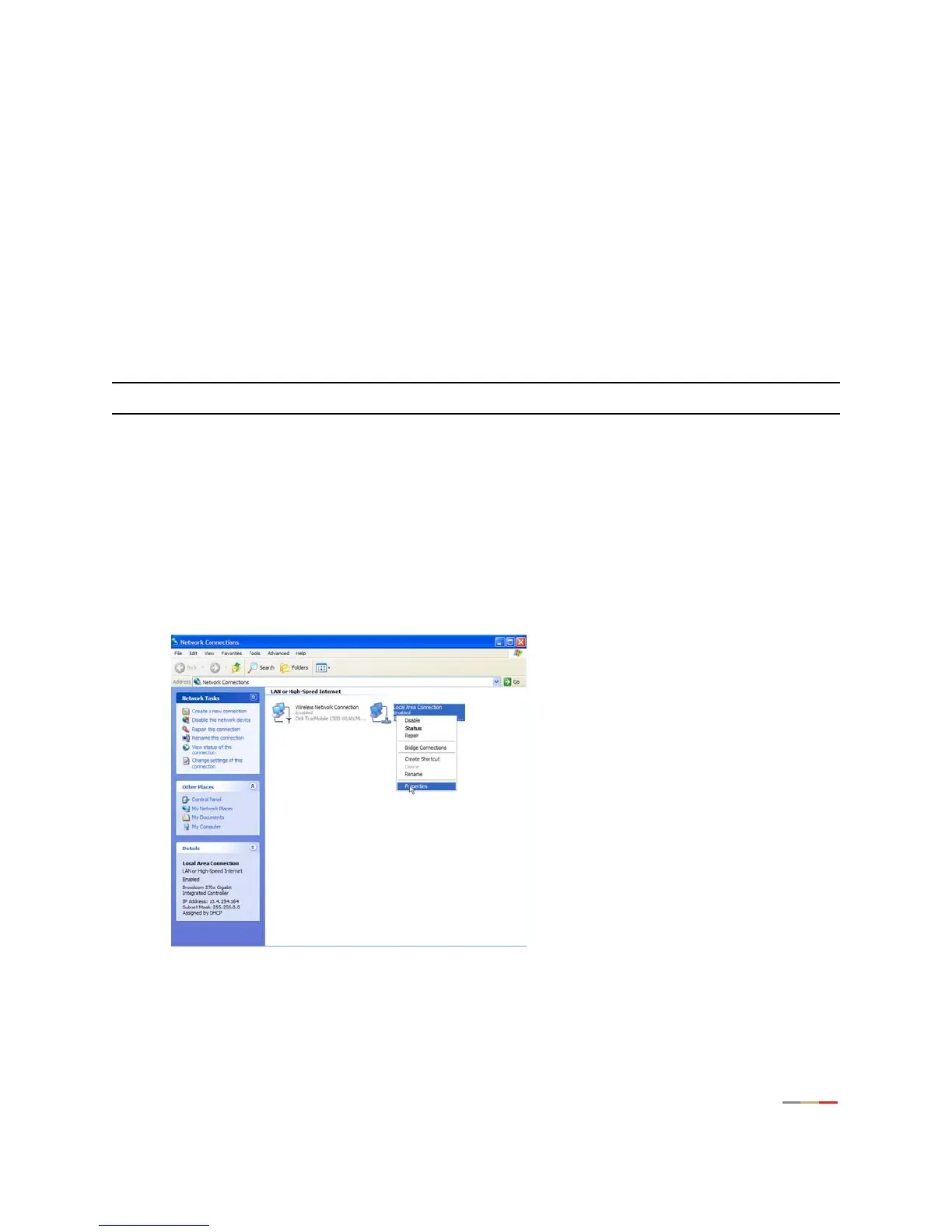
b. Right-click the icon that represents the network connection to the gateway, and
left-click
Properties.



 To Next Page