EVO 150 Controller
16
Ethernet Connectivity
The EVO 150 controller can be operated or configured by using a web browser. To access the
controller enter the controllers IP address on the browsers address bar.
The EVO 150 controller contains a programming port (Ethernet jack) which enables a remotely
connected computer running a web browser to act as a web client. The default IP address of the
web server running on the controller is 192.168.0.8. Therefore, the IP address of the network
interface card on the host computer, i.e.: a laptop computer connected directly to the EVO 150
systems’ programming port via a straight-thru patch Ethernet cable, will need to have an IP
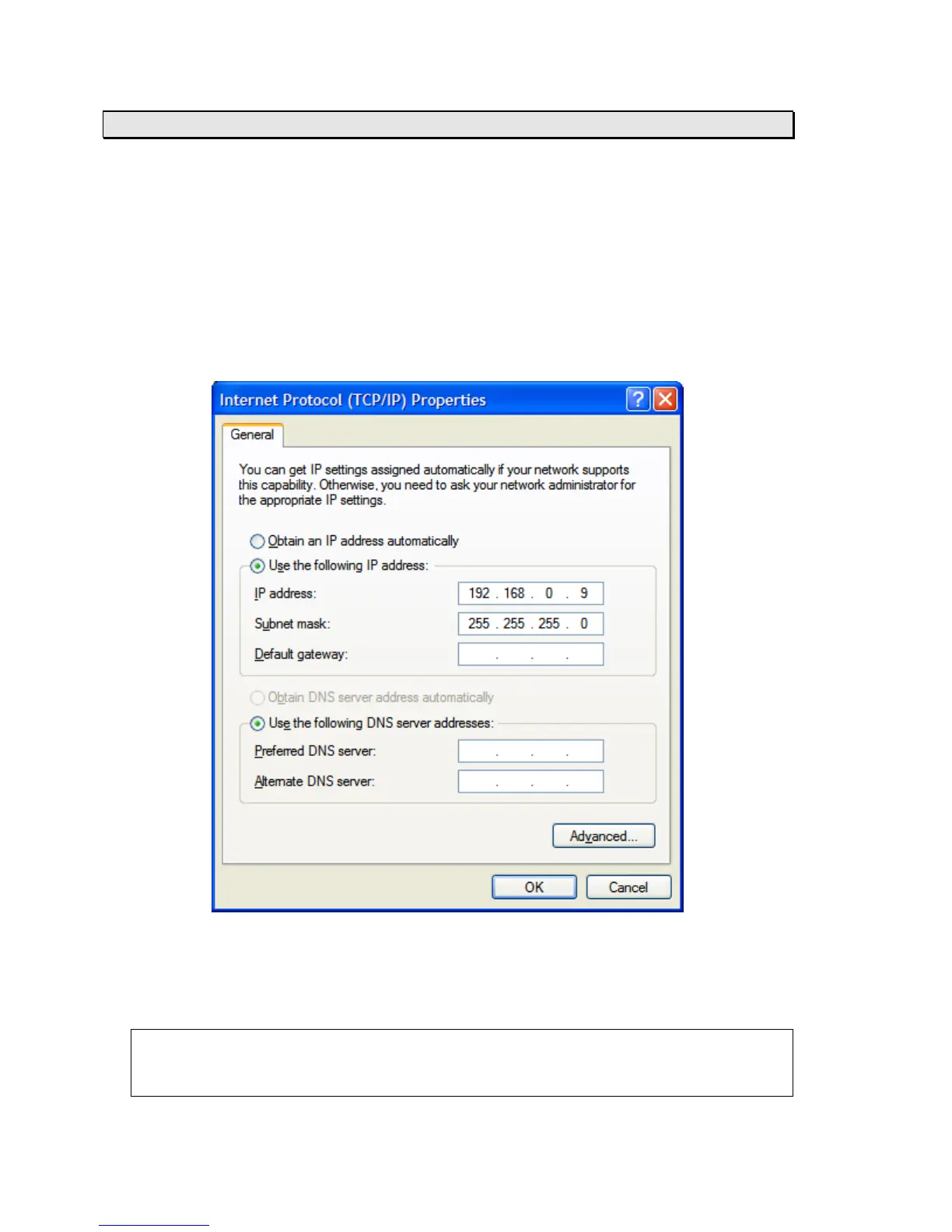
address in the same subnet, such as 192.168.0.9 (do not use 192.168.0.5). On most Windows-
based systems, the TCP/IP settings can be modified by navigating to the Windows Control Panel,
selecting the Network Connections icon, right-clicking on the network interface card whose
TCP/IP settings will be changed, and then setting the IP address and Subnet mask as shown
below:
The IP address of the web server running on the EVO 150 controller can be changed, this is not
recommended for standard applications. The IP address is changed by adjusting the values of
parameters 86, 87, 88, and 89, see page 21. After changing the IP address wait 10 seconds, and
then cycle the power to the EVO 150 controller. The address in the web browser will now need to
point to the new IP address.
Note: The IP address is restored to its default value of 192.168.0.8 after a power up reset,
see page 12.
This is not the fieldbus address! Do not adjust the IP address for fieldbus connectivity.


 To Next Page