Chapter 4 55
DOS-based BIOS Recovery
1. Create a bootable USB storage device.
(1). Connect the USB storage device to a USB port on the computer.
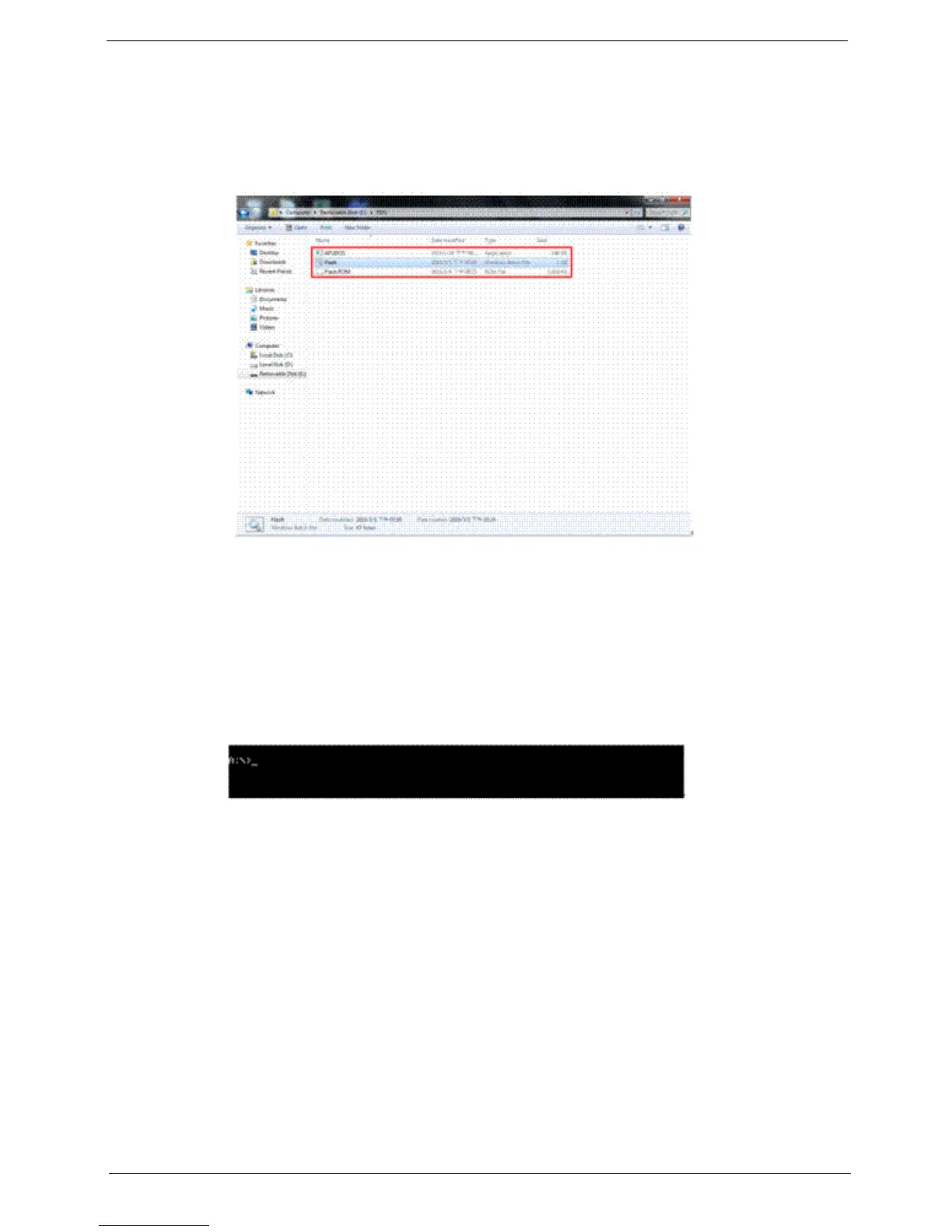
(2). Copy the DOS Flash utility to the USB storage device. The utility should contain the “AFUDOS.exe”,
“Flash.bat”, and “Flash.ROM” files.
(3). Unplug the USB storage device.
2. Connect the USB storage device on the USB port on the system.
3. Power on the system.
4. As soon as the POST starts, press Delete to enter the Setup Utility.
5. Select Advanced BIOS Features and ensure that USB storage device is the First Boot Device.
6. Select Save & Exit Setup, then press Enter.
7. The system will now boot from the USB storage device and enter DOS mode.
8. Type “cd DOS”, then press Enter.
9. Type “Flash.bat”, then press Enter to start the BIOS flash utility.
10. The BIOS recovery begins and the Firmware Update Utility screen appears.



 To Next Page