Chapter 9 HiveManager Online and HiveManager Virtual Appliance
106 Aerohive
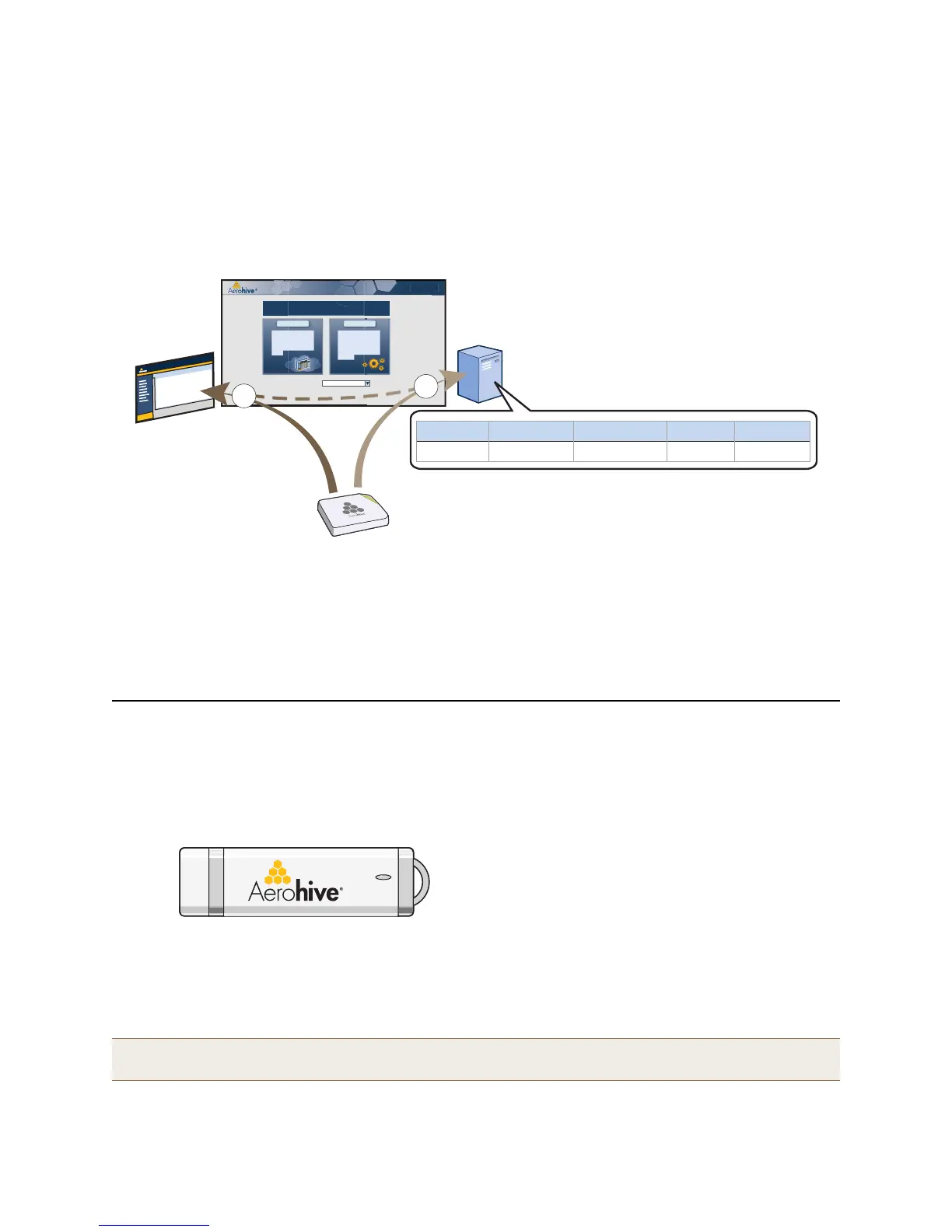
Through your VHM, you can manage HiveAPs deployed remotely. By default, HiveAPs first try to connect to a local
HiveManager. If they cannot find one locally, they then automatically try to reach the staging server, and if the MAC
address or serial number of the HiveAP is already assigned to a VHM, the staging server redirects the HiveAP to it
(see Figure 2).
Figure 2 MyHive
If the HiveAP MAC address or serial number is in the staging server but not yet assigned to the VHM, the HiveAP that
forms a CAPWAP connection with the staging server remains connected to it. If the HiveAP MAC address or serial
number is not in the staging server, then the staging server does not respond to the CAPWAP connection attempts
from that HiveAP. For details about the initial CAPWAP connection process, see "How HiveAPs Connect to
HiveManager" on page 133.
HIVEMANAGER VIRTUAL APPLIANCE
HiveManager Virtual Appliance (HM VA) is similar to a physical HiveManager appliance except that it is available as
VMware that you load onto a computer of your choice. HM VA ships as VMware on a USB flash drive.
Figure 3 HiveManager Virtual Appliance ships as VMware on a USB flash drive
You must first install a VMware product such as VMware Workstation or VMware Player on your computer. Then
install HM VA on the VMware workstation or player, where it runs like a virtual server inside your computer. HM VA
forms a virtual layer 2 connection to your computer—much as if the two were connected by a layer 2 switch
internally—and shares the Ethernet connection with your computer.
Note: You can find full installation instructions on Aerohive Networks HiveManager Virtual Appliance QuickStart,
which is also included on the USB flash drive.
Home Page MyHiveMyHive
Staging
Server
VHM 1
MyHive (myhive.aerohive.com)
Host Name Node ID . . .
. . .
Serial Number Virtual HM
AH 13C210 00197713C210 VHM 112000831100034
Host Name: AH 13C210
Node ID: 00197713C210
Serial Number: 12000831100034
1
2
(1) The HiveAP initially forms a CAPWAP
connection with the staging server
(staging.aerohive.com).
(2) When the staging server discovers an
entry for the HiveAP assigning it to VHM 1,
it redirects the HiveAP to that VHM.
(3) When you log in through
MyHive to VHM 1, you can
see the HiveAP listed on the
Monitor > Access Points >
HiveAPs page.


 To Next Page