Deployment Guide 113
INTRODUCTION TO THE HIVEMANAGER GUI
9. To save your settings and enter the HiveManager GUI in Enterprise mode, click Save.
10. A message appears prompting you to confirm your selection of Enterprise mode. After reading the confirmation
message, click Yes .
HiveManager displays the Guided Configuration page to assist you with the main configuration steps:
• Device-level settings for HiveAPs
• The three major WLAN policy-level configuration objects, which reference all other configuration
objects: user profiles, SSIDs, and WLAN policies
• The transfer of the device- and policy-level settings from HiveManager to HiveAPs
INTRODUCTION TO THE HIVEMANAGER GUI
Using the HiveManager GUI, you can set up the configurations needed to deploy, manage, and monitor large
numbers of HiveAPs. The configuration workflow is described in "HiveManager Configuration Workflow (Enterprise
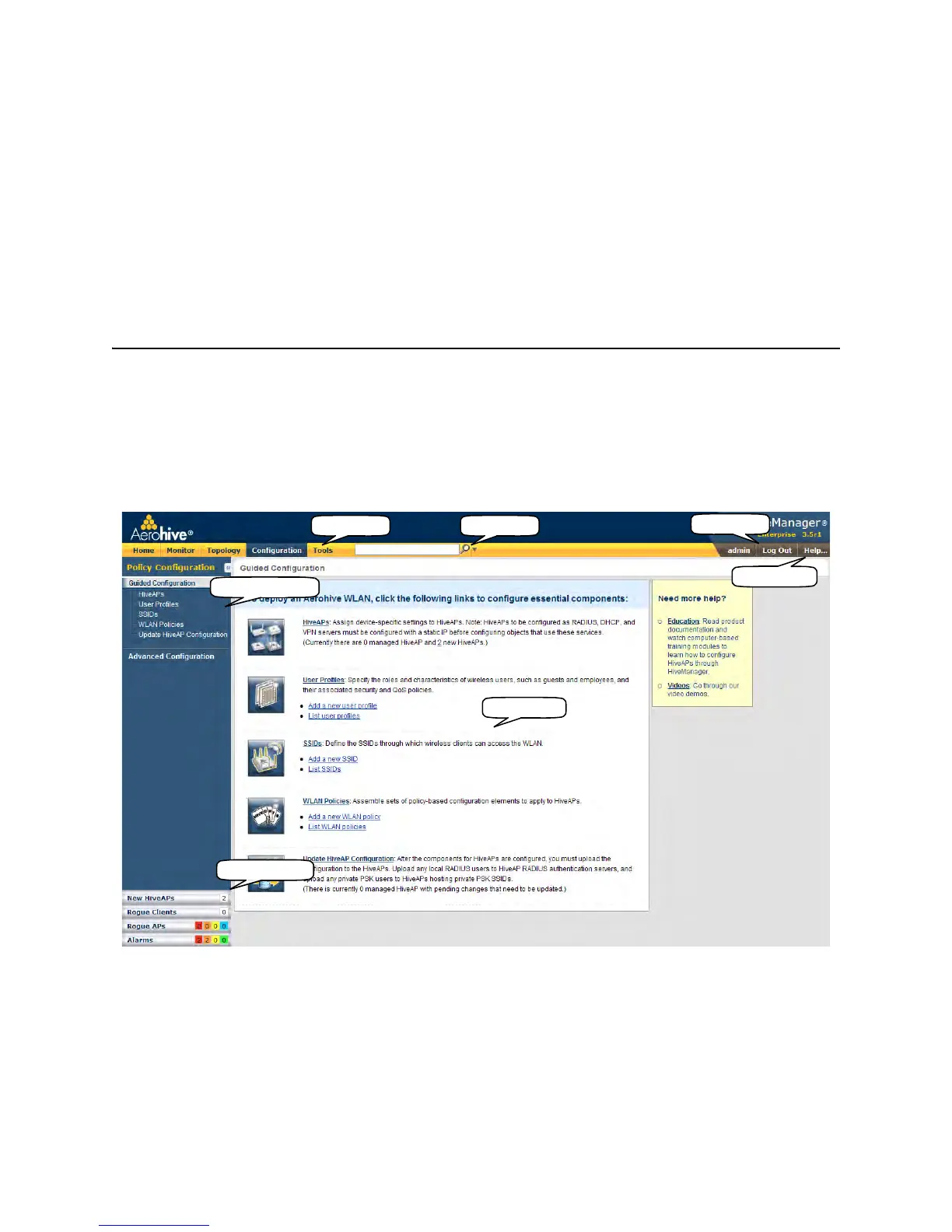
Mode)" on page 118. The GUI consists of several important sections, which are shown in Figure 4.
Figure 4 Important sections of the HiveManager GUI
Menu Bar: The items in the menu bar open the major sections of the GUI. You can then use the navigation tree to
navigate to specific topics within the selected section.
Search: This is a tool for finding a text string anywhere in the GUI (except in Reports). You can do a global search or
confine a search to a specific part of the GUI.
Log Out: Click to log out of your administrative session. If you are logged in as an admin with super user privileges
and there are virtual systems, you can exit the home system and enter a different virtual system from here.
Menu Bar Search
Online Help
Log Out
Main Panel
Notifications
Navigation Tree


 To Next Page