Chapter 11 Basic Configuration Examples
136 Aerohive
6. Leave the other settings as they are, and then click Save to save your configuration and close the dialog box.
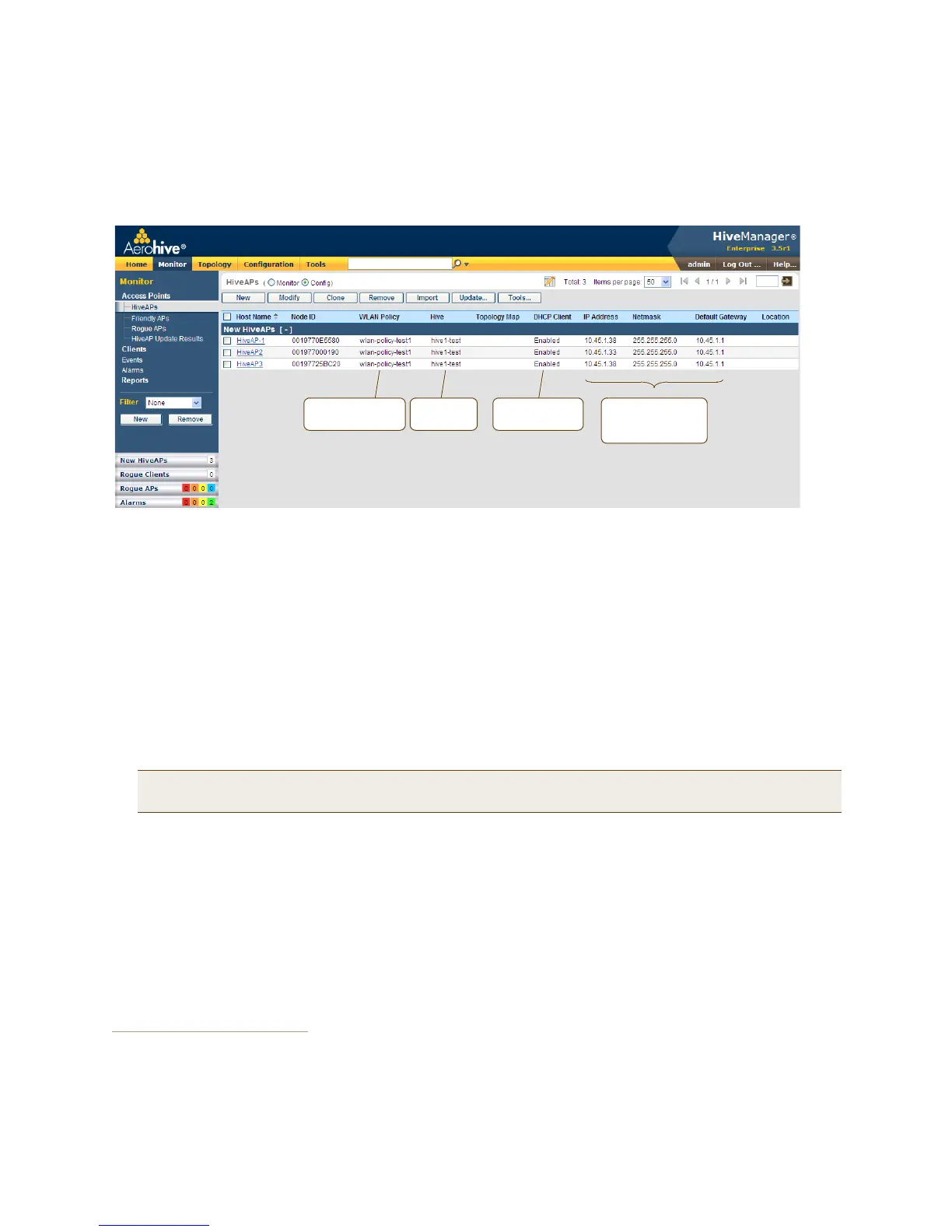
7. Check your settings in the HiveAPs window (see Figure 8 on page 136).
Figure 8 Monitor > Access Points > HiveAPs (view mode: Config)
Updating the Country Code
For HiveAPs intended for use in the United States, the region code is preset as "FCC"—for "Federal Communications
Commission"—and the country code is preset as "United States". If this is the case, you can skip this section.
If the preset region code for the managed HiveAPs is "World", you must set the appropriate country code to control
the radio channel and power selections that that HiveAPs can use. If this is the case, set the country code as
follows:
1. On the Monitor > Access Points > HiveAPs page, select the check box for HiveAP3, and then click Update >
Update Country Code.
2
2. In the Update Country Code dialog box , enter the following, and then click Upload:
• Choose the country where they are deployed from the New Country Code drop-down list.
• In the Activate after field, set an interval in seconds after which the HiveAP reboots to activate the updated
country code settings.
• Make sure that the check box for HiveAP3 is selected.
HiveManager updates the country code on HiveAP3 and then reboots it after the activation interval that you set
elapses. After HiveAP3 reboots, it puts the appropriate radio settings for the updated country code into effect.
3. Select the check boxes for the two portals HiveAP1 and HiveAP2, and then repeat the previous steps to update
their country codes.
After they reboot, all the HiveAPs will have the correct country code, will reform into a hive, and reconnect to
HiveManager.
2. When updating the country code on HiveAPs in a mesh environment, you do not want the rebooting of portals to interrupt the
data path between the HiveManager and mesh points before they can complete their update process. Therefore, try to update
and reboot mesh points first. Then, update and reboot the portals. See "Updating HiveAPs in a Mesh Environment" on page 121.
Note: Be sure to choose the correct country. An incorrect choice might result in illegal radio operation and
cause harmful interference to other systems.
Network settings
obtained through
DHCP
WLAN policy =
wlan-policy-test1
DHCP Client =
Enabled
Hive =
hive1-test


 To Next Page