Chapter 12 Common Configuration Examples
160 Aerohive
Firewall Policy Rules
To create an IP firewall policy to control outgoing traffic, click Configuration > Advanced Configuration >
Security Policies > IP Policies > New, and enter the following:
Policy Name: guest-IP-policy-from-access
Description: Allow guests to access the public network
To add rules to permit DHCP, DNS, HTTP, HTTPS, IKE, and NAT-T to the public network while denying any type of
traffic to the internal network, enter the following (CTRL-click to select multiple services):
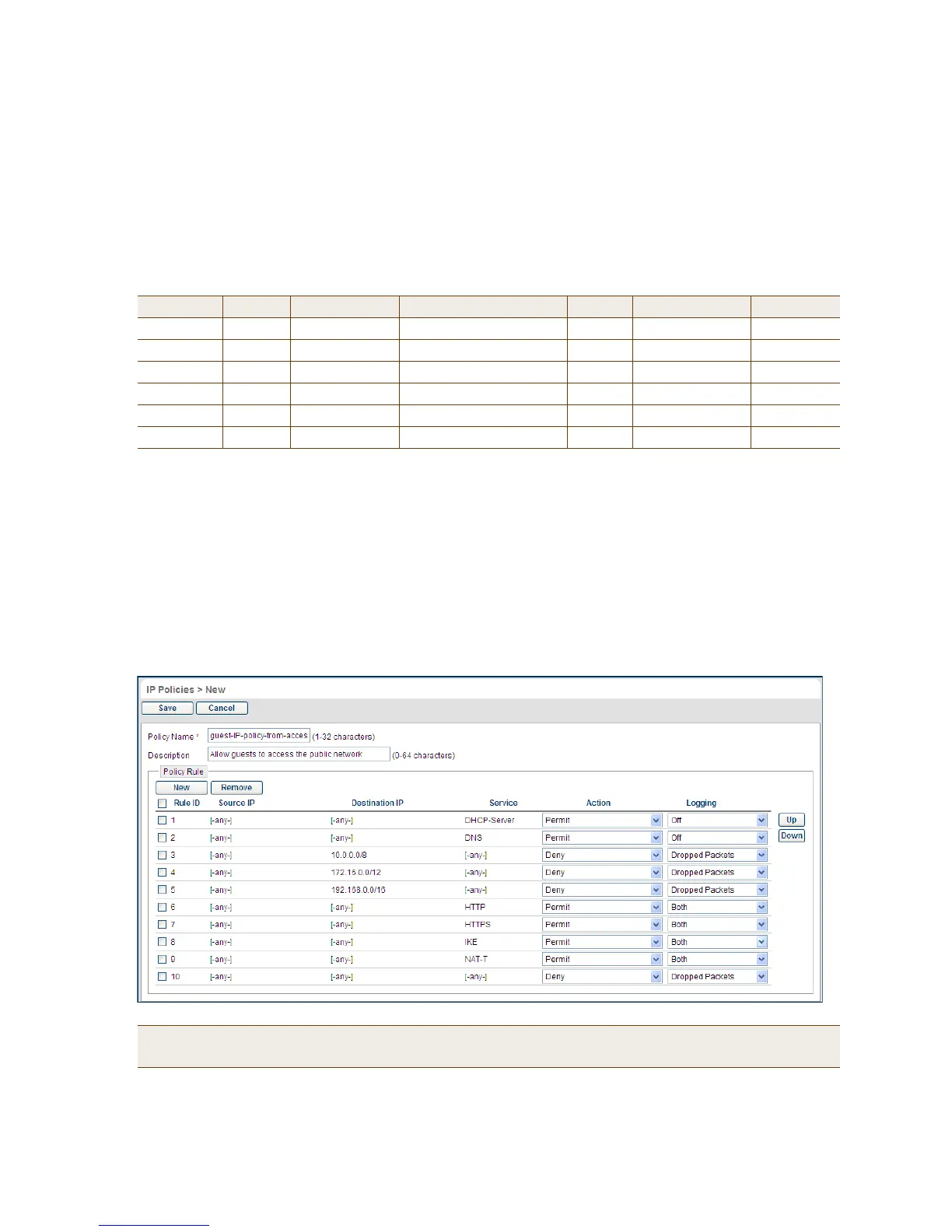
HiveManager adds new rules to the bottom of the rule list, so that if you enter the rules in the order presented
above, they will already be in the correct positions, as shown in Figure 11. The HiveAP firewall checks policy
rules from top to bottom and applies the first match that it finds.
Figure 11 Firewall policy rules
(Action) Source Destination Service Action Logging
*
* You do not enable logging for DHCP and DNS services because they would generate too many log entries. You enable
logging for packets that HiveManager drops due to the enforcement of rules that deny traffic (Dropped Packets) and the
logging of session initiation and termination (Both) for traffic permitted by policy rules.
(Action)
[-any-] [-any-]
†
† Because the source for DHCPDISCOVER and DHCPREQUEST messages does not yet have an IP address and the destination
is 255.255.255.255 for broadcast traffic, both the source and destination IP addresses must be set as "[-any-]".
DHCP-Server, DNS
‡
‡ Press the SHIFT key while selecting multiple contiguous services, and the CTRL key while selecting multiple contiguous or
noncontiguous services. When you click Apply, HiveManager generates a separate rule for each service.
Permit Off Click Apply.
Click New. [-any-] 10.0.0.0/8 [-any-] Deny Dropped Packets Click Apply.
Click New. [-any-] 172.16.0.0/12 [-any-] Deny Dropped Packets Click Apply.
Click New. [-any-] 192.168.0.0/16 [-any-] Deny Dropped Packets Click Apply.
Click New. [-any-] [-any-] HTTP, HTTPS, IKE, NAT-T Permit Both Click Apply.
Click New. [-any-] [-any-] [-any-] Deny Dropped Packets Click Apply.
Note: If you need to rearrange a set of policy rules, select the check box to the left of a rule, and then click
the Up and Down buttons on the right to move the selected rule to a new position.


 To Next Page