Deleting print jobs
You can remove jobs from the print queue if they are in the ‘waiting status’.
Any pending jobs that are already being calculated or scheduled for printing
will be finished. Such jobs can not be deleted.
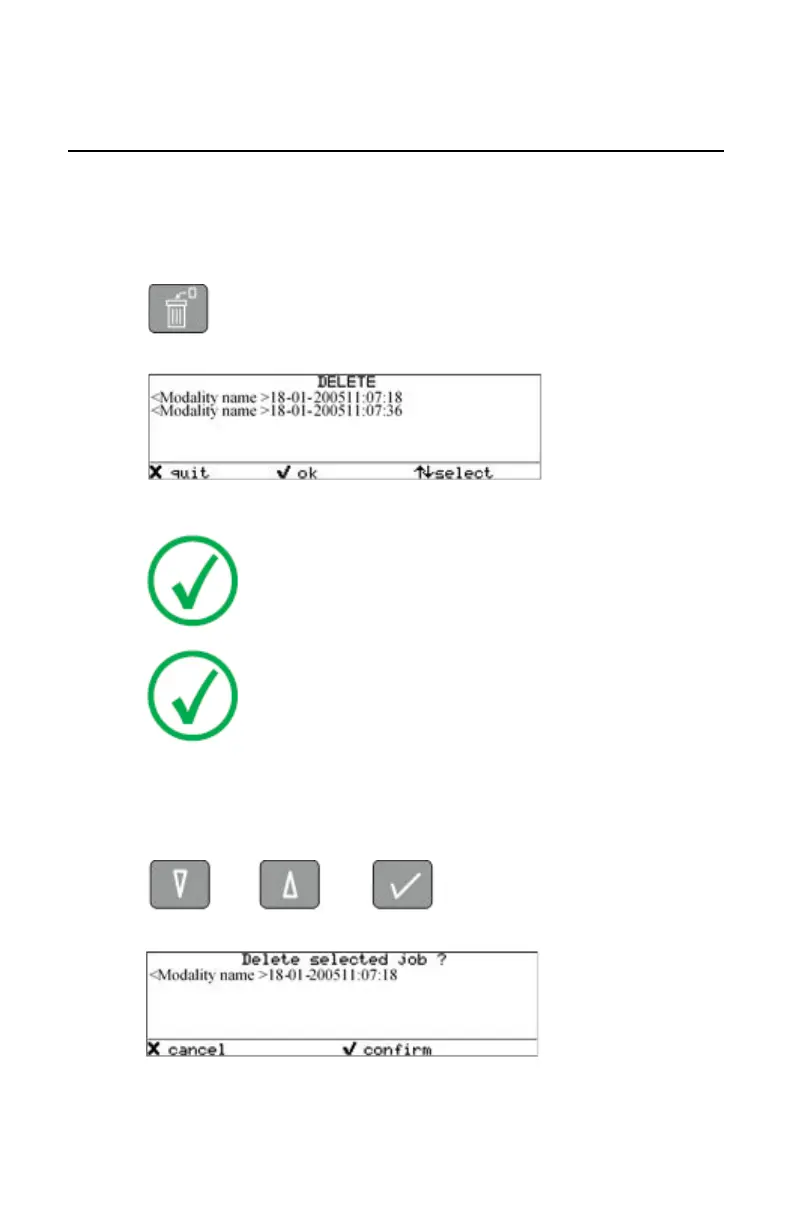
1. On the keypad, press the Delete key.
The Delete print job screen is displayed.
Note: Only the jobs that have the ‘waiting’ status are
displayed.
Note: On the print queue screen the modality name defined
during installation (nickname) will be used to refer to the
corresponding modality. In case no nickname has been
defined during installation, the AE-title will be used.
You can press the Escape key to return to the previous menu without
deleting print jobs (‘Quit’).
2. Press the Down and Up keys to scroll through the jobs and press the
Confirm key to select the job that must be deleted.
The Confirm delete screen is displayed.
You can press the Escape key to return to the previous menu without
deleting print jobs (‘Cancel’).
74
| Drystar 5500, Drystar 5503 | Basic Operation (operator mode)
2901J EN 20191018 0826






 To Next Page