70 71
AgfaPhoto SELECTA 16 AgfaPhoto SELECTA 16AgfaPhoto SELECTA 16 AgfaPhoto SELECTA 16
Connecting to a PC
Use the USB cable and ArcSoft software (CD-ROM) supplied
with your camera to copy (transfer) pictures to a computer.
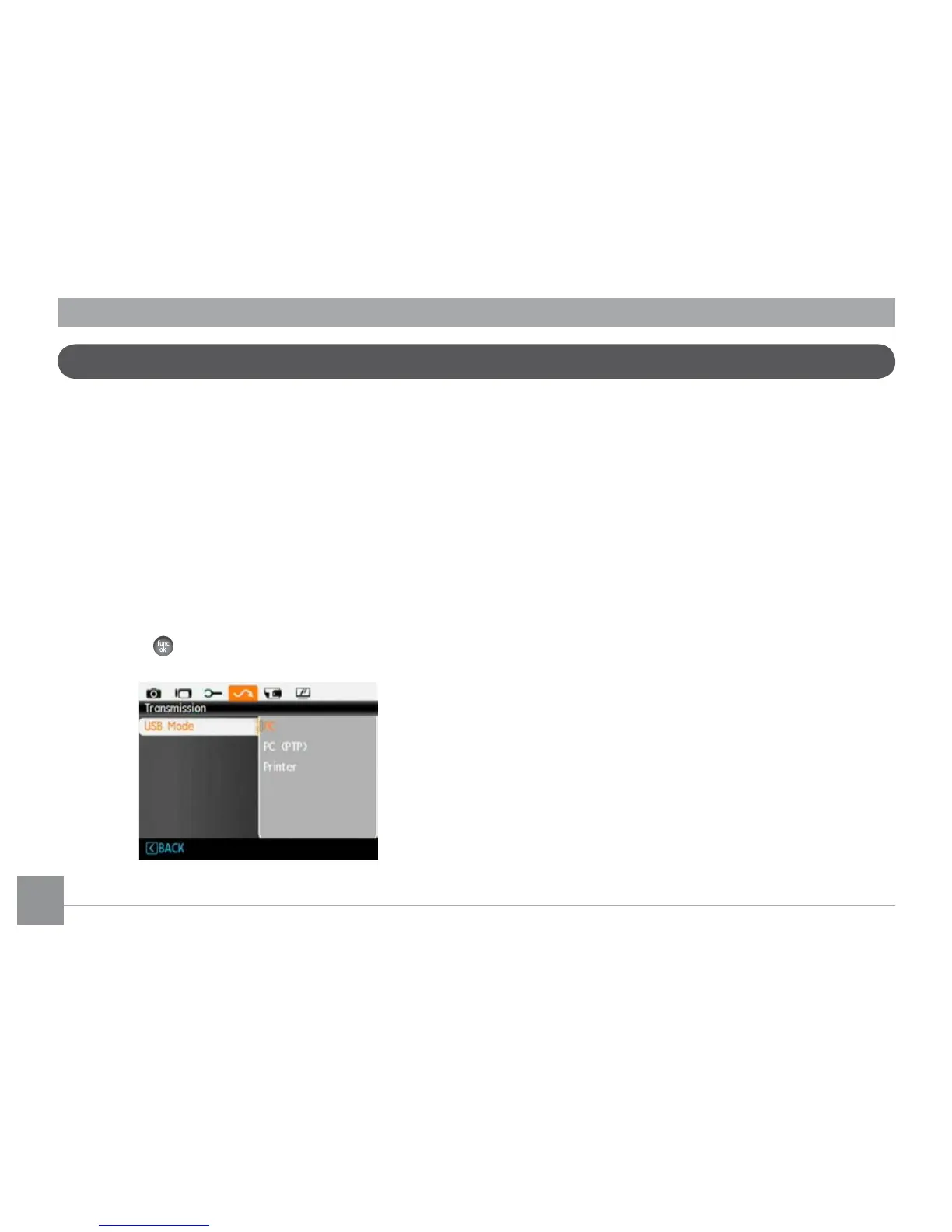
Setting the USB mode
Since the camera’s USB port can be set to connect with
either a PC or a Printer, the following steps will allow you to
ensure that the camera is correctly configured to connect
with a PC.
1. Go to the Transmission menu, then select USB
connection with the Up/Down button, and press the
Right button.
2. Use the
Up/Down
nav
igation buttons to select
PC
.
3.
Press the
button to confirm the setting.
Transferring files to your PC
The computer will automatically detect the camera as a
removable drive. Double-click the
My
Computer
icon on the
desktop to locate the removable drive and to copy folders
and files in the drive to a directory on your PC as you would
copy any typical folder or file.
By using the USB cable, you can transfer the captured
photos and videos to a PC. Follow the steps below to
connect the camera to a PC.
1.
Start a computer in which ArcSoft software has been
installed.
2. Make sure both the camera and PC are turned on.
3. Connect one end of the supplied USB cable to the USB/
AV OUT port on your camera.
4.
Connect the other end of the cable to an available USB
port on your PC.







 To Next Page