72 73
AgfaPhoto SELECTA 16 AgfaPhoto SELECTA 16AgfaPhoto SELECTA 16 AgfaPhoto SELECTA 16
Connecting to a PictBridge Compatible Printer
PictBridge allows printing images from a
memory card in a digital camera directly to a
printer, regardless of brand. To find out if a
printer is PictBridge compatible, simply look
for the PictBridge logo on the packaging or
check the manual for specifications. With
the PictBridge function on your camera, you can print the
captured photos directly to a PictBridge compatible printer
using the supplied USB cable, without the need for a PC.
Setting the USB mode
Since the camera’s USB port can be set to connect with
either a PC or a Printer, the following steps will ensure
that the camera is correctly configured to connect with a
Printer.
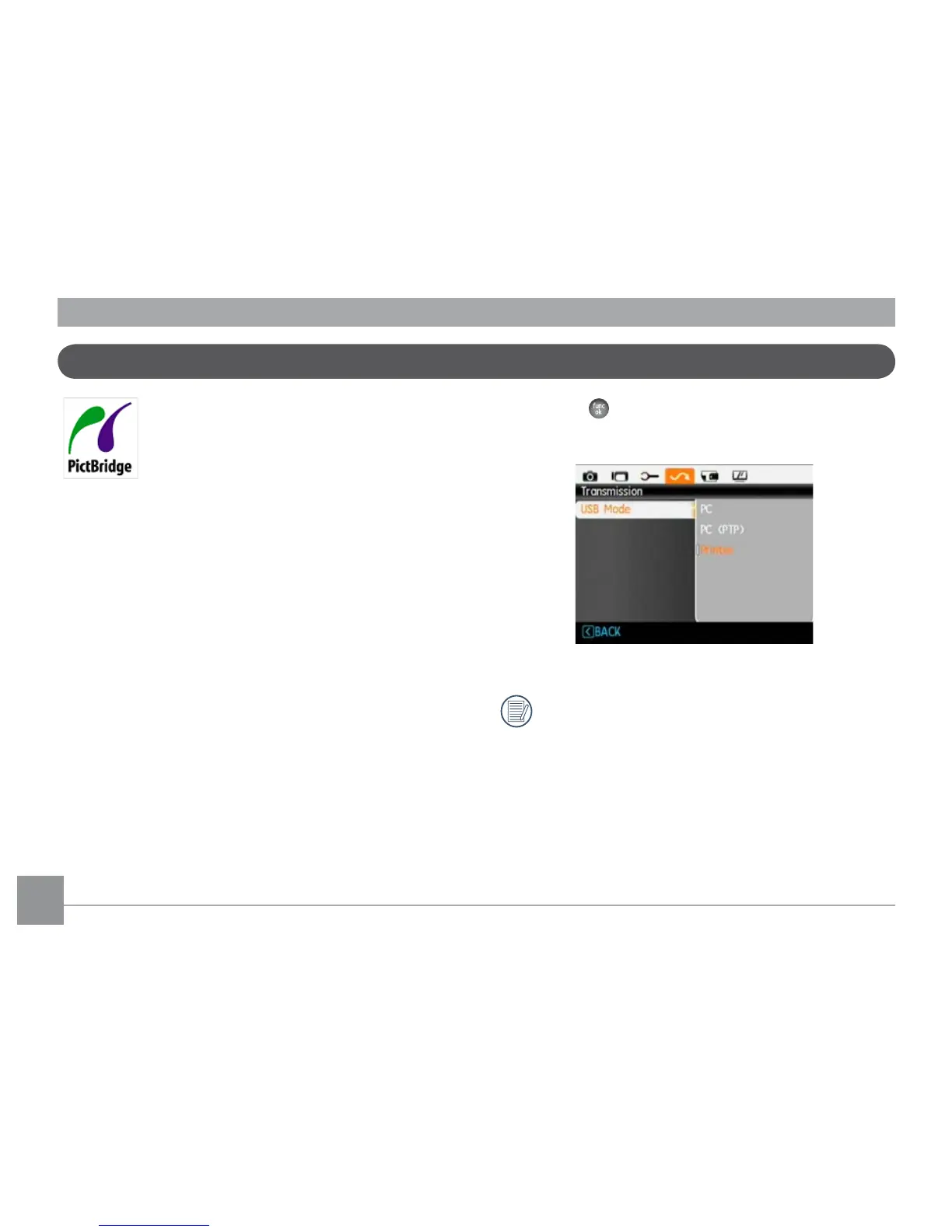
1. Go to the camera's Transmission menu and, select USB
connection with the Up/Down button, then press the
Right button.
2. Use the Up/Down button and select Pr
inter.
3. Press the
button to confirm the setting.
After the camera is reset, it will switch to PC mode
automatically from USB mode.







 To Next Page