5. PC Configuration
69
AirLive N.MINI User’s Manual
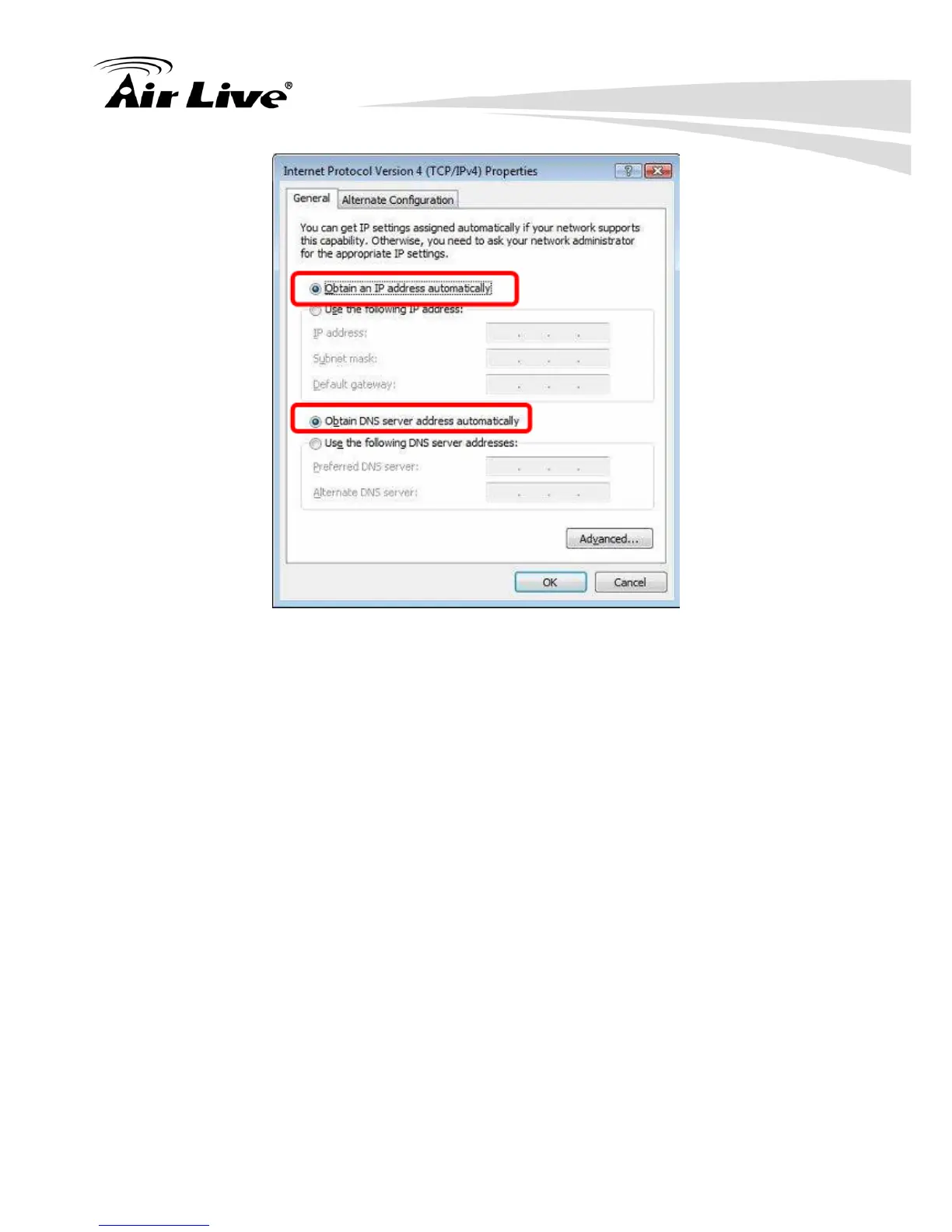
5. Ensure your TCP/IP settings are correct.
Using DHCP
z To use DHCP, select Obtain an IP address automatically and Obtain DNS server
address automatically. This is the default Windows setting. Using this is recommended.
By default, the Wireless Router will act as a DHCP Server.
z Restart your PC to ensure it obtains an IP address from the Wireless Router.
Using a fixed IP Address ("Use the following IP Address")
If your PC is already configured, check with your network administrator before making the
following changes.
z In the Default gateway field, enter the Wireless Router 's IP address. Your LAN
administrator can advise you of the IP address they assigned to the Wireless Router.
z If the DNS Server fields are empty, select Use the following DNS server addresses,
and enters the DNS address or addresses provided by your ISP, then click OK.
5.2.5 Checking TCP/IP Settings - Windows 7
1. Go to Start > Control Panel> Network and Sharing Center> Manage Network
Connections> Local Area Connection.
2. Right click the Local Area Connection icon and choose Properties. You should see a
screen like the following:


 To Next Page