RadarBox 3D
103
Copyright 2010 by AirNav Systems
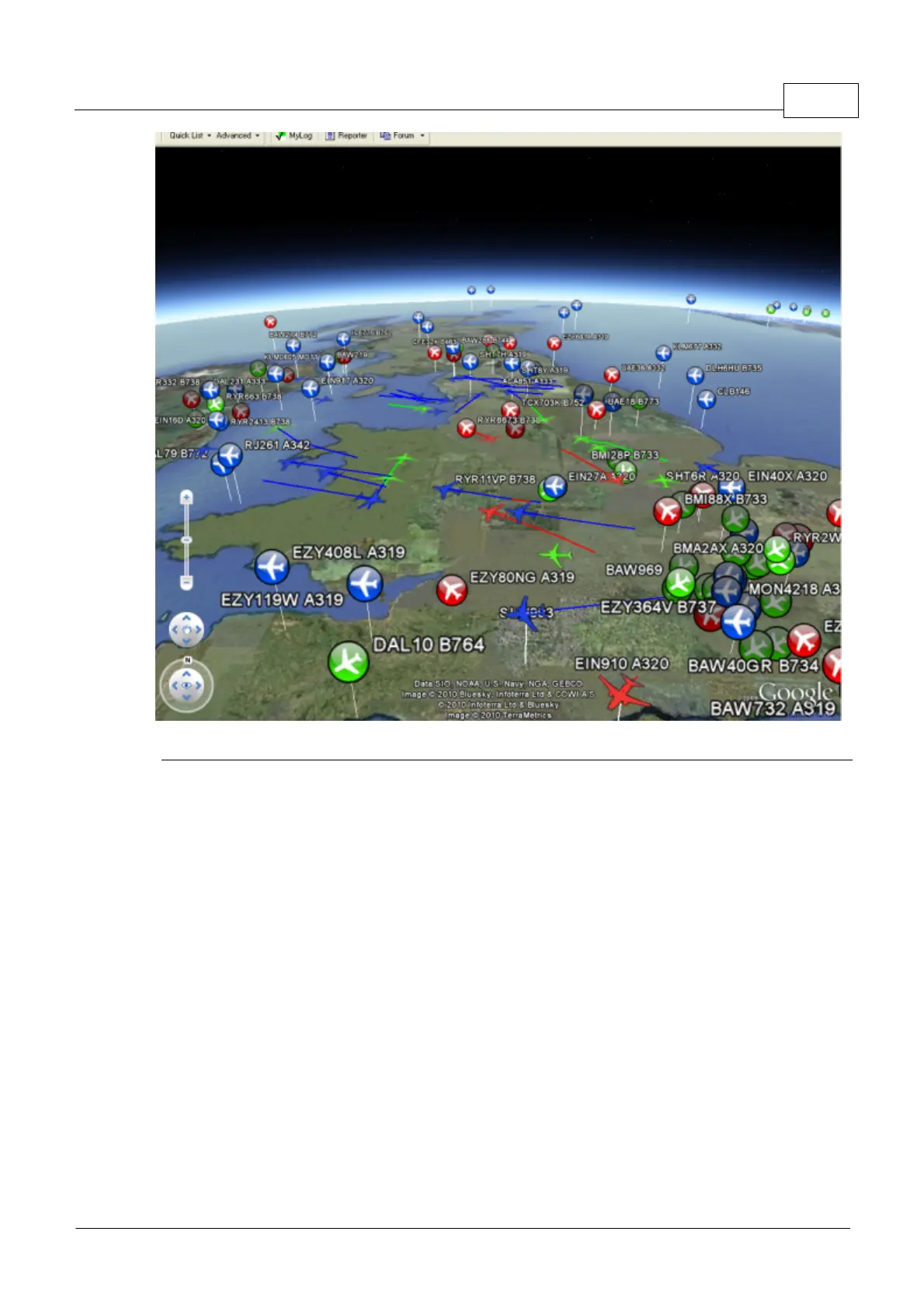
Above: Hardware flights set to Medium and Network Flights to Minumum
General Settings
The General Settings allow you to customise the 3D display to suit your requirements and the
performance of your PC.
1. Show Aircraft Labels - This shows or hides the aircraft labels in the 3D view. Note that the
content of the label is set using the 3D View Aircraft Label setting.
2. Show Sunlight/Darkness - This allows you to display the sunlight and darkness on the Google
Earth view.
3. Use 3D Aircraft Models (if available) - If this is selected, RadarBox 3D will display aircraft as
detailed 3D models. If it is left unticked, then 2D aircraft symbols will be used. Note that use of the
3D Aircraft models requires more PC processing power than the 2D models, so if your 3D view
appears slow to respond, leave this setting unticked. Whilst RadarBox 3D includes a comprehensive
3D model database, if a model does not exist for the aircraft you are viewing, the aircraft will appear
as a 2D symbol.
4. Show Borders and Place Names - This allows the Google Earth borders and place names to be
displayed.
5. Show Aircraft Model Pitch - This setting allows the 3D models to be shown climbing and



 To Next Page