Getting Started
19
Copyright 2010 by AirNav Systems
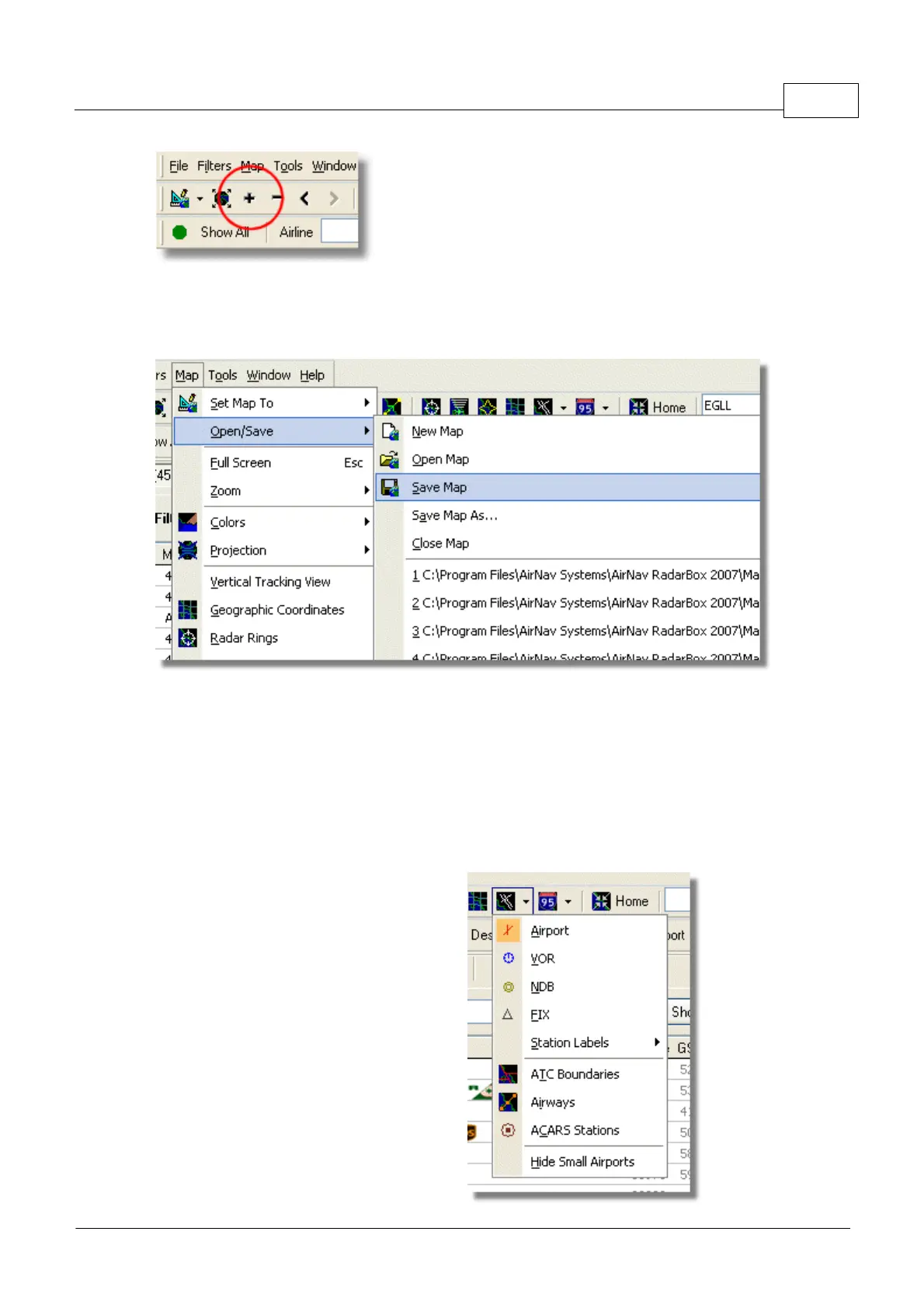
6- Save your map by going to [Map |Open/Save | Save Map]. Answer Yes to the "Are you sure
you want to overwrite your default map file?". This map will be the one that will be always shown
after the application is started.
7- All map functions are located on the map menu or on the map toolbar on the top of the main
window. You can also right mouse click over any map to access map functions in a faster way,
including setting you home location. On these menus there are several map layers that you can
choose to be hidden or visible. This includes aviation related layers (airports, runways, NDBs, VORs,
FIXes as well as airways and ATC boundaries). There are also general interest layers like roads,
geographic coordinates, cities and elevations. See the Maps Toolbar section for more information on
working with maps.



 To Next Page