AirNav RadarBox Manual
20
Copyright 2010 by AirNav Systems
8- Now let's have a look at the RadarBox Interface panel. This is where all the action will take place.
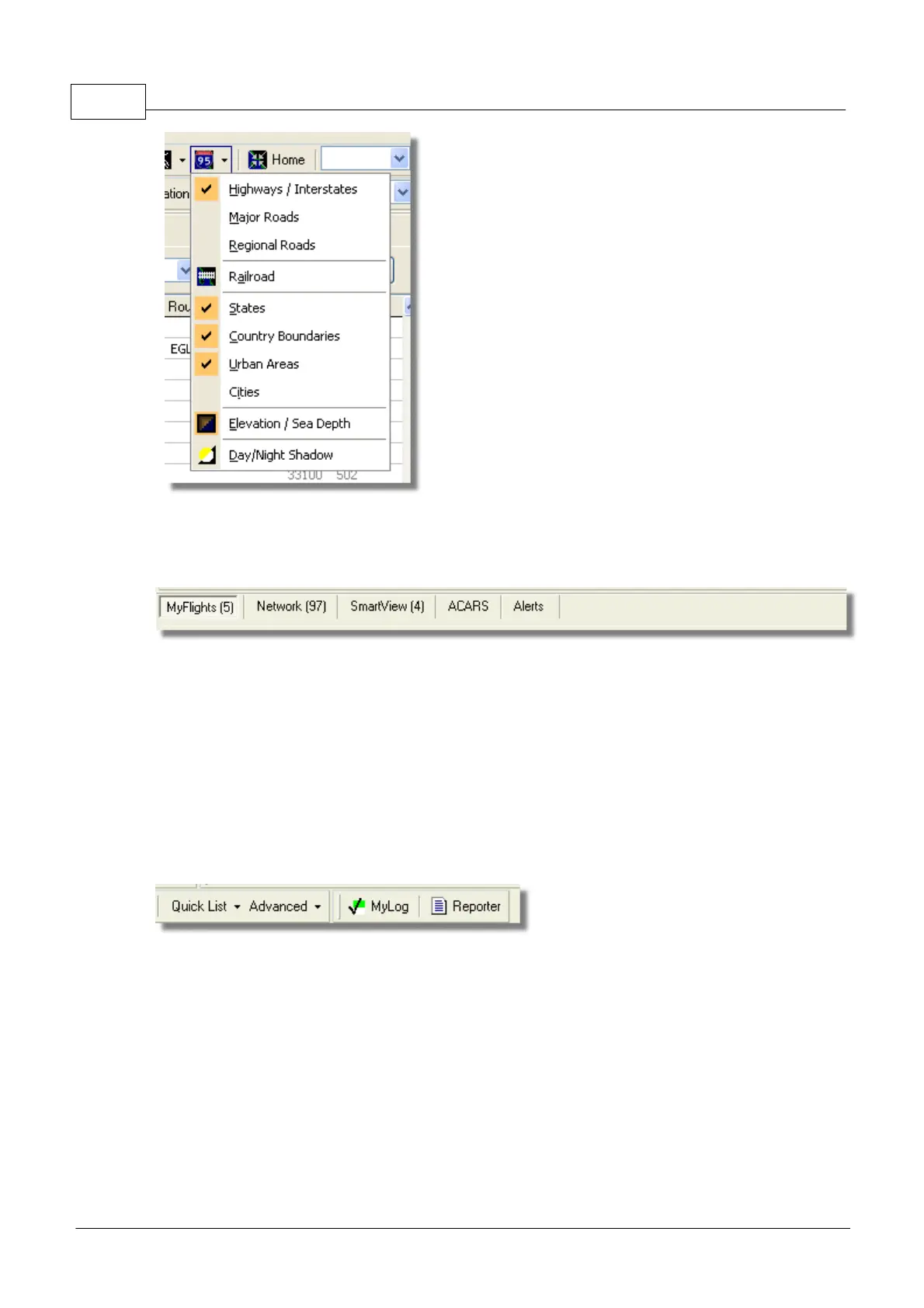
It is divided into 5 tabs.
· MyFlights: where all the flights received using your hardware will be shown. A grid will show as
many flight details as possible, from aircraft registration to flight route. Photos and aircraft details
will appear on the bottom of this tab.
· Network: all AirNav RadarBox Network flights (received from other RadarBox users) will be shown
on this tab.
· SmartView: Selected aircraft list, chosen by registration or flight ID
· ACARS: flights received from AirNav ACARS Decoder interface will be shown here.
· Alerts: you could receive an email each time a specific registration is received by your decoder.
Other types of alerts are available.
9- In addition to the 5 tabs, you can also access the MyLog and Reporter functions.
· MyLog: a collection of all live flights received by your RadarBox will appear on this tab (Network
flights are not recorded in MyLog). Data can be imported and exported from the MyLog Tools menu.
· Reporter: an easy interface for you to share your reports with other mode-s users.
10- At the bottom of the RadarBox interface notice the connection status. You can monitor here if the
hardware is properly connected to your computer and to the RadarBox Network.
11- To connect to the RadarBox Network and see flights being received by other users, first check
that you have your RadarBox unit connected to your computer. After this be sure you are connected
to the Internet. If both conditions are met, go to the Network Tab on the RadarBox Panel Interface
and click on the "Get Flights From RadarBox Network" check box.



 To Next Page