Io XT/4K Capture, Display, Convert v14.0 24 www.aja.com
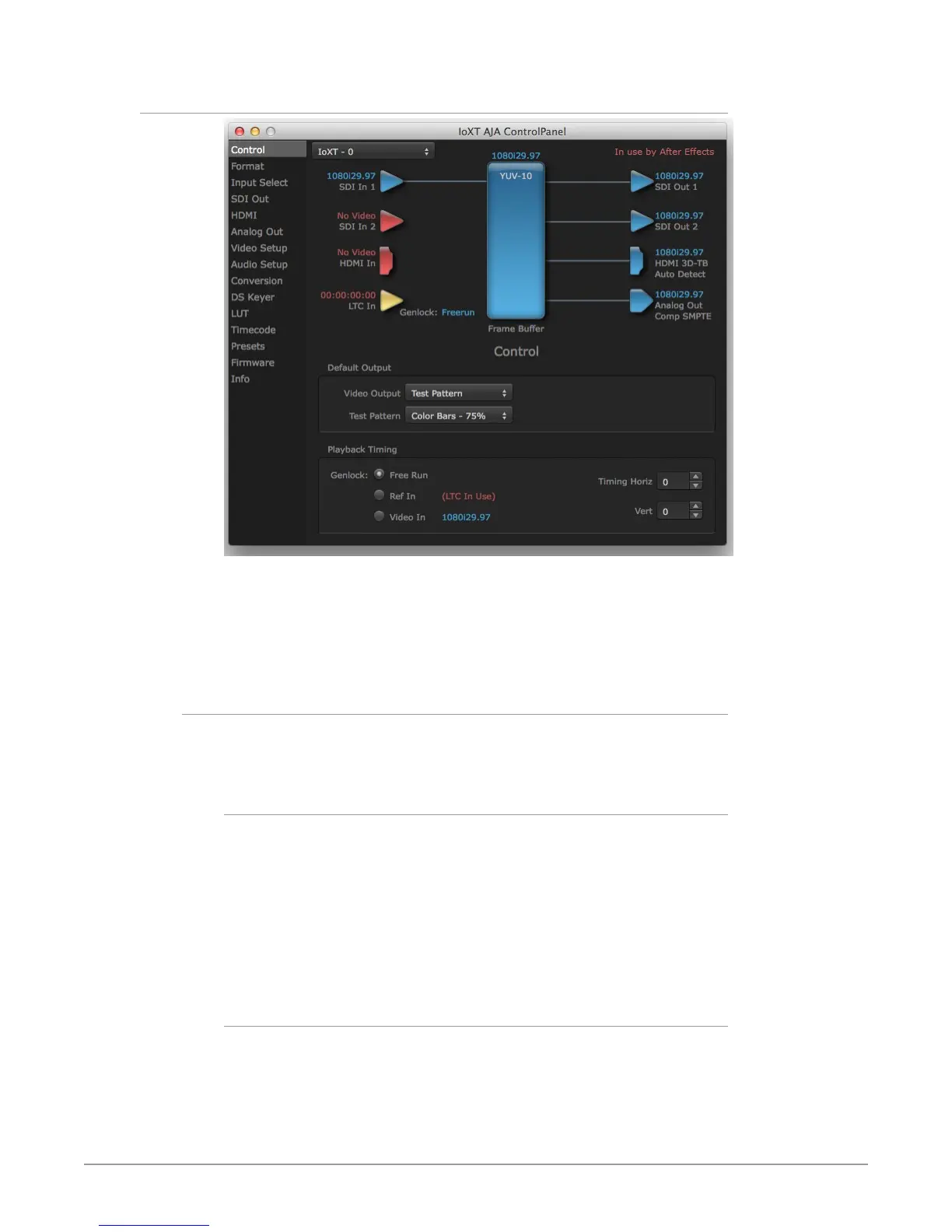
Control Screen
The Control Screen is where you set the Default Output, what the device outputs
when no application has control of the board. This screen also has controls for
setting the genlock source, and for setting the Horiz and Vert timing offsets. The
top of the Control Screen shows the current state of the device and also shows
the name of the Application which has control of the board, if there is one.
Default Output
Many video applications can grab control of the Io XT/4K, so its outputs can
change dynamically. The Default Output settings are used to select what will be
output when no third-party video application is controlling Io XT/4K.
Video Output
• Input Passthrough - This selection directs Io XT/4K to route video from its
selected input through the card for processing and output.
• Test Pattern - This selection directs Io XT/4K to output a preset pattern when
no other application is in control. The pattern is selected from the Test Pattern
dropdown list below, or a graphic le can be chosen.
• Hold Last App - This selection directs Io XT/4K to hold and output the last
frame of video from the last application to control Io XT/4K. This can be helpful
when operating in an environment where you’re switching back and forth
between multiple application windows.
Test Pattern
With Test Pattern selected above, you can choose the pattern type. Select from:
• Black, Color bars (75% or 100%), Ramp, Multiburst, Line Sweep, Multi Pattern,
or Flat Field, Check Field, White, Border, Linear Ramp, Slant Ramp, Zone Plate,
Color Quadrant, or Color Quad Border.


 To Next Page