Io XT/4K Capture, Display, Convert v14.0 34 www.aja.com
QuickTime Settings
VANC Checkbox
When checked ON, the VANC checkbox tells the Io XT to capture and process any
ancillary data in the SDI stream. This can include Closed Captioning data, and
other types of metadata. Applications such as Premiere Pro and Final Cut Pro will
not capture or output this data through the Io XT, if this box is not checked on.
NOTE: Io4K does not require enabling the VANC checkbox for Closed Captioning.
VOut Filters
These controls enable/disable output capabilities in the QuickTime VOut filter.
This filter is used by older applications that are built on legacy QuickTime
architecture such as FCP7, AJA TV, and older versions of After Effects. Boxes that
are checked will define what framerate and resolution types will appear in the list
of available formats in the AJA hardware. For example, if 25/50 is unchecked, then
all resolution/framerate combinations with 25 or 50 fps will not appear in the list
of capabilities for the installed AJA hardware, when using software that relies on
the QuickTime VOut filter.
Audio Setup Screen
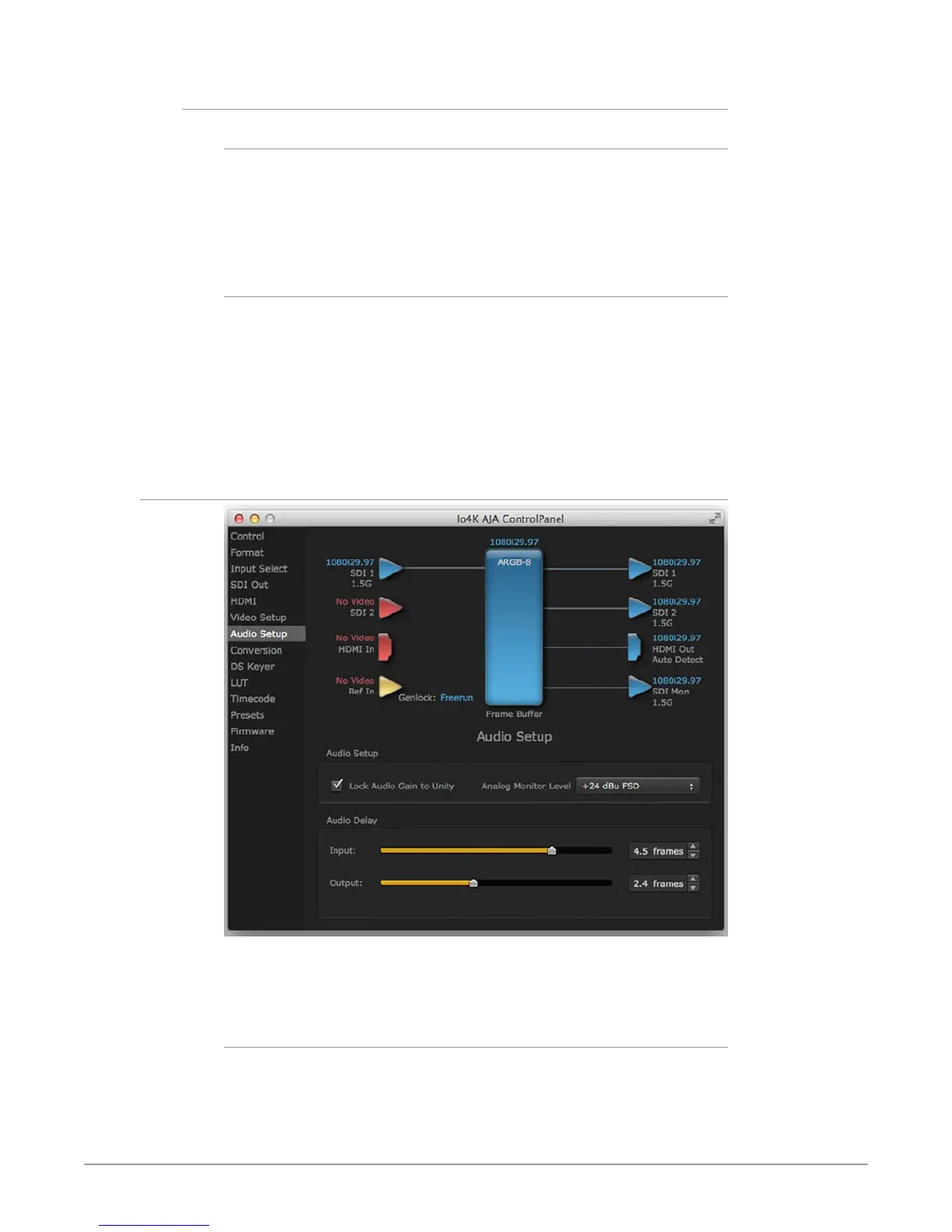
The Audio Setup screen shows the current settings for the analog audio output,
allowing you to re-configure it when desired. The Io 4K screen is shown because
the Audio Delay settings it supports are not available on Io XT.
Audio Monitor
This control selects which pair of channels from the NLE will be monitored. For
most editing scenarios this should remain as Ch 1-2, since most NLEs default to
dual track / stereo monitoring as a sum of the entire timeline.
NOTE: This setting only applies to dual channel monitoring environments (for example,
the headphone jack on the front of the Io XT/4K).


 To Next Page