Io XT/4K Capture, Display, Convert v14.0 43 www.aja.com
Presets Screen
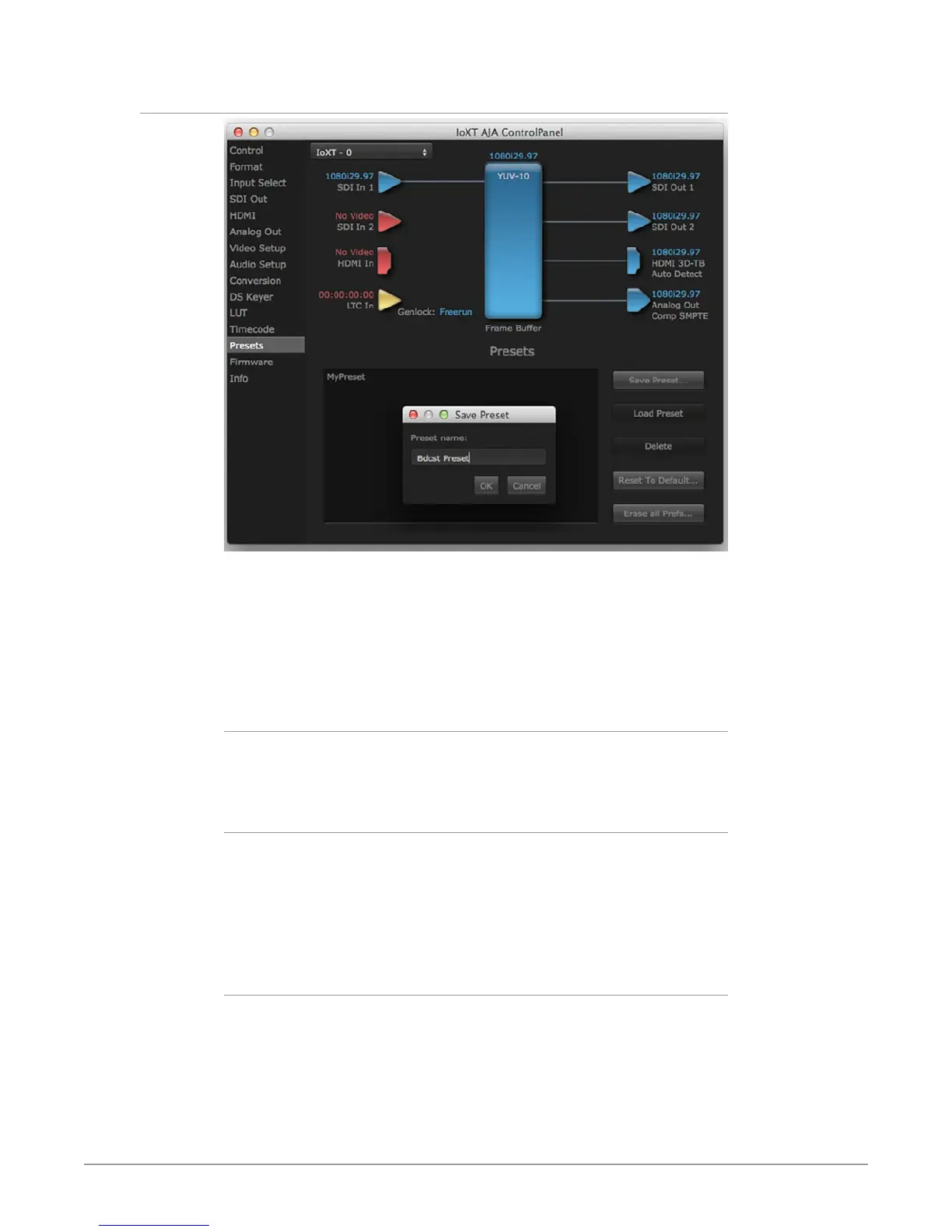
After configuring the AJA Control Panel screens, you can then save all your
settings as a snapshot for later recall—called a preset. In this way, you can
organize presets for all your typical tasks, eliminating time-robbing manual
reconfiguration each time. To save a preset, simply go to the Presets screen and
click “Save Preset”. A dialog will be presented asking you for a name; enter a
meaningful name and click “OK”. Thereafter the preset will be available under the
Control Panel “Presets” list.
Loading and Saving Presets
From the Presets screen you can manage your collection of presets easily. To Load
or Delete a stored preset, just select it with your mouse and then click the “Load
Preset” or “Delete” button respectively.
Transferring Saved Presets
If you want to use a saved Preset on another workstation, you can simply copy
the file on removable storage and install it at the new location. The Preset file is
always stored at:
• ~/Library/Application Support/AJA/<device name> Presets/ [on Mac]
• c:\Users\<username>\AppData\Local\AJA\Control Panel\<device name>
Presets\ [Windows 8]
Reset to Default
When you click the ‘Reset to default’ button the control panel will delete the
User’s preference file and do one of the following:
• If “Shared” preferences exist, they are reloaded and the device is set to this
state.
• If the “Shared” preferences le does not exist, “factory defaults” are loaded
and the device is set to this state.


 To Next Page