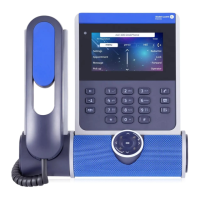
7.16.4 Reset your PIN code
• Restart the deskphone (unplug and plug in the power jack if you are using an external power
adapter or the Ethernet connector – LAN).
• When the deskphone displays the 'Step 2' during the boot, repeatedly press the '*' and '#' keys in
succession until a menu is displayed.
• Enter the administrator password.
• VPN (Scroll down the menu).
• VPN Pincod
• Enter your PIN code.
• Validate.
• Set new Pincode: enter the new PIN Code.
• / : Validate your choice.
• The deskphone restarts.
• Enter the PIN code if you have selected the option (Request Pin on Boot).
• Validate.
• Your deskphone is ready for teleworking.
7.16.5 Reconnect your deskphone in your business place
Your phone is already configured for teleworking.
• Connect your deskphone to the network (and plug in the power jack if you are using an external
power adapter).
• If the option to enter PIN code when you boot your deskphone is enabled in the VPN
configuration (Request Pin on Boot):
o The PIN code is requested.
o Select this icon to go back.
o The phone restarts in normal mode. The VPN is temporary disabled until the next reboot.
• If the option is not enabled:
o When the deskphone displays the 'Step 2' during the boot, repeatedly press the '*' and '#'
keys in succession until a menu is displayed.
o Enter the administrator password.
o VPN VPN Config
o Enter your PIN code.
o Validate.
o Enable VPN: Disable the teleworker.
o The deskphone restarts.
o Enter the PIN code if you have selected the option (Request Pin on Boot).
o Validate.
o The phone restarts in normal mode.



 To Next Page