Adjusting the brightness of the deskphone (8068s CE, 8058s CE)
6.6.1 Adjust the brightness when the phone is in use
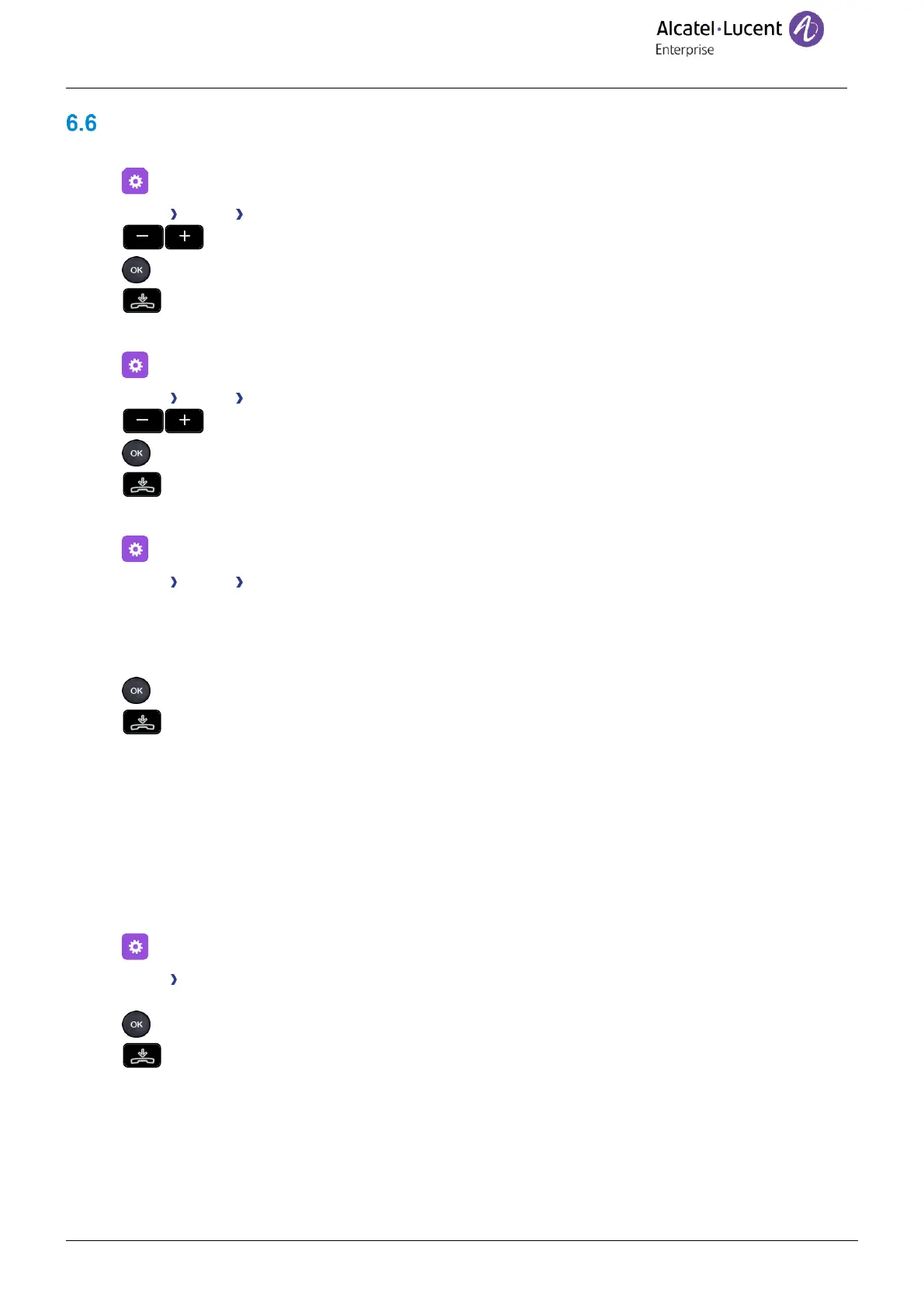
• Select the settings icon from the phone menu (see the navigation section of your phone model).
• Phone Display Brightness
• Increase or decrease the brightness.
• Validate your choice.
• To end the settings.
6.6.2 Adjust the dimmed brightness when the phone is not in use
• Select the settings icon from the phone menu (see the navigation section of your phone model).
• Phone Display Low brightness
• Increase or decrease the brightness.
• Validate your choice.
• To end the settings.
6.6.3 Set the delay before the screensaver starts
• Select the settings icon from the phone menu (see the navigation section of your phone model).
• Phone Display Screensaver
• Enable or disable the screensaver.
• Set the time delay (60s – 18000s).
• If the automatic lock on the screensaver is enabled, your phone will lock as soon as the screensaver starts.
A lock icon is displayed on the screensaver page.
• Validate your choice.
• To end the settings.
This feature can be deactivated by your administrator.
6.6.4 Auto-adjusting of the brightness
The phone can automatically adjust the display brightness, LED and busy light logo on the back shell (if present)
depending on the lighting conditions to improve user experience and achieve power savings (ambient light
sensor).
Auto-adjusting of the display brightness:
• Select the settings icon from the phone menu (see the navigation section of your phone model).
• Phone Display
• Auto-Brightness: activate or deactivate the feature.
• Validate your choice.
• To end the settings.





 To Next Page