3
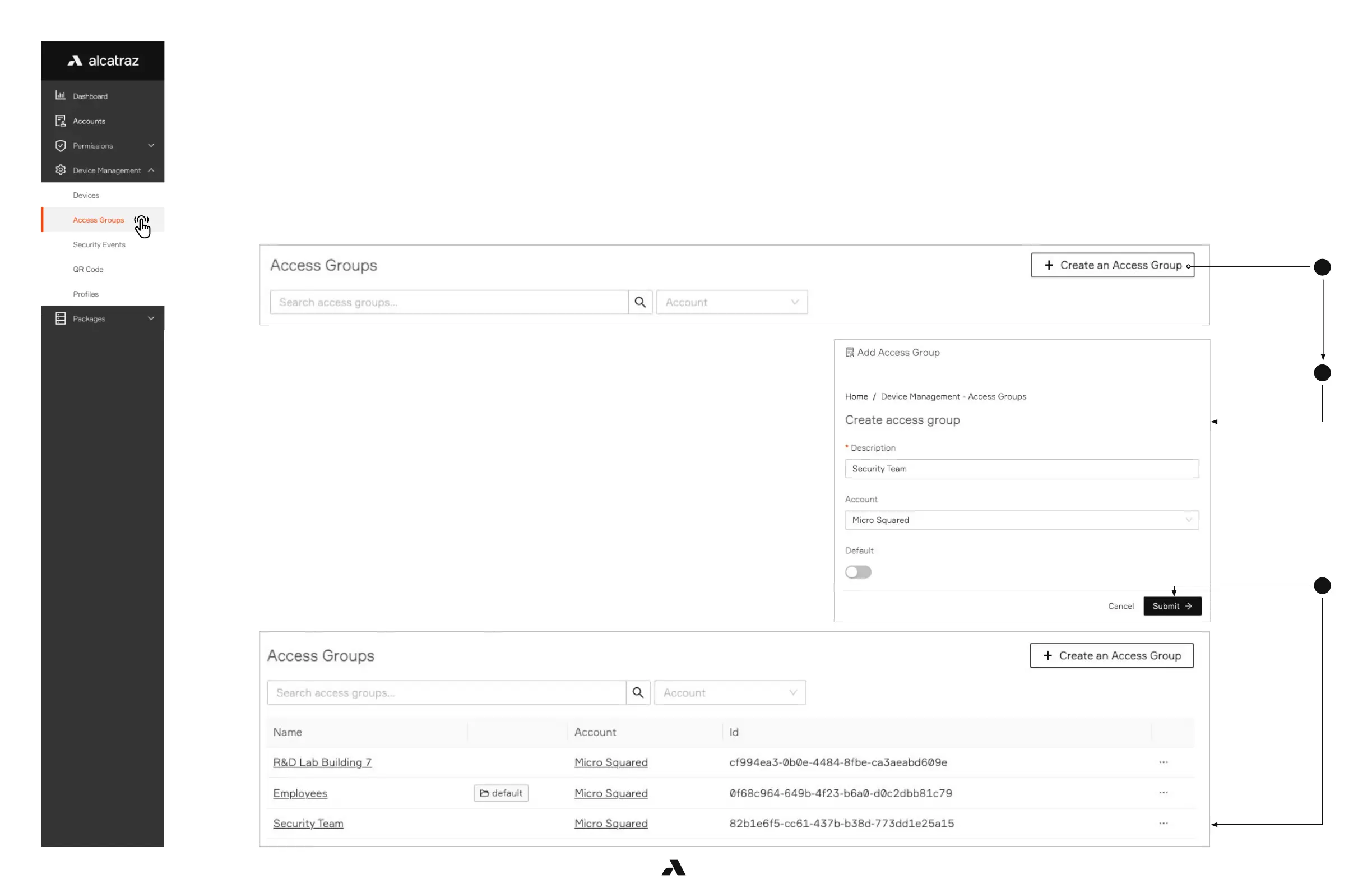
2. Create a new access group by clicking Create an Access Group
3. Fill out the Description and toggle Default if this Access Group will be the default for the Account.
4. Click Submit
Note that an Account can have only one default Access Group
2
4
52Ver. 1.01
6.2 — Access Groups
6.2.1 — Create an Access Group
1. Go to Device Management -–> Access Groups
■ Use the filter to search if the access group already exists.
User access to doors and spaces can be managed in Access Groups. Users can belong to more than one Access Group. Access groups in turn are assigned to
Rocks. When an Access Group is assigned to Rock(s), users belonging to that Access group will be able to access the door(s).
Adding a user to an access group is done in Profiles. Note that before an Access Group can be assigned to a Rock or a user can be added, it must be created first.
As part of the the onboarding process, an Access Group can be assigned to the Rock. If left empty, the default access group will be assigned.
Only one default can exist for an Account. Any Rocks with no access group is assigned the default one.



 To Next Page