2
1
60Ver. 1.01
6.4 — Generate QR Code
The Rock can accept an IP address dynamically via DHCP, or be assigned a static IP address.
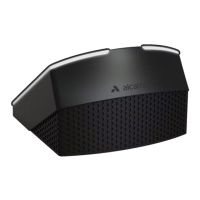
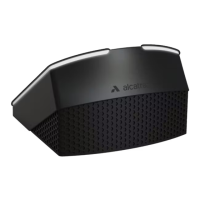
To configure the network settings of a Rock, we use the Rock like a QR code scanner.
The Admin Portal has a QR Code Generator feature that encodes network settings;
■ First enter the network settings
■ Next generate the QR code which encodes those settings
■ Third print the QR code on a piece of paper (or use your laptop screen)
■ Finally present that printed code to the Rock’s image sensor
After the Rock detects and reads that QR code, the encoded network settings will take affect.
To edit or update those settings, generate a new QR code.
The Rock can only read in the QR code when it displays the QR Code Receptive icon.
Before taking a Rock offline for network changes, make sure that the icon is turned on.
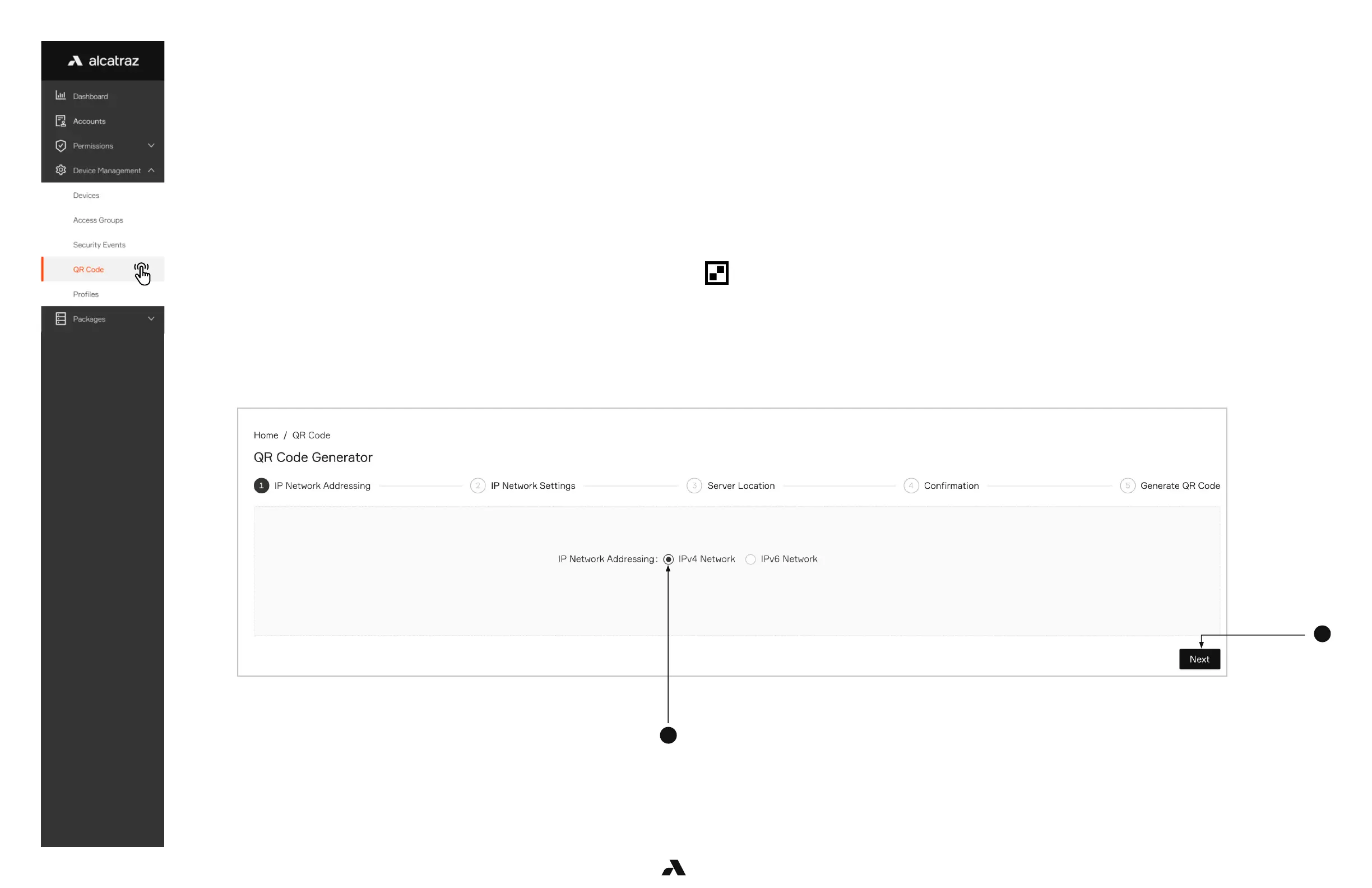
1. Go to Device Management –-> QR Code
2. Select IPv4 Network and click Next. (IPv6 Network is a future release)



 To Next Page