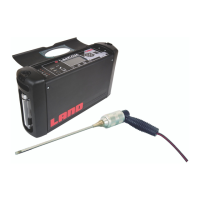
Portable Flue Gas Analyser
User Guide
Lancom 4
15 - 2
Measurement Scenario
An intermittent problem exists where, for short periods of time levels of SO2
intheueexceed300ppm.Thecauseoftheproblemisunknownanditis
expectedthatbyexaminingtheoverallproleoftheuegasesduringthe
fault a diagnosis will be possible.
The problem however may not occur for several hours and to analyse
it,readingsmustbetakenevery5seconds.ConguringInsighttolog
every 5 seconds for an extended period of time will cause excessive and
irrelevantdatatobecapturedmakingfaultdiagnosismoredicultandtime
consuming.
Solution
Insightisequippedwithatriggeringsystemthatenablestheusertodene
the conditions where data acquisition will take place. The data logging
settingsandthetriggersettingscanbeconguredthroughthesystem’s
menus, and the Lancom 4 analyser left to continuously monitor
1
the process.
When the fault occurs the trigger will start the data logging process every 5
seconds over the period of interest. The relevant data can then be reviewed
easily.
Measurement Method
ThefollowingtabledetailstheprocedurerequiredtocongureInsightforthe
solution described above. Against each step is a cross reference to a section
of the Insight User Guide manual that details the associated function. The
table provides a quick introduction to the functions of Insight.
1 Care should be applied when the Lancom analyser is used for continuous monitoring
over extended periods of time as reduced sensor life may occur especially where the
monitored gases are at high concentration levels.
Step Function See Insight
User Guide
Page
1 Connect the Lancom 4 analyser to the PC using the USB-to-
RS232 converter which is supplied with the Lancom instru-
ment
2 Turn on the Lancom 4 analyser, when the calibration cycle is
complete select Gas Measurements and press GO.
3
Start Insight and check the
icon appears in the status
bar at the bottom of the application window.
If the
icon appears in the Status bar refer to page 21 of
the Insight User Guide.
21
4 Double click on Data Log 1 and Rename to SO2 Log. 26
5 Right click and from the pop up menu select Edit Notes.
Enter test notes in the dialog box.
26
6
Create a User Table by selecting the
icon on the Toolbar.
28


 To Next Page
 Loading...