EasyManua.ls Logo

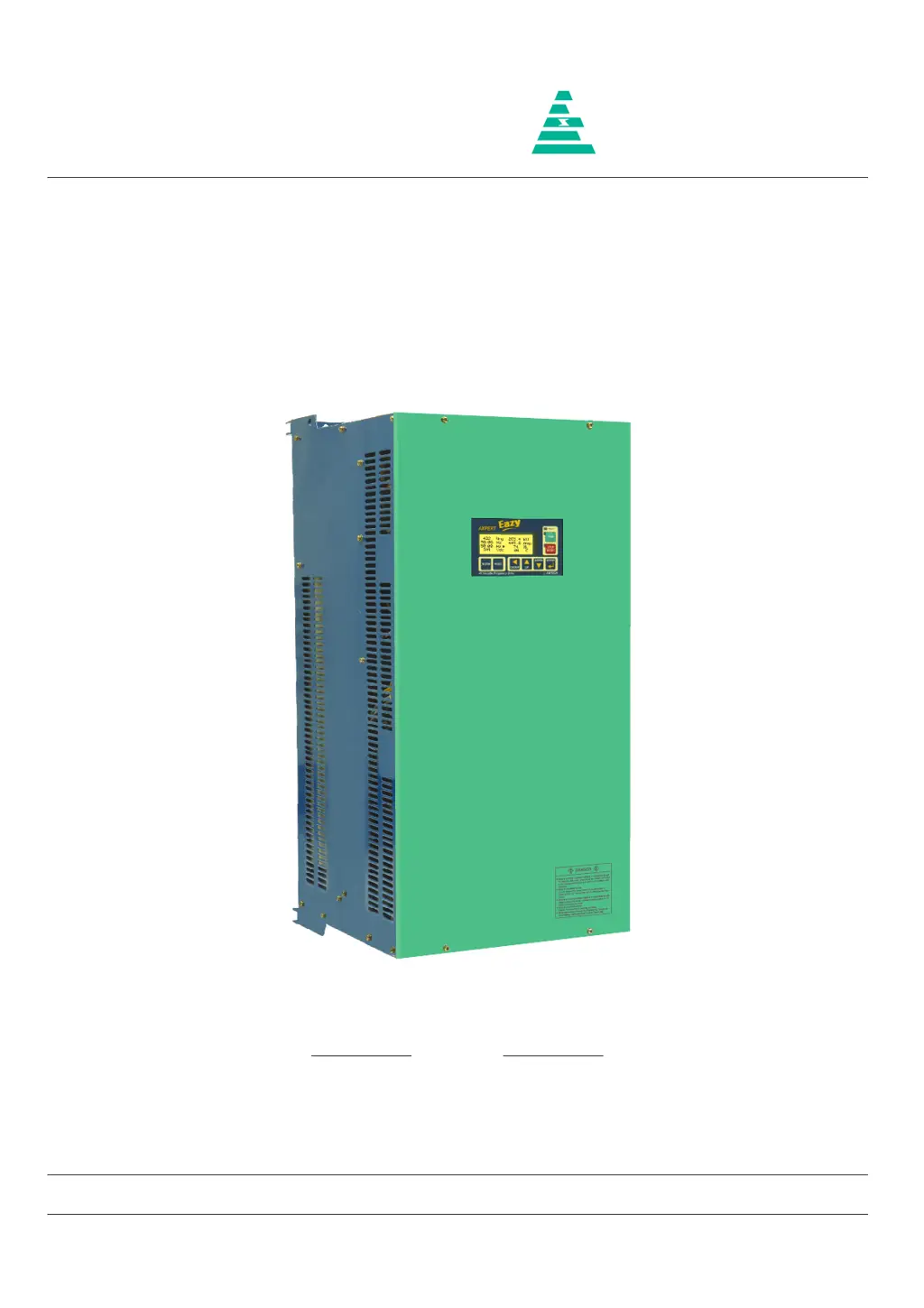
Amtech Axpert-Eazy Series - User Manual

Amtech Axpert-Eazy Series
242 pages
Print Icon
To Next Page IconTo Next Page
Loading...
NOTICE
1. Read this manual thoroughly before using the Axpert-Eazy, and store in a safe place for reference.
2. Make sure that this manual is delivered to the final user.
200 V System, 11 kW (15 Hp) ~ 90 kW (125 Hp)
400 V System, 22 kW (30 Hp) ~ 1550 kW (2075 Hp)
500 V System, 30 kW (40 Hp) ~ 1550 kW (2075 Hp)
600 V System, 30 kW (40 Hp) ~ 1800 kW (2415 Hp)
Instruction Manual
Axpert-Eazy Series
AMTECH
IMAE-01, Rev. 1.20
JUL 2017
AMTECH

Table of Contents

Questions and Answers

  • M
    mitchellboydSep 4, 2025
    What causes Under Voltage Fault in Amtech Axpert-Eazy?
    • W
      wattschristopherSep 4, 2025
      An Under Voltage Fault in Amtech DC Drives can be caused by the DC Bus voltage falling below the under voltage level. Check the input power supply and correct it if necessary. Also check soft charge contactor or connection.
  • J
    Jessica GonzalezSep 2, 2025
    What to do if Amtech DC Drives have Thermistor Over Temperature Fault?
    • J
      James SmithSep 2, 2025
      If your Amtech DC Drive is showing a Thermistor Over Temperature Fault, it could be due to several reasons. A trouble may have occurred in the cooling blower, so replace it if necessary. The ambient temperature may have risen, so lower the ambient temperature (less than 50 °C for 400 V series or less than 40 °C for 500 V / 600 V series). The temperature switch (thermostat) or thermistor may not be connected or loosely connected at J16 and J13 respectively, so disconnect thermostat switch connection at J16 and ensure that the thermostat shows short circuit. Disconnect the thermistor and ensure that the thermistor shows resistance greater than 2.2 kΩ but less than 60 kΩ. Reconnect thermostat and thermistor properly.
  • M
    Melissa WalkerAug 31, 2025
    How to fix U Phase Current Sensor Fail Fault on Amtech DC Drives?
    • D
      David Lopez DDSAug 31, 2025
      To address a U Phase Current Sensor Fail Fault on Amtech DC Drives, first, check for a loose connection of the hall current sensor cable connected at J12 of PCA-2014A. Switch off the unit, remove the cable, and inspect both sides for proper crimping. If you find any issues, replace the cable and check again. Second, one or more current sensors may have failed. Remove connector J12 and reset the fault. If the fault can be reset, identify the failed current sensor. If, after removing connector J12, the problem persists, replace PCA-2014A.
  • C
    Carol PowellAug 29, 2025
    What causes an Adjustable Over Current Fault in Amtech Axpert-Eazy?
    • E
      Elizabeth PriceAug 29, 2025
      An Adjustable Over Current Fault in Amtech DC Drives can be triggered by a few factors. The motor current data might be set incorrectly, so set correct motor current data in B103. Alternatively, the adjustable over current settings may be too low, so increase the adjustable over current level (B302). Finally, the output current might be too high, so reduce the motor load.
  • O
    Oscar ReyesAug 28, 2025
    What to do if Amtech DC Drives display a Communication Loss?
    • A
      Alicia HallAug 28, 2025
      If an Amtech DC Drive displays a Communication Loss, it could be due to several reasons. There may be a problem in display board PCA-2012, so replace the display board PCA-2012 and check again. Also, there may be a problem in control board PCA-2014A. If +5 V supply or +3.3 V supply is not coming then also this fault will come. Check the power supply unit and if problem is found replace it, or replace the DSP control board PCA-2014A and check again. You can also disable the fault using C405. This will allow the inverter to run in case of communication loss between the PCA-2014A DSP control board and PCA-2012 LCD display board.
  • M
    Mariah SmithAug 27, 2025
    Why does my Amtech DC Drive show a Drive Over Load Fault?
    • D
      Dean ThomasAug 27, 2025
      An Amtech DC Drive may show a Drive Over Load Fault because the AC drive is overloaded. Ensure that motor current data are properly set in B103. Reduce the load or increase the motor and AC DRIVE capacity. If this occurs at low speed, reduce the torque boost settings (A501 / A502) or DC braking settings (A307 / A308).
  • H
    Hailey FlemingAug 25, 2025
    What to do if my Amtech DC Drives show a Ground Fault?
    • S
      Steven SmithAug 25, 2025
      If your Amtech DC Drive indicates a Ground Fault, it may be due to a short in the output line or motor. Check that no output is shorted to ground; partially damaged output cables can also cause this. Another possibility is a problem with one or more current sensors. Remove the current sensor feedback and check. If the fault persists, replace PCA-2014A, otherwise replace the problematic current sensor.

Summary

Preface

Precautions For Safety

Essential safety guidelines to prevent hazards and ensure correct usage of the AC Drive.

CHAPTER-1 DELIVERY, INSPECTION AND STORAGE

1-1 Delivery, Inspection, and Storage

Procedures for receiving, inspecting, and storing the AC Drive to ensure it's undamaged and ready for use.

CHAPTER-2 INSTALLATION AND WIRING

2-1 Installation Environment

Guidelines for selecting an appropriate installation location, considering ambient temperature, ventilation, and environmental factors.

2-2 Precautions for Power Supply and Motor Wiring

Safety precautions and correct wiring procedures for connecting the power supply and motor to the AC Drive to prevent hazards.

CHAPTER-3 DIGITAL OPERATION PANEL (LCD KEYPAD MODULE)

3-3 Parameter Display & Setting

Details the process of navigating, displaying, and setting parameter values using the operation panel keys.

CHAPTER-4 TEST OPERATION AND ADJUSTMENT

4-1 Preparation Before Turning Power ON

Essential checks and preparations to be completed before applying power to the AC Drive, ensuring safe and correct initial startup.

4-3 Automatic Tuning & Adjustment

Describes the automatic tuning process to measure and adjust motor parameters for optimal system performance.

CHAPTER-5 CONTROL INPUT; OUTPUT TERMINALS

5-1 Input; Output Terminal Functions of PCA-2014 A (Control Unit)

Details the functions and uses of various terminals on the PCA-2014A control unit for input and output signals.

5-7 Default Function Assignments to Terminals

Shows default assignments of functions to terminals, providing a quick reference for common configurations.

CHAPTER-6 PARAMETER SETTINGS & FUNCTIONS

MODE-M: Monitor Parameters

Lists monitor parameters that display operational status, signals, software version, and fault history.

MODE-A Parameters

Covers parameters for Mode-A, including frequency settings, acceleration/deceleration, and start/stop controls.

CHAPTER-7 ELECTRONICS CIRCUIT BOARDS

7-1 Main Control Board

Describes the PCA-2014A main control board, its functions, and the TMS320F2811 DSP.

7-3 Power Supply Unit

Explains the power supply units (PCA-92A, PCA-125A) used for different series and their output specifications.

CHAPTER-8 MAINTENANCE, INSPECTION AND PART REPLACEMENT

8-1 Inspection Items

Outlines periodic inspections required based on the working environment and usage frequency for abnormalities.

CHAPTER-9 OPTIONS

9-1 Green Power Technology

Introduces Input Harmonic Converters as a solution for mitigating harmonic currents from non-linear loads.

9-8 EMI Filter

Explains EMI filters that minimize electromagnetic radiation from AC DRIVE output to protect nearby equipment.

CHAPTER-10 ENCODER SPECIFICATIONS

10-1 Applicable Encoder Specifications

Lists applicable specifications for standard Line Driver type encoders used for speed detection.

CHAPTER-11 SERIAL COMMUNICATION SET-UP

11-1 Connection Method

Outlines the serial communication setup using RS485 as a standard Modbus slave protocol for host computer control.

11-4 Communication Specifications

Details communication specifications like connection method, baud rate, frame configuration, and error detection for serial communication.

CHAPTER-12 UL INSTRUCTIONS

CHAPTER-13 CE MARKING

13-1 Installation Environments

Specifies installation environment requirements according to EN 61800-3 Category C3 for industrial applications.

13-3 Wiring & Earthing

Provides essential guidelines for wiring and earthing, including cable selection, separation, and proper grounding techniques.

Appendix-A Standard Specifications

Appendix-B Fault Codes

Appendix-C Trouble Shooting Guidelines

Appendix-D Revision History

Amtech Axpert-Eazy Series Specifications

General IconGeneral
BrandAmtech
ModelAxpert-Eazy Series
CategoryDC Drives
LanguageEnglish

Related product manuals