EasyManua.ls Logo

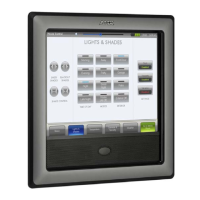
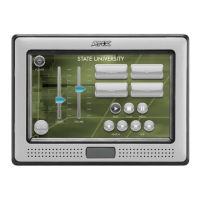
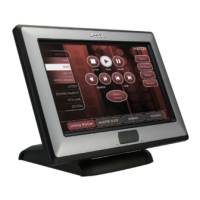
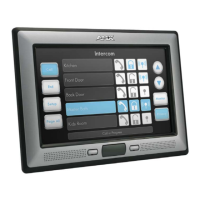
AMX NXD-1000Vi - User Manual

AMX NXD-1000Vi
228 pages
Print Icon
To Next Page IconTo Next Page
Loading...
Operation/Reference Guide
Touch Panels
NXD-1000Vi
10" Modero
®
Wall/Flush Mount
Touch Panel with Intercom
Last Revised: 7/2/2012

Table of Contents

Questions and Answers

  • L
    lisa00Aug 19, 2025
    How to fix AMX Touch Panel USB driver with yellow exclamation point?
    • W
      walshrogerAug 19, 2025
      If your AMX Touch Panel's USB driver shows a yellow exclamation point, it indicates an incorrect installation. To reinstall the driver: * Power up the panel without the USB cable connected. * Plug in the USB cable. A USB icon should appear in the System Tray. * Double-click the icon to see the "AMX USB LAN LINK" device. * If the "Install Driver" dialog doesn't appear, select "Properties" then "Update Driver." * Click Next on the Install Driver dialog to accept defaults. * Ignore the digital signature warning and continue the installation. * The exclamation point should disappear after installation.
  • Q
    qponceAug 21, 2025
    Why is my AMX Modero Touch Panel not showing up in Workspace window?
    • F
      friedmanrickAug 21, 2025
      If your AMX Modero Touch Panel isn't appearing in the Workspace window, there are a couple of things to check: * Make sure the System number is the same in both the NetLinx Workspace window and on the System Settings page of the Modero panel. * Verify that you've entered the correct NetLinx Master IP address and connection methods in the Master Connection section of the System Settings page.
  • C
    Christina CampbellAug 23, 2025
    What to do if AMX NXD-1000Vi Touch Panel Connection Status button isn’t blinking?
    • E
      Elizabeth AguirreAug 23, 2025
      If your AMX Touch Panel's Connection Status button isn't blinking and displays "USB Connecting," it means the panel is trying to establish USB communication. Here's what you can do: * Remove the USB connector and close any AMX applications. * Reboot the panel. * Relaunch the AMX application and try reconnecting. * If using Studio for Virtual Master, ensure a Virtual Master connection is established with the correct System number. Stop and re-establish communication by refreshing the system. * After the panel restarts, reconnect the USB connector. * Verify a valid USB connection in your System Tray.
  • M
    maureensandovalAug 26, 2025
    What to do if my AMX Modero Touch Panel can’t obtain a DHCP Address?
    • S
      stanleygabrielleAug 26, 2025
      If your AMX Modero Touch Panel isn't obtaining a DHCP address, keep in mind that it can take a few minutes for the DHCP Server to provide one. You can try the following: * First, make sure there's an active Ethernet connection at the back of the Modero. * Then, go to Diagnostics > Network Address from the Main menu and check the System number. * If the IP Address field is still empty, wait a few minutes for the Modero to negotiate a DHCP Address and try again.
  • J
    John CarrAug 27, 2025
    Why communication icon doesn't turn green on AMX Touch Panel via USB?
    • A
      Anthony StephensAug 28, 2025
      A green communication icon indicates a successful connection to the target Master or Virtual Master. To establish a USB connection: * Launch NetLinx Studio and configure the Master Connection communication settings for a Virtual Master. * In System Settings, set the Type field to USB. * Ensure the Type-A USB connector is securely connected to the PC. * Make sure the panel DOESN’T have the mini-USB connected and TURN OFF the panel. * Once the panel has turned ON THEN connect the mini-USB to the Program Port. The USB icon should appear in your system tray. If it doesn’t, refer to the Configure the panel for USB communication section on page 50. * The panel may take a few minutes to detect the PC connection.
  • B
    brandonvalentineAug 29, 2025
    What to do if AMX NXD-1000Vi is not showing up in Virtual Master's System list?
    • J
      josegonzalezAug 30, 2025
      If your AMX Touch Panel isn't showing up in the Virtual Master's System list, it might be retaining information from a previous connection. Try these steps: * Reboot the panel without the USB cable plugged in. * Configure NetLinx Studio for a Virtual Master connection, noting the System Number in the Edit Settings window. * Stop communication on the Virtual Master by going to Settings > Stop Communications. Click Yes to confirm. * Select the System Number (from the Online Tree tab) and right-click to select Refresh System. * Plug the mini-USB cable into the panel's port. * Wait a few seconds and refresh the system again. The panel should now appear in the list.
  • S
    Stephanie AustinSep 1, 2025
    Why only one AMX Modero Touch Panel shows up when multiple are connected?
    • K
      Kevin MonroeSep 1, 2025
      If you have multiple AMX Modero panels connected to your System Master but only one appears, it's likely due to duplicate Device Number values. Each Modero panel defaults to a Device Number of 10001, and each panel needs a unique number. * Press and hold the grey Front Setup Access button for 3 seconds to access the Setup page. * Press the Protected Setup button (lower-left), enter 1988 as the password, and press Done. * Enter a unique Device Number for the panel, ranging from 1 to 32000.
  • E
    Elizabeth JenkinsSep 3, 2025
    Why VNC Server dialog appears when using AMX G4 WebControl?
    • F
      Fernando DeanSep 3, 2025
      If a VNC Server dialog appears when using G4 WebControl to connect to an AMX Touch Panel, you'll need to enter the panel's IP Address. You can find this IP Address in the Setup > Protected Setup > System Settings page, within the IP Settings section. Enter the IP Address and click OK. You'll then be prompted for the panel's WebControl password in the G4 Authentication popup.
  • C
    Christopher JonesSep 5, 2025
    How to remove crawling dashed line on AMX Touch Panel graphics?
    • J
      Jason HughesSep 5, 2025
      If you see a crawling, dashed line on the left border of the graphics on your AMX Touch Panel, it's due to the graphics controller settings in the firmware. To resolve this: * Update to the latest v2.XX.XX firmware. * Visit the www.amx.com > Tech Center > Downloadable Files > Firmware Files > Modero panels. Then Download the KIT file to your computer.
  • M
    mparkerSep 7, 2025
    Why AMX G4 Touch Panel behaves strangely after downloading a file?
    • K
      Kathryn HarrisSep 7, 2025
      If your AMX G4 device behaves strangely after downloading a panel file or firmware, it may be due to insufficient space on the Compact Flash. Large files can corrupt the flash memory. To prevent this: * DO NOT download large TPD4 files over demo pages. * First, download a small, blank one-page file to the G4 panel using the Normal Transfer option. Reboot the device, and then proceed with your regular file or firmware download.

AMX NXD-1000Vi Specifications

General IconGeneral
BrandAMX
ModelNXD-1000Vi
CategoryTouch Panel
LanguageEnglish

Related product manuals