Web Remote Control 9-3 Web Remote Control Interface
MS2712E/13E User Guide PN: 10580-00251 Rev. T 9-11
Administrator Password
A password is always required to log in as Administrator. The password is case-sensitive,
with “Admin” as the factory default. To change the password, type your new entry twice and
click Save. See Figure 9-9 on page 9-10.
To restore the default password, click the Reset button. The administrator password is also
reset to default each time you update the instrument firmware.
Access Log
The Access Log is viewable only when you are logged in as Administrator. It contains the date
and time, success or failure status, and user information for up to 50 most recent login
attempts. To save a copy of the log to the default download location on your control device,
click Download Log. The saved file is a comma-delimited CSV file that can be opened with an
application like Microsoft Excel. Click the Clear Log button to empty the Access Log.
Device Options
When logged in as Administrator, you have the option to turn on or off the optional text
message and the green banner on the Login page.
For security reasons, for example, you may not want the instrument IP address to display
during login. To hide the banner, deselect the Show device banner on Login page checkbox.
See Figure 9-9 on page 9-10. After changing the Show/Hide setting, click OK in the Banner
Visibility message box. You may need to scroll the browser page to bring the message box into
view.
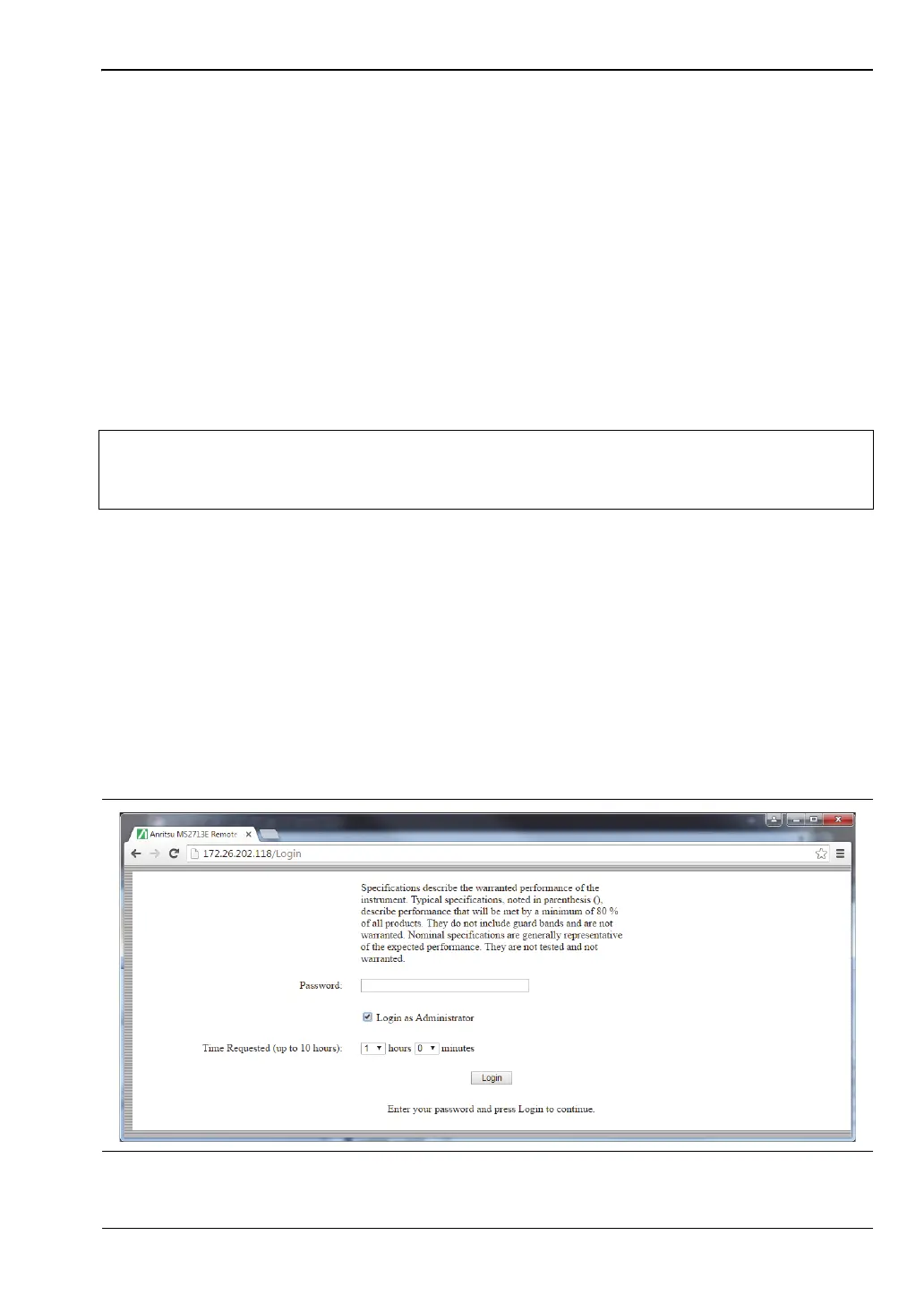
The factory default is to show the banner. Note that this device option only affects the Login
page. Figure 9-10 illustrates the Login page with no banner.
Note
Some operating systems, such as iOS, do not support a user-accessible file
system. Consequently, the download function is not possible if your control device
is an Apple iPhone, for example.
Figure 9-10. Login Page with Optional Text and No Banner













 To Next Page