9-3 Web Remote Control Interface Web Remote Control
9-8 PN: 10580-00251 Rev. T MS2712E/13E User Guide
File List
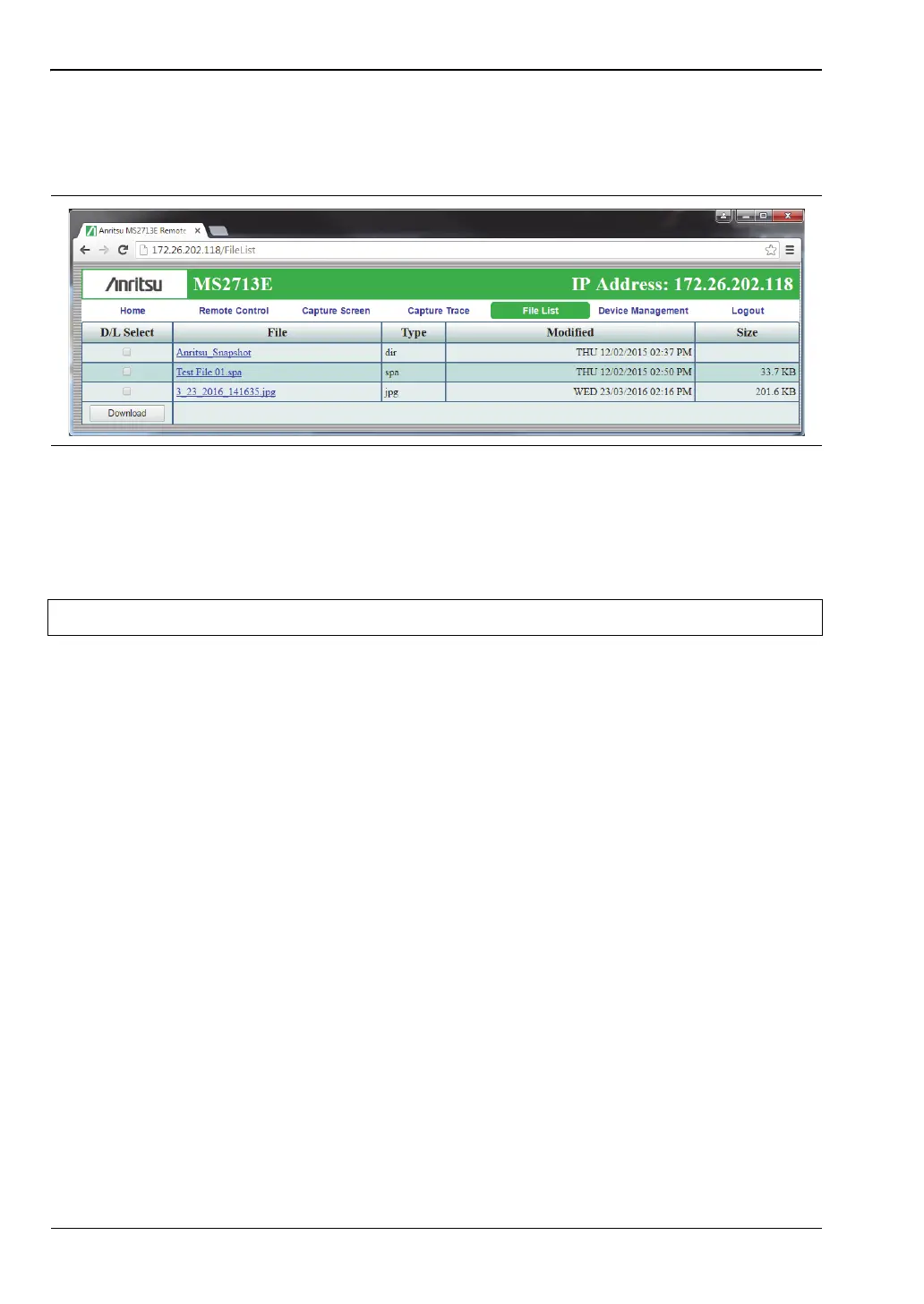
Displays the list of folders (type “dir”) and files contained in the instrument's internal
memory. See Figure 9-6. To view the contents of a folder, click on the folder name.
To download a file, click the file name. Alternatively, you can select the checkbox on the left of
the file name, then click Download. You may also select the checkboxes of multiple files and/or
folders and download them together, as a zipped folder. In this case, a pop-up dialog box
shows the estimated download time. Press OK to continue.
Depending on the browser and operating system, the download function may allow you to
open the file or save it, or both. In Google Chrome, for example, the downloaded file or files
are automatically saved to the designated folder on your computer, such as the Downloads
folder. In the banner at the bottom of the browser window, click a downloaded item to open it.
If the selected item is a single file, the file will open in the default application for the file type.
For example, a JPEG file will open in the computer's default image viewer, while a
measurement file will open in Master Software Tools (MST), provided the application is
installed.
Device Management (not as Administrator)
Click the Device Management tab on the menu bar to set or clear the instrument password, to
assign a device name to the instrument, or to change the session time. See Figure 9-7.
If you logged in as Administrator, the Device Management page has additional sections for
viewing the remote access log and for setting device options. Refer to “Device Management
(Administrator)” on page 9-10.
Password
If no password is set, which is the factory default, remote access to the instrument is
unrestricted and any user who knows the instrument IP address can connect to it, provided
the device isn’t currently reserved by another client. When a password is set, it is required
upon login. To clear the current password, click the Reset button. This password is different
from the administrator password described under “Device Management (Administrator)”.
Figure 9-6. File List Page
Note Some operating systems, like iOS, do not support file downloads.













 To Next Page