Web Remote Control 9-3 Web Remote Control Interface
MS2712E/13E User Guide PN: 10580-00251 Rev. T 9-3
9-3 Web Remote Control Interface
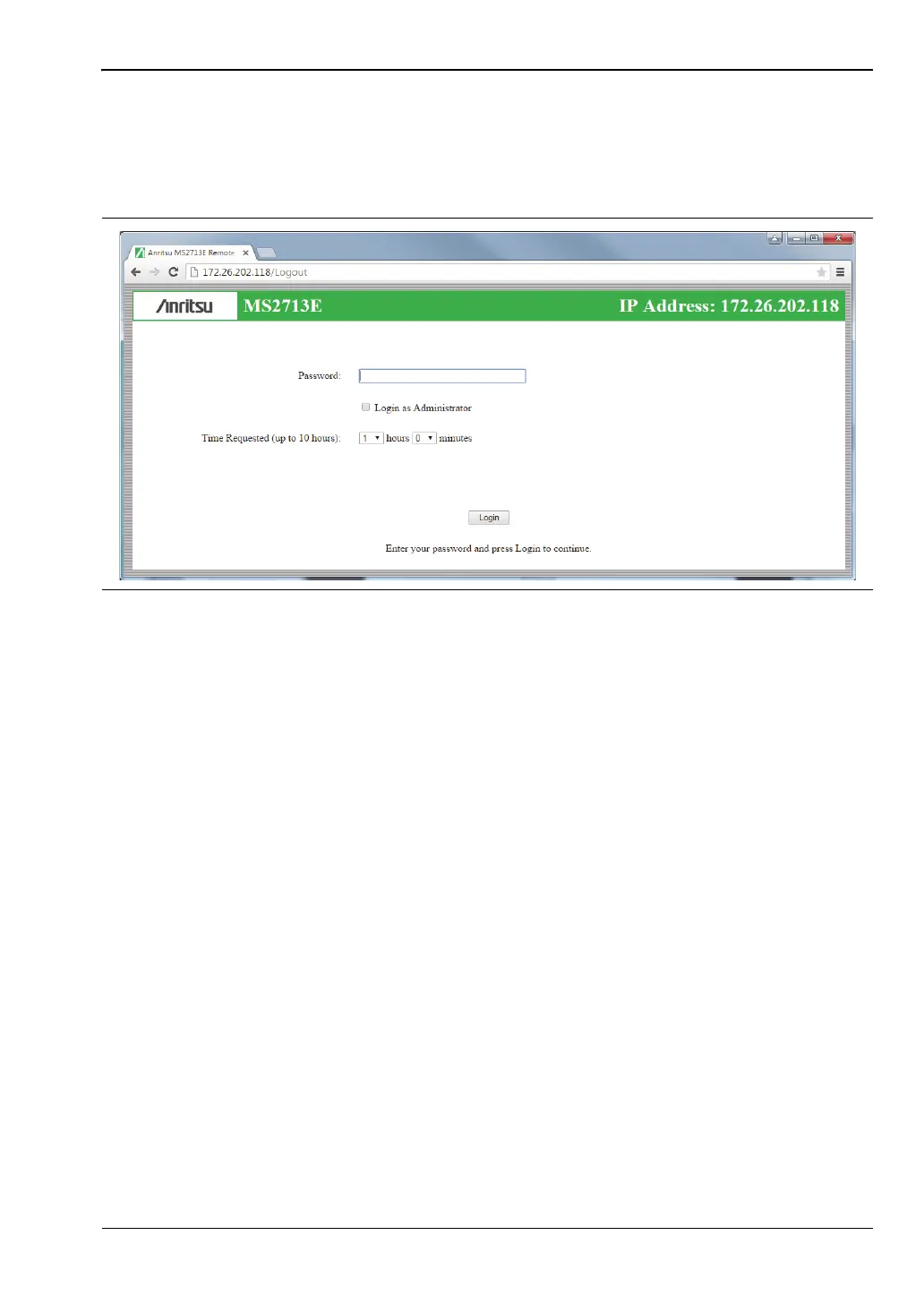
The Web Remote Control Login page opens following browser connection to the instrument.
See Figure 9-1. The page may show or hide certain elements depending on device
management options set by the Administrator, as described in “Device Options” on page 9-11.
User Login
To start a remote session with a test instrument:
1. Enter the instrument IP address in the Google Chrome address bar. The instrument
must be connected via Ethernet as described in “Setup” on page 9-1.
2. Use the pull-down menus on the Login page to set the time, in hours and minutes,
before the remote session times out. The default session time is 1 hour, with a 10-hour
maximum.
Only one user at a time can connect to the instrument. To avoid locking out other users
unnecessarily, do not reserve a longer session than you need.
3. To enable functions available only to the network administrator, select the Login as
Administrator checkbox.
4. Enter the instrument password, then click Login.
The default administrator password is “Admin” with a capital A. The default password
for other users is None; that is, leave the field blank.
If another user already has control of the instrument when you try to log in, a message will
display indicating the instrument is currently reserved by another client, whose IP address is
listed with the time remaining in their session.
Following login, the Web Remote Control Home page is displayed.
Figure 9-1. Login Page













 To Next Page