1
2
3
4
XD-502 Digital Console
Apex Instruments, Inc.
35
3.6.13 Storage screen overview
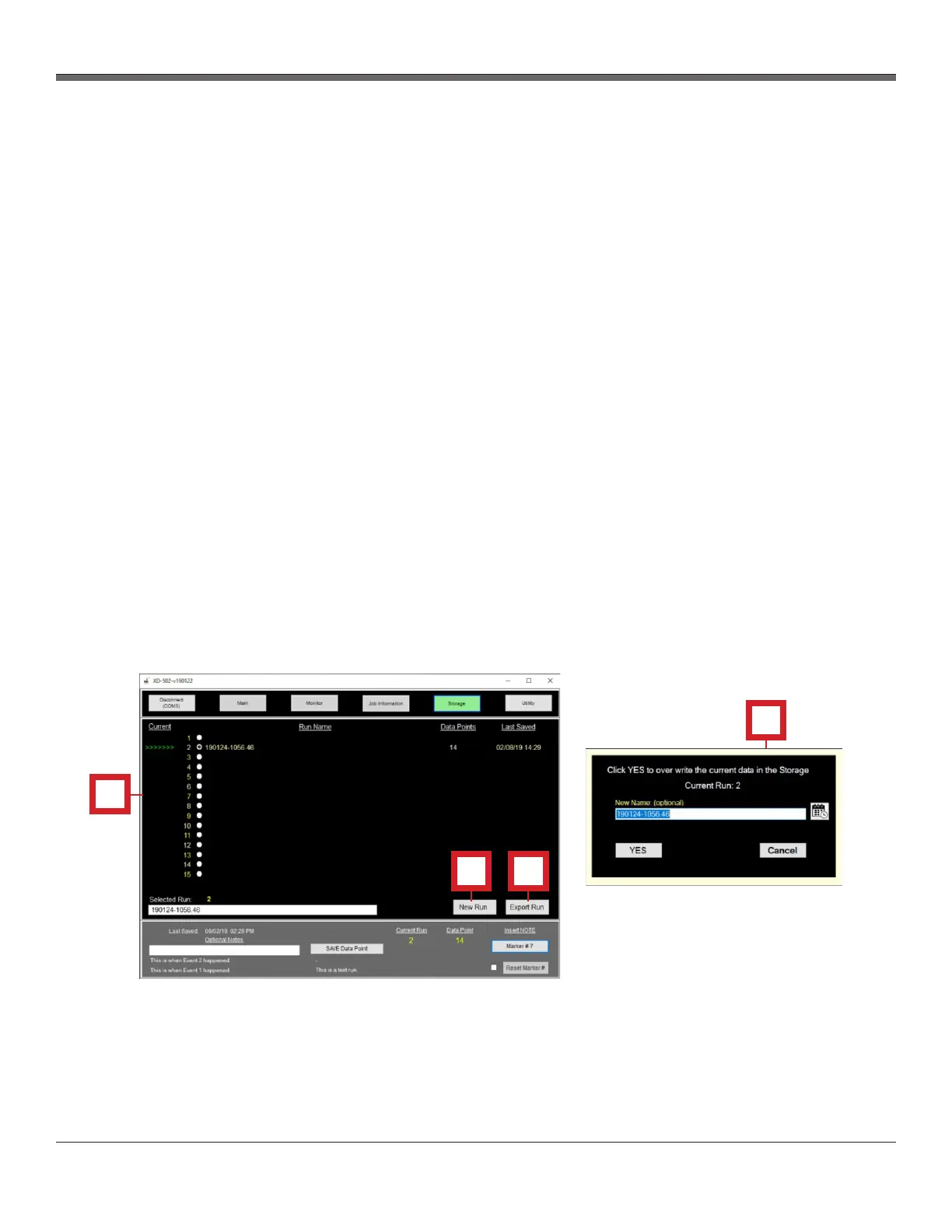
Fig. 18 Storage Screen Overview
The Storage screen displays a list of runs, and their associated data, as well as buttons to export run
data.
1. Run Name list
- The green arrows indicate which run is currently being used (a different run may be highlighted
for exporting)
- List of all current run names in the list
- The amount of data points in each run is displayed
- The date and time of the last data point save for the run
2. Start a New Run button
- When clicked, a small window will appear allowing the user to start a new run (open a new,
dedicated storage group). The user will be alerted if that storage group already contains a run.
If this is the case, the user can export, cancel or simply overwrite the previous run. The user
can also specify a name for the run at this point or simply refer to the default of the current time
and date stamp.
3. New Name text box
- The user can optionally input a name here before clicking the YES button to create a new
storage group where data will be contained for a new run
- The default run name is a date/time stamp
4. Export Run button
- When clicked, this button allows the user to export all of the data contained in a selected
storage group (run) and save it locally on their PC as a .CSV file (comma separated values)
that can be viewed in Excel or compatible spreadsheet program


 To Next Page