A R R I S
Getting Battery Ethernet
Safety Started Installation Installation Configuration Usage Troubleshooting Glossary
Using the Reset Button
Use the Reset button, on the back of the Telephony Gateway, to reset the
modem and perform initialization as if you power cycled the unit. You may need
to reset the Telephony Gateway if you are having problems connecting to the
Internet. Using this button will be rare.
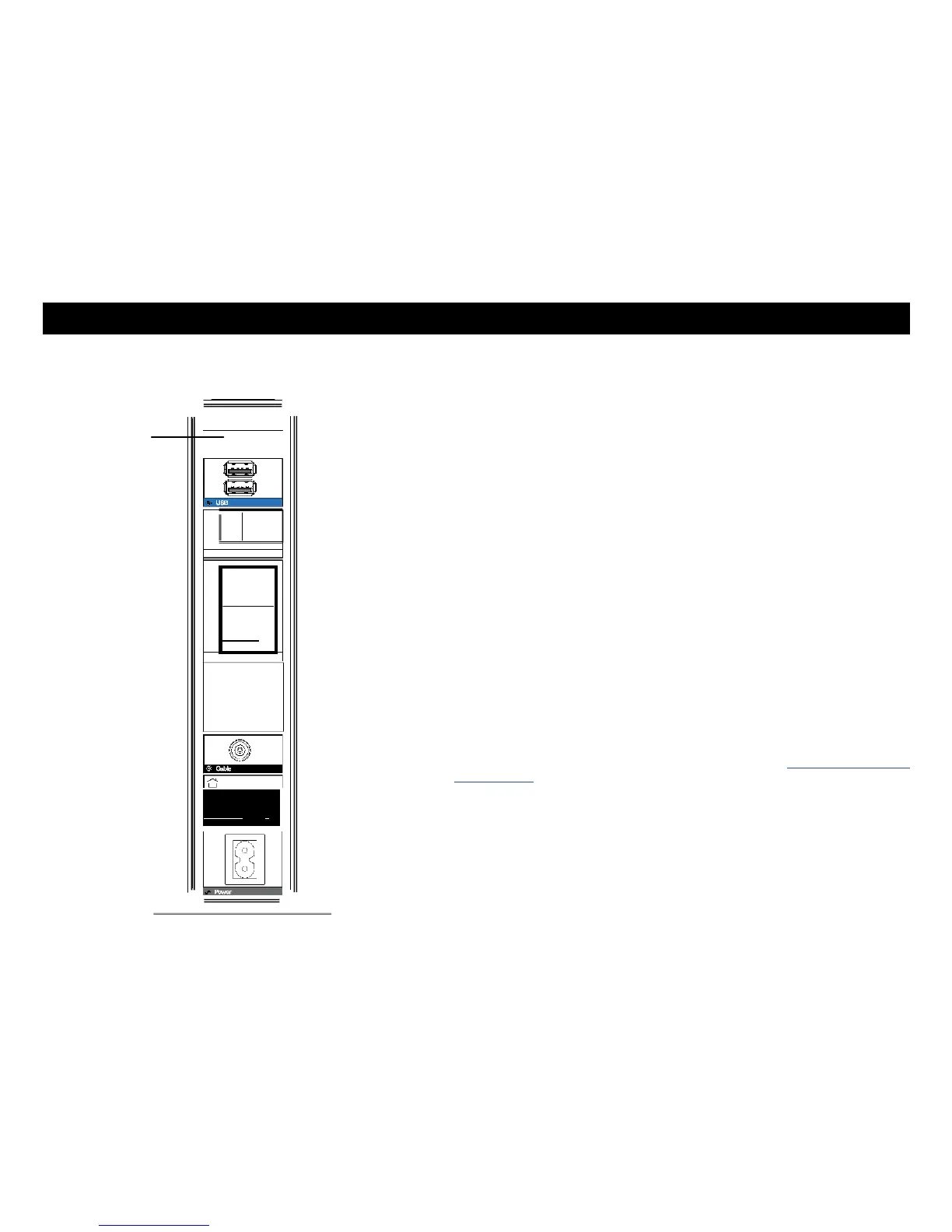
Use a pointed non-metallic object to press this button. The photo to the left
shows the location of the Reset button. The Reset button is recessed to prevent
accidental resets.
The diagram on the left shows the location of the reset button.
Resetting the Router to Factory Defaults
To reset the router to factory defaults, press and hold the Reset button on the
back of the Telephony Gateway for more than fifteen seconds. This restores the
wireless setup configuration and router configuration parameters to the factory
defaults. You may need to do this if a misconfiguration has locked out all access.
Booting from Battery
The TG1682 supports a "Boot from Battery" feature that allows the Telephony
Gateway to begin service without AC power.
To start the TG1682 from its battery, follow these steps:
1 If a battery is already installed in the Telephony Gateway, remove it.
2 Re-insert the battery into the Telephony Gateway (see Battery Installation
and Removal for details).
3 Press the Reset button; the Power light should turn on immediately.



 To Next Page