5.3.1.2. Load a File from Disk
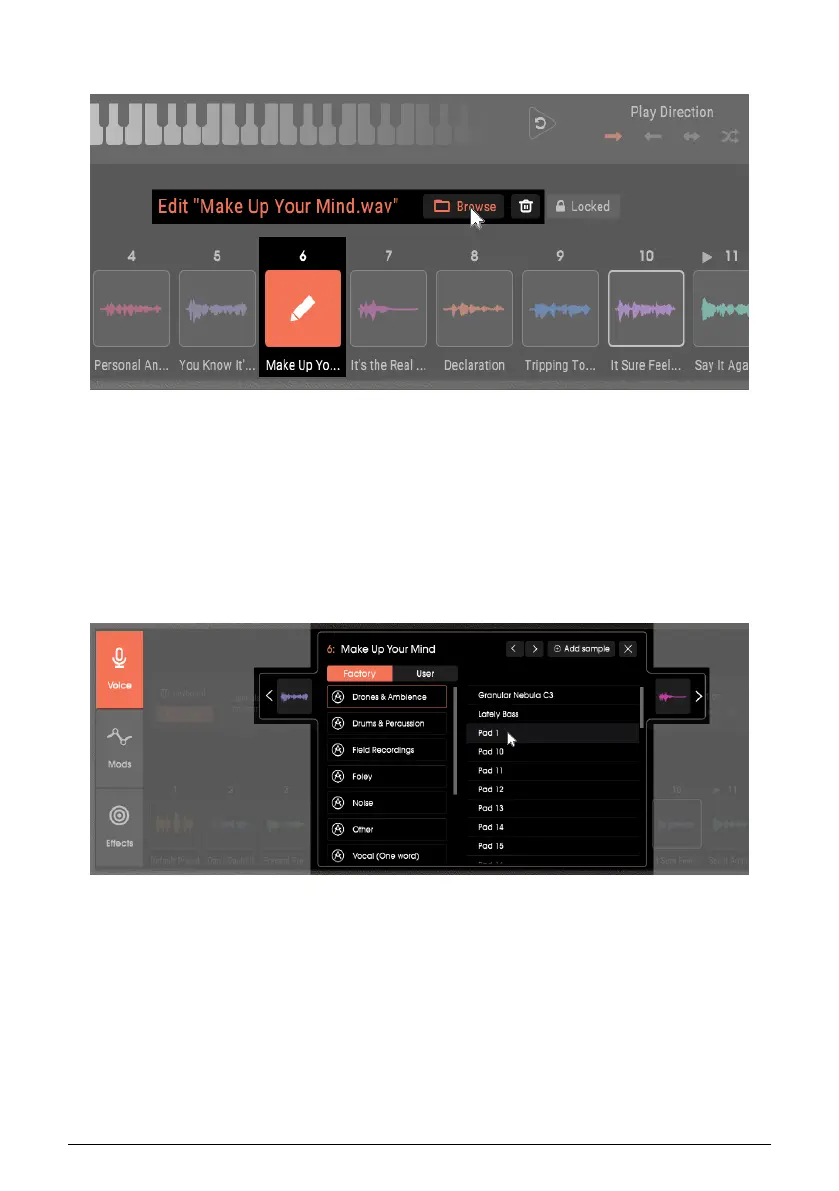
Hover over a cell, and you’ll see the cell graphic change to a Pencil. The means you can edit
the cell in various ways.
To delete the cell’s sample, move the cursor above the cell, then move sideways to click on
the trash can.
To load a new sample, click on Browse. This opens the sample library, as described next.
Load a Sample from the Factory Library
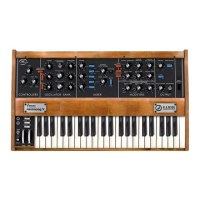
Click on the Factory tab, as shown above, to show the samples that ship with Vocoder V.
Clicking on a folder (in this case, Drones & Ambiences) shows the available samples in that
folder. The cursor is about to click on Pad 1 to load that sample into cell 6, which currently
has the sample Make Up Your Mind. If the cell had been empty, it would have said Empty
instead.
The left and right arrows navigate to the previous or next cell, respectively. This makes it
easy to load samples into different cells without having to leave the sample library. Note:
navigation wraps around, in other words, the next cell after 12 is 1, and the previous cell
before 1 is 12.
Load a Sample from the User Library
30 Arturia - User Manual Vocoder V - Voice page




 To Next Page