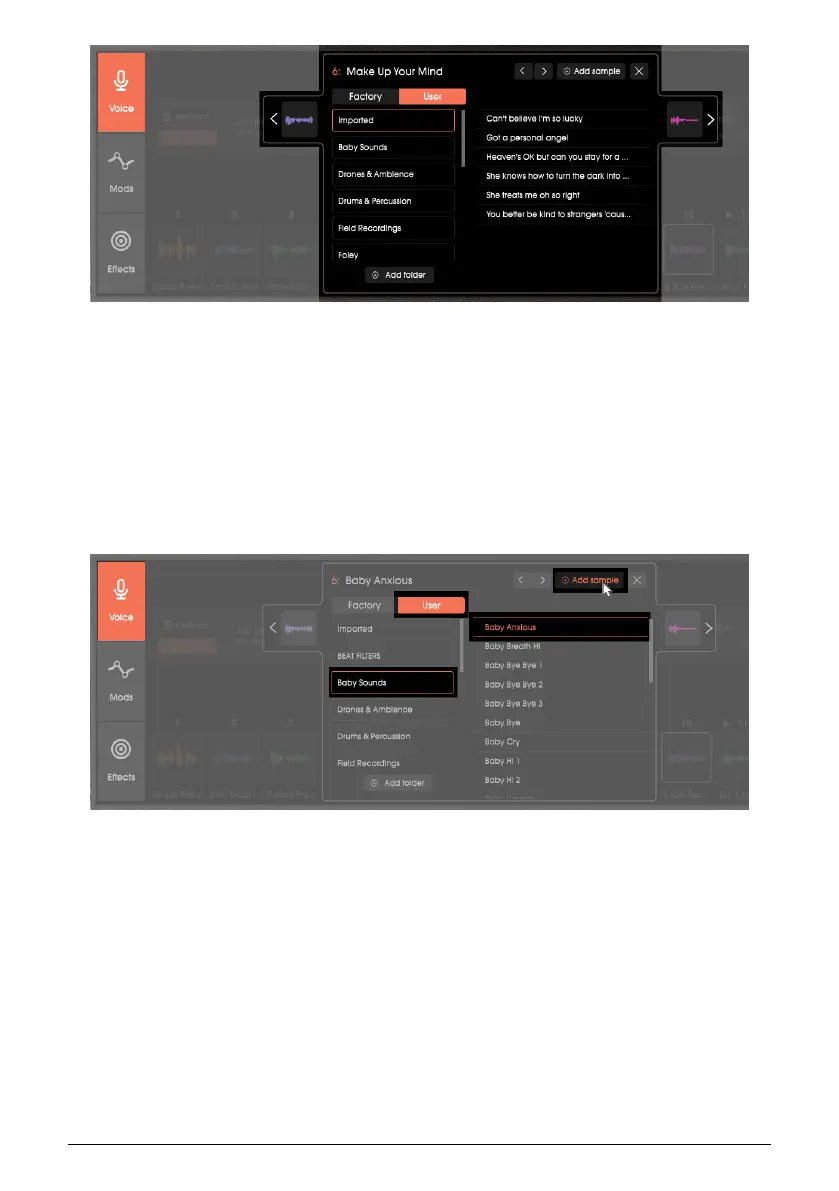
The procedure is the same as loading from the Factory library, except that you click on User
instead.
Load a Sample from Anywhere
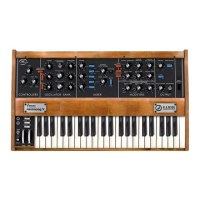
You can import a sample from any source, not just existing folders. First, select the User
folder where you want to import the samples. There’s already an Imported folder as well as
some other categories, but you can add a new folder (see the next section) and select that
instead. Then, click on +Add Sample. Navigate to the sample and click on Open. The sample
will now appear in the folder you selected.
In the image above, clicking on Add Sample while in the User library, and navigating to the
Baby Anxious file, added it to the selected file (Baby Sounds).
You cannot add a sample to the Factory library. If you try to do so, the User library will be
selected automatically, and the sample will be placed in the first User library folder.
Add a New Folder for User Library Samples
To create a new folder category in the User library, click on + Add Folder. This opens your
operating system’s standard file browser. Navigate to the desired folder, select it, and click
on OK. Note that only samples within that folder will be recognized. Vocoder V ignores
nested folders (folders within folders).
Delete Library Samples
Arturia - User Manual Vocoder V - Voice page 31




 To Next Page