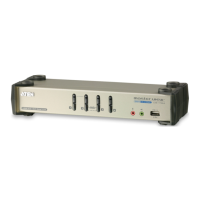
CS1732B / CS1734B User Manual
30
F1: KVM
To view the screen of the KVM focus port, press [F1] or move the cursor to
F1:KVM and click. Follow the steps listed under OSD Navigation, page 28).
F2: USB
To view the screen of the USB focus port, press [F2] or move the cursor to
F2:USB and click. Follow the steps listed under OSD Navigation, page 28).
F3: AUDIO
To view the screen of the Audio focus port, press [F3] or move the cursor to
F3:Audio and click. Follow the steps listed under OSD Navigation, page 28).
F4: SCAN
Clicking the F4 field or pressing [F4] invokes AUTO SCAN Mode. This
function allows you to automatically switch among the available computers at
regular intervals so that you can monitor their activity without having to take
the trouble of switching yourself.
The amount of time that each Port displays for is set with the Scan
Duration setting under the F6 SET function (see F6: SET, page 31).
If the scanning stops on an empty port, or one where the computer is
attached but is powered Off, the monitor screen will be blank, and the
mouse and keyboard will have no effect. After the Scan Duration time is
up, the Scan function will move on to the next port.
While Auto Scan Mode is in effect, the console will not function normally.
You must exit Auto Scan Mode in order to regain control of the console.
To exit Auto Scan Mode, press the [Spacebar] or [Esc].


 To Next Page
 Loading...