40
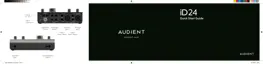
On macOS:
Open Finder and navigate to Applications
> Utilities > Audio MIDI Setup. In the Audio
MIDI Setup Utility, select the iD24 from the list
of devices. Select the ‘Output Tab’ and click
‘Configure Speakers’. You can then select
which channels on the iD24 you would like
to be your left and right outputs. Channels
3+4 will relate to DAW 3+4, Channels 5+6 will
relate to DAW 5+6...etc
On Windows:
Open the ‘Start’ menu and select ‘Settings’.
In Settings, navigate to ‘System > Sound’.
Using the ‘Output Device’ drop-down menu,
you can select the channels you wish to use
for your output. Again, channels 3+4 will
relate to DAW 3+4, Channels 5+6 will relate to
DAW 5+6...etc
Otherwise, if you only wish to send audio from
the computer without any microphone signal,
you can just use one of the DAW Channels.
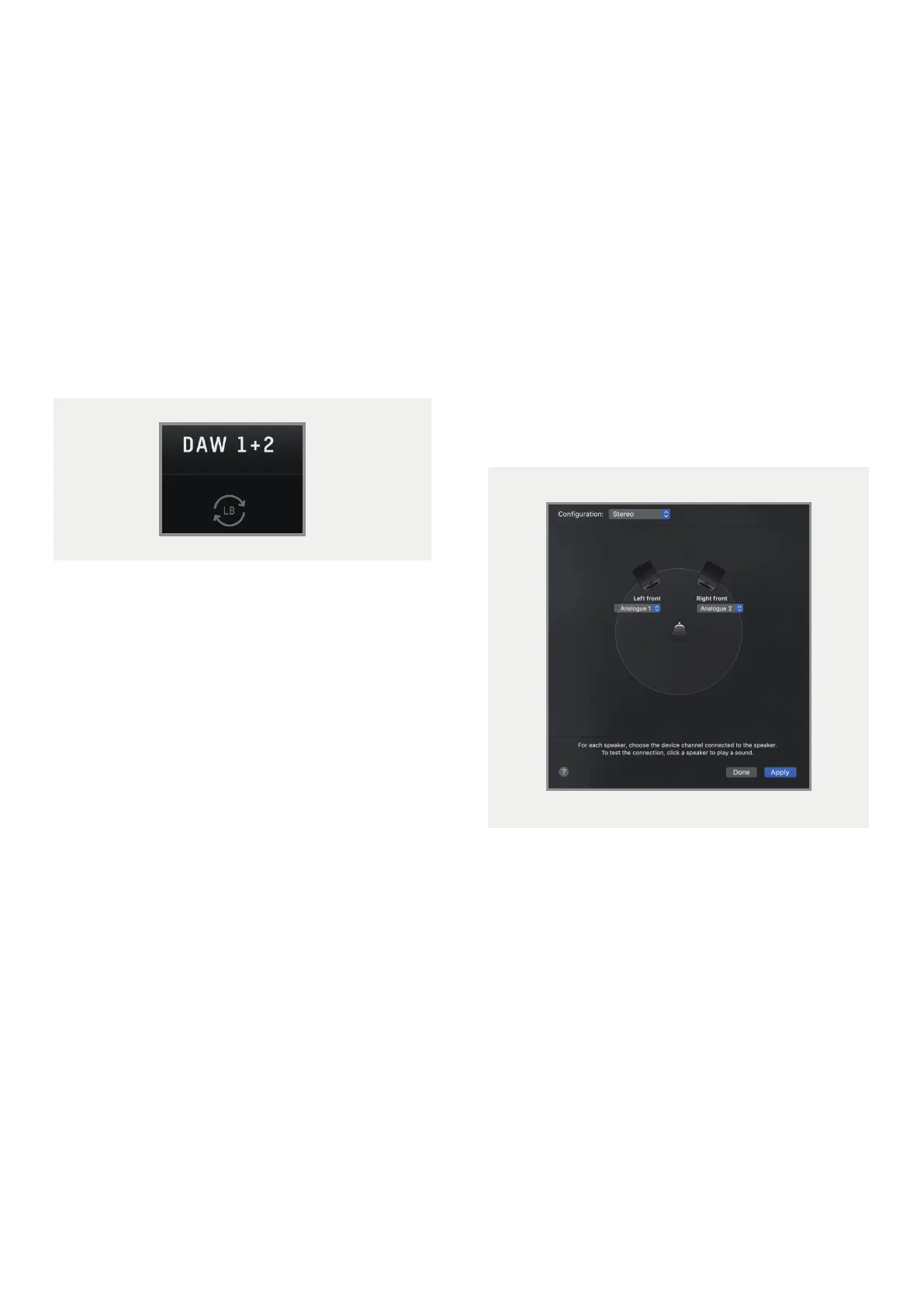
When selecting a channel or mix as the
loopback source, a small loopback icon will
appear on that channel/mix so you can check
which source the loopback feature is being fed
from with just a quick glance.
Adjusting your Output Channels
When setting up your loopback mix, you may
wish to set up your computer audio so it is
sent to DAW 3+4 or DAW 5+6 in order to keep
it separate from your Main Monitor Mix which
typically will be sent to DAW 1+2.
In most DAW software, you should be able to
create a new output send or adjust the output
channel. The process to do this will vary so
we recommend that you reference the user
manual for your chosen software on how to
adjust the output channel.
On Applications that don’t give the option to
adjust the output channels (Media Players,
Video calls…etc) then you may need to adjust
this in the System Settings.



 To Next Page