42
Windows
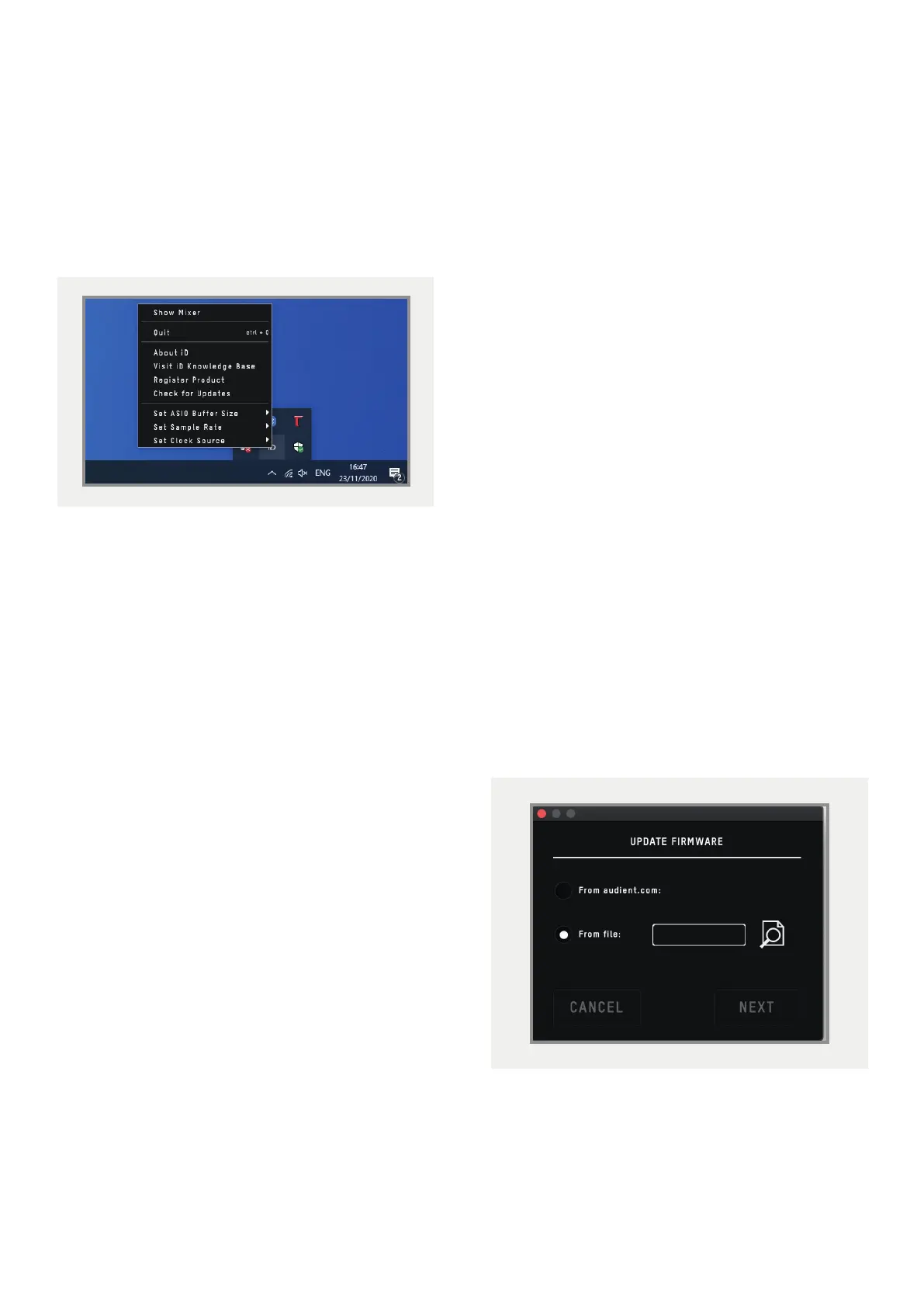
The Windows taskbar icon has all the same
options of the MacOS menu bar icon but
also includes some Windows specific options.
Set Sample Rate
Sets the operating sample rate of iD24. 44.1,
48, 88.2 and 96kHz are the four options
available.
Set ASIO Buer Size
Sets the buer size of the iD24 between 16
and 4096 samples. Higher sizes will take
processing load o your computer but will
cause increased latency.
Firmware Update
Occasionally Audient will release a firmware
update for iD24 in order to address
bugs, improve compatibility and add new
features. Therefore, you may wish to check
periodically for any updates.
This can be done by navigating to the Window
menu and selecting ‘Check for Updates’.
The iD Application will then check with our
update server if any updates for iD24 are
available. If there is an update available
then you will be prompted to install the latest
version.
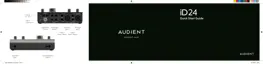
Now click ‘Next’ and you’ll be prompted to
stop any playback through iD24. Click
‘Update’ and the update will begin. iD24 may
turn o and on a number of times.



 To Next Page