51
Troubleshooting
“The unit will not power on”
Double check that the USB cable is plugged
in. If it still won’t power on, try using a dierent
USB port on the computer and possibly even
a dierent USB cable. If you are using a USB
hub, please try plugging iD24 directly into the
computer.
“I get clicks and pops on DAW
playback”
This is most likely to do with setting the
buer size too low for your computer. This
can be caused by running very large projects
with a lot of plugins and virtual instruments.
Experiment with higher buer sizes. Typically
you want small buer sizes for tracking or
recording software synths to keep the latency
low. However when mixing it is fine to set a
slightly higher buer size as latency is not so
much of a problem.
“When I connect to my computer,
I cannot play any audio out from iD24”
Firstly double check that the USB cable
connecting iD24 to your computer is
functional and attached at both ends.
Troubleshooting & FAQ.
Troubleshooting & FAQ
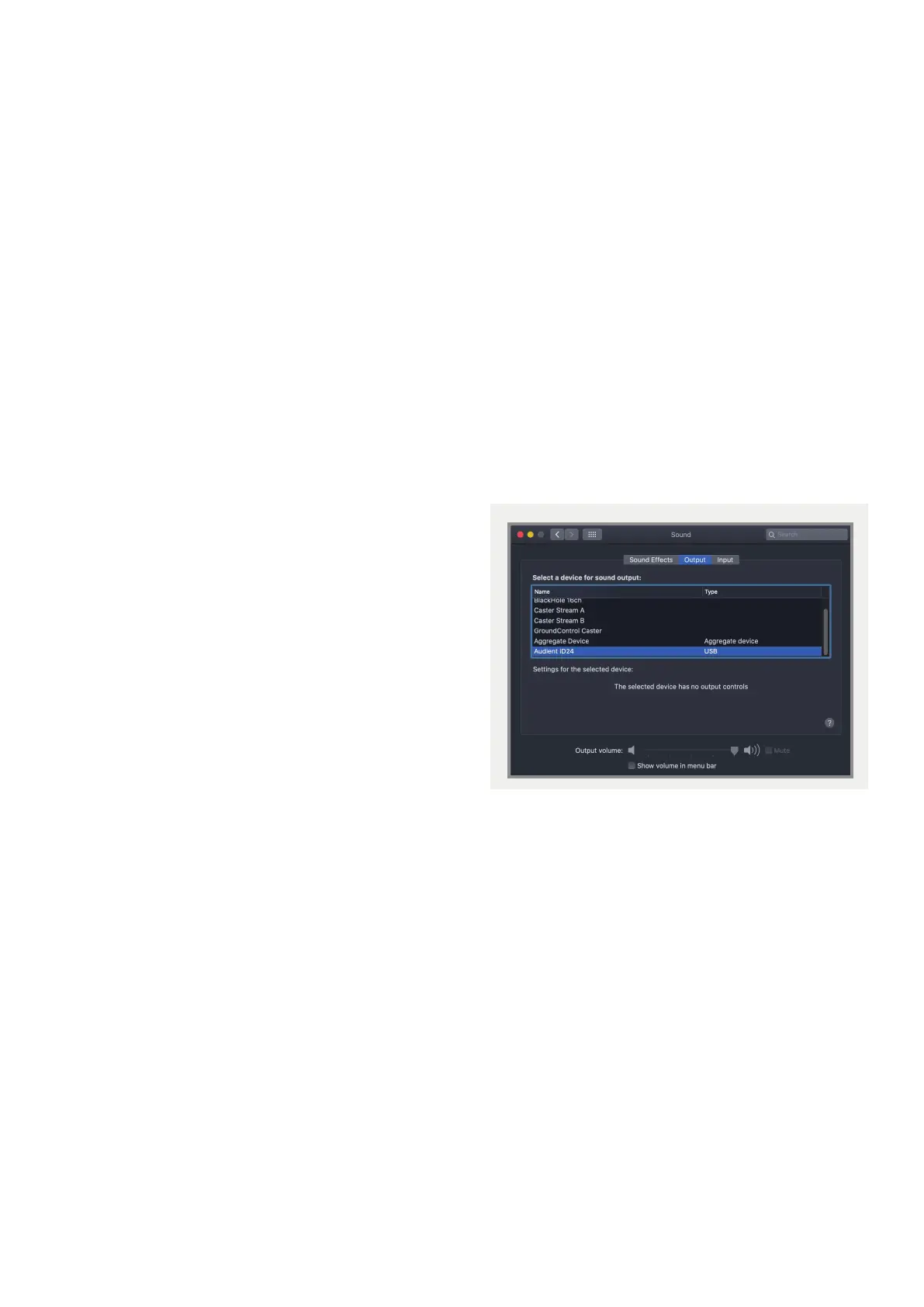
Double check that iD24 is set as the active
playback device in your DAW and computer:
System Preferences > Sound > Output Tab
> Audient iD24 (macOS)
Control Panel > Hardware and Sound >
Sound > Manage Audio Devices > Audient
iD24 (Windows)
Launch the iD mixer application to activate
communication between your computer
and iD24. This only needs to be done once
straight after power up. Once iD24 is set to the
operational state you desire, you can quit the
iD application and it will continue to function
as intended.
In the software mixer, locate the DAW
channels by pressing the DAW view button
and increase the level of DAW 1+2 fader.



 To Next Page