19
3. Main Section
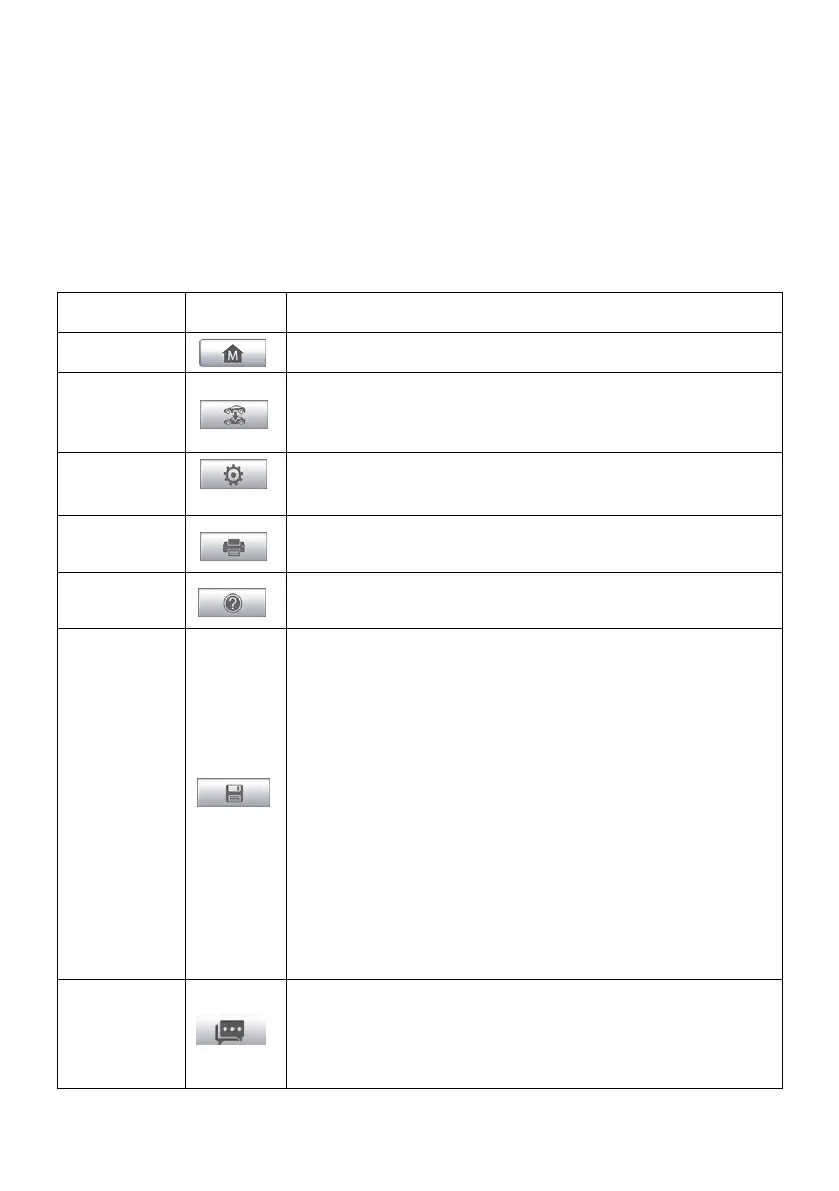
4. Functional Buttons
Diagnostics Toolbar
The Diagnostics Toolbar contains a number of buttons that allow you to print
or save the displayed data and make other controls. The table below provides
a brief description for the operations of the Diagnostics toolbar buttons:
Table 4-1 Diagnostics Toolbar Buttons
Returns to the MaxiSys Job Menu.
Exits the diagnostic session and returns to the
vehicle menu screen to select another vehicle for
testing.
Opens the setting screen. See Settings on page
73.
Saves and prints a copy of the displayed data. See
Print on page 74.
Provides instructions or tips for operations of
various diagnostic functions.
Taps it to open a submenu, on which there are 3
options available to save the displayed data.
Tap Save This Page to take a screenshot
image
Tap Save All Data to save a PDF file (mostly
used to save data that cover more than 1
page)
Tap Start Saving to record a video clip (only
available for recording Live Data or special
graph data)
All saved data are stored in the Data Manager
application for later reviews. See Data Manager on
page 69.
Records the communication data and ECU
information of the test vehicle. The saved data can
be reported and sent to the technical center via the
internet.







 To Next Page