32
Flag – this button displays when the Record function is applied. Tapping
this button sets flags for the recorded data at points wherever you choose,
when playing back the recorded video clip later in Data Manager, the
preset flag will enable a popup to allow input of text to take notes.
Clear Data – tap button to clear all previously retrieved parameter values
at a cutting point whenever you choose.
To Top – moves a selected data item to the top of the list.
Graph Merge – tap button to merge selected data graphs (for Waveform
Graph Mode only). This function is very useful when making comparison
for different parameters.
NOTE
This mode supports Graph Merge for 2 to 3 parameter items only, select no
less than 2 or more than 3 items each time when making graph merge.
To cancel Graph Merge mode, tap the drop-down button on the right side
of the parameter name, and select a data display mode.
Show Selected/Show All – tap button to exchange between the two
options; one displays the selected parameter items, the other displays all
the available items.
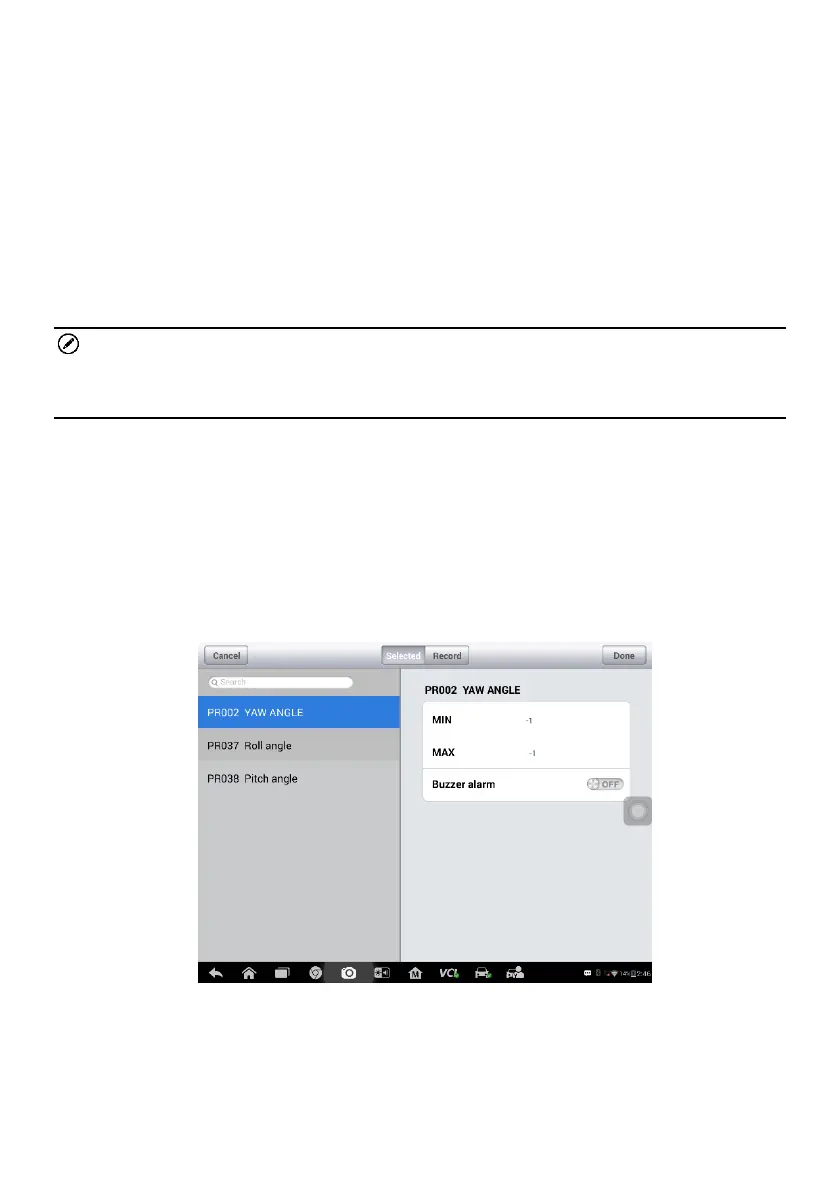
Setting – tap button to open a setting screen, which allows you to set the
trigger mode, recording duration, and various threshold values for data
recording, and make other controls.
Figure 4-7 Sample Setting Mode in Live Data
There are four navigation buttons on top of the Setting mode screen.
Range – displays the configuration screen on which you can set the







 To Next Page